 Busirank Team
Introduction
You’ve optimized your Google Business Profile. You’re posting regularly, collecting reviews, and appearing in local search results. Your insights dashboard shows a healthy number of profile views. But here’s the question that keeps business owners up at night: are those views actually turning into customers?
Profile views are nice. But calls and website clicks are what pay the bills. A customer who taps “Call” is ready to talk. A customer who clicks through to your website is looking for more information before booking or buying. These are the actions that drive revenue—and if you’re not tracking them properly, you’re flying blind.
Here’s the challenge: tracking calls and website clicks from Google Business Profile isn’t as straightforward as it sounds. Google gives you basic numbers in your insights dashboard, but those numbers don’t tell you everything. Which calls came from Google Maps? Which website clicks turned into leads? Which specific actions led to sales? To answer those questions, you need a more sophisticated tracking setup.
The good news is that it’s entirely doable—even for small businesses without a dedicated marketing team. With the right tools and a clear process, you can track calls and clicks accurately, attribute them to your Google Business Profile, and use that data to make smarter decisions about where to invest your time and money.
In this comprehensive guide, we’ll walk you through exactly how to track calls and website clicks from your Google Business Profile. We’ll cover the built-in insights dashboard, UTM tagging, call tracking numbers, Google Analytics integration, and best practices for measuring real ROI. By the end, you’ll have a complete tracking system that shows you what’s actually working.
Why Tracking Calls and Website Clicks Matters
Before we get into the how, let’s talk about why this matters so much.
You Can’t Improve What You Don’t Measure
If you don’t know how many calls and clicks your profile generates, you can’t tell whether your optimization efforts are working. You might be posting weekly, adding photos, and collecting reviews—but if none of it drives action, you’re wasting time.
It Proves ROI
Your Google Business Profile isn’t free in terms of time and effort. Tracking calls and clicks lets you calculate the return on your investment. If 50 calls per month lead to 10 new customers worth $500 each, that’s $5,000 in revenue from a free tool. That’s a compelling number.
It Reveals What’s Working
Different posts, photos, and profile elements drive different levels of engagement. Tracking calls and clicks helps you identify which content performs best so you can double down on it.
It Helps You Compete
If you know your profile generates 30 calls per month and your competitor’s profile seems more active, you have a benchmark to work toward. Tracking gives you targets.
It Informs Broader Strategy
Calls and clicks data feeds into your overall marketing strategy. If Google is your top source of leads, invest more there. If it’s underperforming, adjust.
For more on why these metrics matter, see our guide on Google Business Profile insights.
What Google Business Profile Insights Already Tracks
Before you build a more sophisticated tracking system, understand what Google already provides for free.
Built-In Metrics
Your Google Business Profile insights dashboard shows:
- Calls: The number of times customers tapped the “Call” button on your profile
- Website clicks: The number of times customers clicked through to your website
- Direction requests: The number of times customers requested directions
- Messages: The number of conversations started through messaging
- Bookings: The number of bookings made through integrated booking tools You can access these metrics by signing in to your profile and selecting “Performance” from the menu.
What Google’s Numbers Don’t Tell You
While these metrics are useful, they have limitations:
- No call recordings or durations: You can’t see how long calls lasted or whether they converted.
- No source attribution: You know a call came from your profile, but not which specific post or photo drove it.
- No conversion tracking: Google counts calls and clicks, but doesn’t tell you which ones became customers.
- Limited website behavior: Google tracks clicks to your site, but not what visitors did once they arrived. To fill these gaps, you need additional tracking tools.
For more on interpreting these metrics, see our guide on Google Business Profile insights.
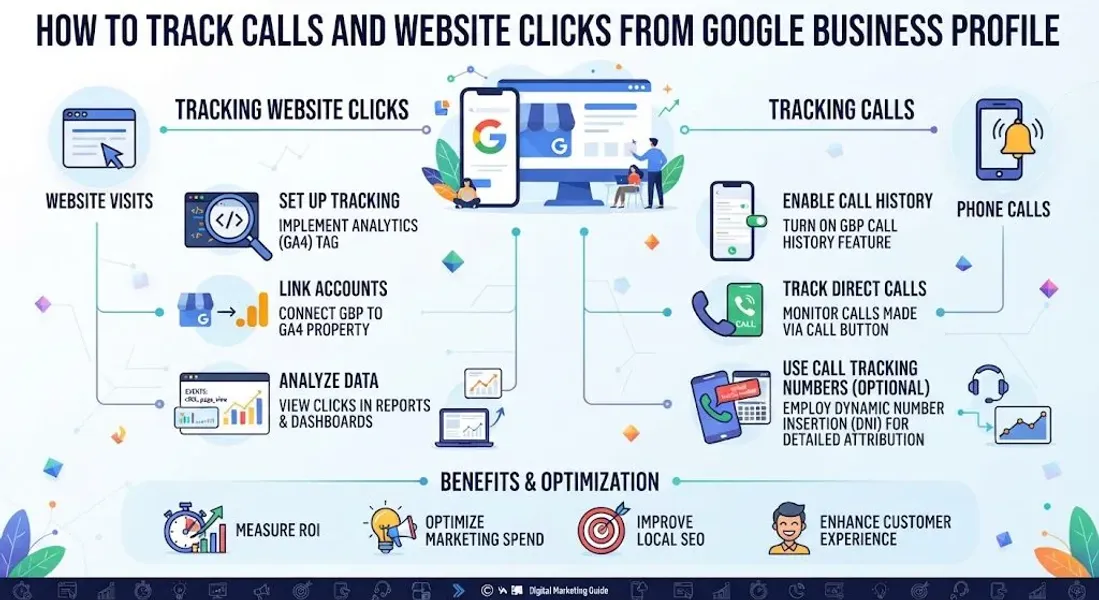
How to Track Website Clicks From Google Business Profile
Let’s start with website clicks, since they’re easier to track with standard tools.
Step 1: Add UTM Parameters to Your Website Link
UTM parameters are tags you add to your URL that tell analytics platforms where the traffic came from. When someone clicks your website link from Google Business Profile, the UTM parameters identify that traffic source.
A standard UTM-tagged URL looks like this:
text
https://yourwebsite.com/?utm_source=google&utm_medium=organic&utm_campaign=gbp
Breakdown of parameters:
-
utm_source: Where the traffic came from (google)
-
utm_medium: The type of traffic (organic, cpc, referral)
-
utm_campaign: The specific campaign or source (gbp for Google Business Profile) Best practices for UTM tagging:
-
Use consistent naming conventions
-
Keep parameters lowercase
-
Use specific campaign names (e.g., “gbp_homepage” vs. “gbp_contact”)
-
Document your naming system so you can track it over time
Step 2: Set Up Google Analytics
If you don’t have Google Analytics installed on your website, set it up. Google Analytics 4 (GA4) is the current standard.
Why it matters: GA4 lets you see how many visitors came from your Google Business Profile, what pages they visited, how long they stayed, and whether they converted.
Step 3: Create a Custom Segment or Report
Once UTM-tagged traffic starts flowing, create a custom segment in GA4 for Google Business Profile traffic.
How to do it:
- Go to Reports > Acquisition > Traffic Acquisition
- Filter by session source/medium = google / organic
- Add a secondary dimension for campaign
- Filter by campaign = gbp (or whatever you named it) This shows you exactly how much traffic came from your profile and what those visitors did.
Step 4: Track Conversions
Set up conversion events in GA4 for the actions that matter to your business:
- Form submissions
- Phone calls (via click-to-call links)
- Appointment bookings
- Purchases
- Chat initiations Then, check how many of these conversions came from Google Business Profile traffic.
Step 5: Review Monthly
Set a recurring reminder to review your GBP traffic and conversions monthly. Look for trends: is traffic growing? Are conversions improving? Which pages perform best?
Alternative: Use a Link Shortener With Tracking
If you’d rather not add long UTM URLs to your profile, use a branded link shortener like Bitly or Rebrandly. These tools track clicks and can redirect to your UTM-tagged URL.
Caution: Make sure your shortener supports UTM forwarding and doesn’t break the parameters.
For more on tracking calls and clicks, see our guide on Google Business Profile calls.
How to Track Calls From Google Business Profile
Tracking calls is trickier than tracking clicks. Here’s how to do it properly.
Method 1: Google’s Built-In Call Tracking
Google’s insights dashboard shows how many times customers tapped the “Call” button on your profile. This is the simplest form of call tracking.
Pros:
-
Free
-
Built into your profile
-
No setup required Cons:
-
Only counts calls made through the “Call” button
-
Doesn’t show call duration, recording, or outcome
-
Doesn’t distinguish between leads and spam
Method 2: Call Tracking Numbers
Call tracking numbers are dedicated phone numbers that forward to your main business line. When someone calls the tracking number, the call is logged and attributed to the source (in this case, your Google Business Profile).
How it works:
- Sign up for a call tracking service (CallRail, CallTrackingMetrics, WhatConverts, etc.)
- Get a dedicated tracking number
- Use that number on your Google Business Profile
- When customers call, the service logs the call and forwards it to your main line
- You see call recordings, durations, and source attribution in your dashboard Pros:
-
Full call attribution
-
Call recordings and transcripts
-
Can identify which marketing channel drove each call
-
Can track conversions (e.g., calls lasting over 2 minutes) Cons:
-
Costs money (typically 60 per month per number)
-
Requires using a different number on your profile than your main line
-
Can create NAP consistency issues if not managed carefully
Method 3: Dynamic Number Insertion (DNI)
Dynamic Number Insertion (DNI) is a more sophisticated version of call tracking. It swaps the phone number on your website based on the visitor’s source. Calls from Google Business Profile traffic get a different tracking number than calls from other sources.
Pros:
-
Highly accurate attribution
-
Doesn’t require changing your main number Cons:
-
More complex to set up
-
Can confuse customers if not done carefully
-
Requires JavaScript on your website
Method 4: Ask Customers How They Found You
This isn’t a technology solution, but it’s still valuable. Train your team to ask every caller: “How did you hear about us?” Log the responses.
Pros:
-
Zero cost
-
Captures information technology sometimes misses
-
Builds rapport with customers Cons:
-
Relies on accurate customer recall
-
Requires consistent execution
-
Sample size may be small Best approach: Combine methods. Use Google’s built-in tracking for baseline data, add a call tracking number for attribution, and ask customers as a backup.
For more on NAP considerations with tracking numbers, see our guide on NAP consistency.
Setting Up Call Tracking Without Breaking NAP Consistency
Using a tracking number on your Google Business Profile can create a NAP consistency problem. Your main number is listed on your website, social media, and citations, but your profile shows a different number. Google may see this as inconsistent.
How to Handle It
Option 1: Use your main number on the profile, tracking number on the website
This is the safest approach for NAP consistency. Your Google Business Profile uses your real business number. Your website uses a tracking number for calls coming from Google ads and other sources.
Downside: You lose attribution for calls made directly from your profile.
Option 2: Use a tracking number on the profile but keep all other citations consistent
If you must use a tracking number on your profile, ensure your primary NAP everywhere else remains consistent. Note that this can confuse Google if the discrepancy is flagged.
Option 3: Use call tracking for a limited period
Run a call tracking test for 30-60 days to gather attribution data. Then switch back to your main number.
Option 4: Use Google’s built-in call tracking only
Stick with Google’s native call tracking. Accept the limitations in exchange for clean NAP consistency.
Best practice: For most small businesses, Option 1 or Option 4 works best. Reserve tracking numbers for larger businesses with dedicated marketing teams who can manage the complexity.
Tools for Tracking Calls and Clicks
Here are the best tools for tracking calls and clicks from your Google Business Profile.
Google Analytics 4
Free. Tracks website traffic and conversions. Essential for tracking clicks with UTM parameters.
Google Business Profile Insights
Free. Built-in tracking for calls, clicks, and direction requests. Your baseline data source.
CallRail
Popular call tracking platform. Offers call recording, attribution, and analytics. Starts around $45/month.
CallTrackingMetrics
Comprehensive call tracking with advanced features. Suitable for larger businesses.
WhatConverts
Combines call tracking with form and chat tracking. Good for businesses that want a unified view.
Invoca
Enterprise-level call tracking with AI-powered conversation analytics.
CallTrackingMetrics
Offers multi-channel attribution, call recording, and reporting.
Bitly / Rebrandly
Link shorteners that track clicks. Useful for tracking specific post performance.
Google Tag Manager
Free. Helps you deploy tracking tags without editing website code every time.
Hotjar / Microsoft Clarity
Free (Clarity) and paid (Hotjar). Track visitor behavior on your website, including clicks, scrolls, and heatmaps.
Birdeye / Podium / Reputation.com
Reputation platforms with built-in call tracking and analytics.
For more on insights tools, see our guide on Google Business Profile insights.
How to Attribute Calls and Clicks to Specific Content
One of the most valuable uses of tracking is understanding which content drives action. Here’s how to attribute calls and clicks to specific posts, photos, and profile elements.
Use Unique UTM Campaigns for Different Links
If you include different links in different posts, tag each with a unique campaign name.
Example:
- Post about a sale: utm_campaign=gbp_sale_post
- Post about a new service: utm_campaign=gbp_new_service
- Post with a general link: utm_campaign=gbp_general Compare click volumes across campaigns to see which posts drive traffic.
Use Tracking Numbers for Different Campaigns
If you use call tracking, you can assign different numbers to different campaigns or time periods. This tells you which posts drive calls.
Review Post Performance in Google Insights
Google’s insights show post-level performance, including views and clicks. Use this to correlate with your UTM data.
Track Direction Requests by Post
If a post includes a “Get directions” CTA, monitor direction requests during that post’s active period.
Correlate With Review Activity
If your review count grows after a specific campaign, that post may have driven satisfied customers to leave reviews.
Use a CRM
If you use a CRM, log the source of every lead. Over time, you’ll see which sources drive the most valuable customers.
For more on posts, see our guide on Google Business Profile post ideas.
How to Use Tracking Data to Improve Your Profile
Once you have data, use it. Here’s how.
Double Down on High-Performing Content
If certain types of posts generate more clicks or calls, create more of them. If product posts outperform event posts, prioritize product posts.
Fix Underperforming Elements
If a specific post gets views but no clicks, the call to action may be weak. If a photo gets few views, it may not be compelling.
Optimize Your Description
If your website clicks are low, your description may not be driving enough interest. Rewrite it to be more compelling.
Add Services and Products
If you’re appearing for queries you can’t serve, add relevant services or products to your profile. For more, see our guide on Google Business Profile services.
Improve Photo Quality
If photo views are high but engagement is low, upgrade your visuals. For more, see our guide on Google Business Profile photos.
Respond to Reviews Faster
If review responses correlate with increased calls, prioritize faster responses. For more, see our guide on how to respond to negative Google reviews.
Post More Frequently
If posting weekly correlates with higher clicks and calls, consider posting twice a week. For a schedule, see our guide on how often to update Google Business Profile.
Best Practices for Tracking Calls and Clicks
Follow these best practices to get accurate, actionable data.
Use Consistent UTM Naming
Define a naming convention and stick to it. Inconsistent naming makes analysis harder.
Set Up Conversion Tracking
Track what matters: form submissions, bookings, purchases. Not just clicks.
Combine Multiple Tracking Methods
Use Google’s built-in insights plus UTM tagging plus call tracking for the most complete picture.
Review Data Monthly
Set a recurring reminder. Look at trends, not just snapshots.
Segment by Device
Most local searches happen on mobile. Check whether calls and clicks are coming from mobile or desktop.
Segment by Location
If you have multiple locations, track performance separately. For more, see our guide on how to manage multiple Google Business Profiles.
Document Your Setup
Keep a record of your UTM parameters, tracking numbers, and analytics configurations. You’ll need it when onboarding new team members.
Respect Privacy
Ensure your tracking complies with privacy regulations (GDPR, CCPA, etc.). Disclose call recording where required.
Common Mistakes to Avoid
Avoid these mistakes when tracking calls and clicks.
Relying Only on Google’s Built-In Metrics
Google’s insights are a starting point, not the full picture. Combine with other tools.
Using Tracking Numbers Without Managing NAP
If you use a tracking number on your profile, you risk NAP inconsistency. Manage carefully. For more, see our guide on NAP consistency.
Not Tagging URLs
If you don’t add UTM parameters, you can’t attribute clicks to your profile. Always tag.
Ignoring Conversion Tracking
Clicks without conversions are meaningless. Track what happens after the click.
Forgetting Mobile
Most local searches happen on mobile. Ensure your tracking works on mobile devices.
Not Reviewing Data Regularly
Tracking without reviewing is wasted effort. Set a monthly reminder.
Overcomplicating the Setup
Start simple. Google’s built-in insights plus basic UTM tagging is enough for most small businesses.
Failing to Act on Data
Data is only useful if you use it. Make changes based on what you learn.
Conclusion
Tracking calls and website clicks from your Google Business Profile is the difference between guessing and knowing. It’s how you prove ROI, identify what’s working, and make smarter decisions about where to invest your time and money.
The process is straightforward: use Google’s built-in insights for baseline data, add UTM parameters to track website clicks, consider call tracking for deeper attribution, and review your data monthly. Combine multiple methods for the most complete picture. Then act on what you learn.
You don’t need an enterprise budget to do this well. Google’s free tools plus a modest investment in call tracking will give you everything you need. And the insight you gain—knowing exactly how many customers your profile is generating—is worth far more than the effort.
Start tracking this month. Your future marketing decisions will thank you.
Call to Action
Want to know exactly how many calls and clicks your Google Business Profile generates? Let our local SEO experts help. We’ll set up your tracking, analyze your data, and show you where to focus for maximum ROI.
Contact Us Today for a Free Local SEO Audit!
FAQs
Q1: Does Google Business Profile track calls automatically? A: Yes. Google’s insights dashboard shows how many times customers tapped the “Call” button on your profile. However, it doesn’t provide call recordings, durations, or conversion data.
Q2: How do I track website clicks from Google Business Profile? A: Add UTM parameters to your website link and use Google Analytics to track traffic from that source. Create a custom segment for Google Business Profile traffic to see what visitors do.
Q3: What are UTM parameters? A: UTM parameters are tags added to a URL that tell analytics platforms where traffic came from. For Google Business Profile, use utm_source=google, utm_medium=organic, and a campaign name like gbp.
Q4: Should I use a call tracking number on my Google Business Profile? A: It depends. Call tracking numbers provide full attribution but can create NAP consistency issues. For most small businesses, using Google’s built-in tracking is safer. Larger businesses with dedicated marketing teams may benefit from dedicated tracking numbers.
Q5: How do I attribute calls to specific posts? A: Use unique tracking numbers or UTM-tagged links for different posts. Compare volumes across campaigns to see which posts drive the most calls.
Q6: What’s the best tool for tracking calls? A: CallRail is popular for small and mid-sized businesses. CallTrackingMetrics and WhatConverts are strong alternatives. For enterprise needs, consider Invoca.
Q7: Can I track conversions from Google Business Profile? A: Yes. Set up conversion events in Google Analytics for form submissions, bookings, and other actions. Then track how many conversions come from Google Business Profile traffic.
Q8: How often should I review my tracking data? A: At least monthly. For competitive markets, weekly reviews help you spot trends faster.
Q9: How do tracking numbers affect NAP consistency? A: Using a tracking number on your profile while using your main number elsewhere creates inconsistency. This can confuse Google. For more, see our guide on NAP consistency.
Q10: What’s the difference between Google Business Profile insights and Google Analytics? A: Google Business Profile insights track actions taken on your profile (calls, clicks, direction requests). Google Analytics tracks what happens on your website after visitors click through.
Q11: How do I track calls from mobile users? A: Google’s insights track calls from all devices. If you use call tracking, ensure your tracking number is clickable on mobile.
Q12: What should I do if my Google Business Profile is suspended? A: If your profile is Google Business Profile suspended, review Google’s guidelines, fix any violations, and submit an appeal. Our guide on suspended profiles covers this in depth.
Q13: What should I do if my business is not showing on Google Maps? A: Check for verification issues, suspensions, incorrect information, or ranking problems. See our guide on business not showing on Google Maps.
Q14: How do I fix incorrect information on my Google Business Profile? A: If your profile shows incorrect information, you can edit it directly from your dashboard. For persistent issues, see our guide on how to fix Google Business Profile errors.
Internal Links
-
What Is Google Business Profile and How Does It Work? A Complete Guide
-
Google Business Profile vs Google Maps: What’s the Difference?
-
Google Business Profile Verification: Complete Step-by-Step Guide
-
How to Write the Perfect Google Business Profile Description
-
Google Business Profile Photos: Best Practices for Local SEO
-
Google Business Profile Services: How to Add and Optimize Them
-
Google Business Profile Attributes: What Are They and Why Do They Matter?
-
Google Business Profile Suspended? Common Causes and What to Do
-
What Are Local Citations and Why Are They Important for SEO?
-
Local Keywords: How to Find the Right Keywords for Your Business## External Links
Keep reading
Grow Your Google Maps Ranking on Autopilot
Stop spending hours every week manually replying to customer reviews and writing Google posts. Busirank automates your Google Business Profile to boost your local SEO rankings and turn searchers into paying clients.
 Busirank Team