 Busirank Team
Introduction
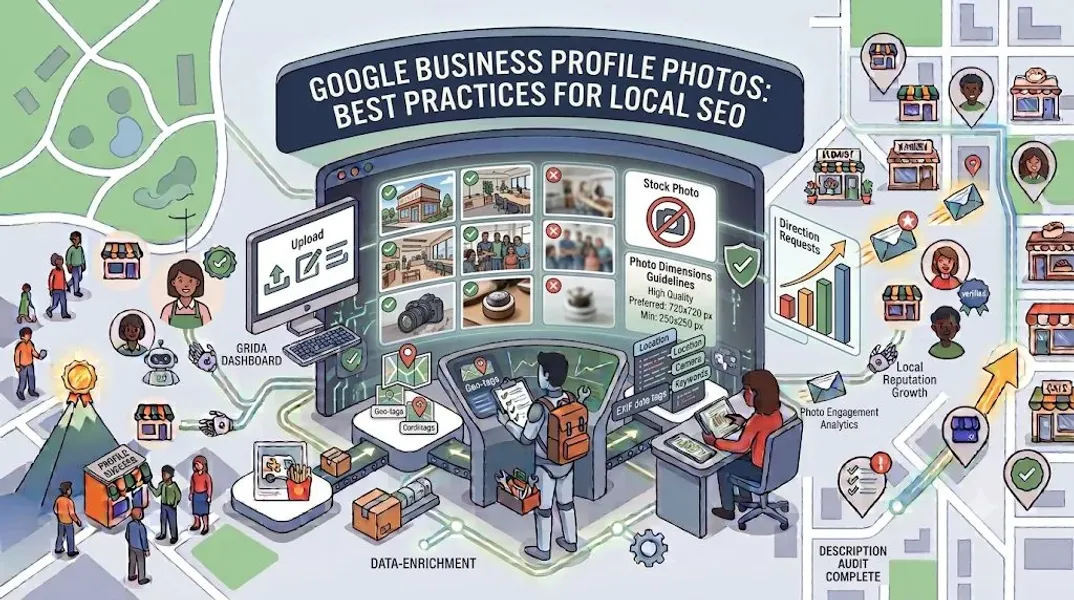
A picture is worth a thousand words. On your Google Business Profile, it might be worth even more.
Think about how you choose a restaurant. You probably scroll through photos of the food, the ambiance, and the dining area before deciding to book a table. The same goes for choosing a salon, a gym, a hotel, or a repair shop. Before customers ever step foot in your business, they’ve already formed an opinion based on what they see online. And more often than not, those first impressions happen on your Google Business Profile.
Here’s the reality: profiles with photos get significantly more clicks, calls, and direction requests than those without. Photos build trust, showcase your offerings, and give potential customers a reason to choose you over the competition. They also play a role in your local SEO, helping your business appear more prominently in local search results.
But not all photos are created equal. A blurry smartphone snapshot won’t do your business justice. On the other hand, a curated collection of high-quality images can transform your profile from forgettable to unforgettable.
In this comprehensive guide, we’ll walk you through everything you need to know about Google Business Profile photos. We’ll cover why they matter, what types of photos to upload, image specifications, best practices, and common mistakes to avoid. By the end, you’ll have a clear roadmap for building a photo library that attracts customers and boosts your local visibility.
Why Google Business Profile Photos Matter
Before we dive into the how, let’s talk about the why. Understanding the impact of photos helps you prioritize this often-overlooked aspect of your profile.
Photos Build Trust and Credibility
When customers see real photos of your business, they feel more confident that you’re legitimate. Stock photos and generic images don’t have the same effect. Authentic photos—your storefront, your team, your products—signal that your business is real and professional.
Photos Influence Customer Decisions
A study by Google found that businesses with photos receive 42% more requests for directions and 35% more clicks to their websites. The reason is simple: customers want to see what they’re getting before they commit. Photos help them visualize the experience.
Photos Improve Local SEO
While photos aren’t a direct ranking factor, they support your overall profile optimization. Profiles with more photos tend to receive more engagement, which can signal to Google that your business is active and relevant. Additionally, photos can appear in local search results, increasing your visibility.
Photos Differentiate You From Competitors
If your competitors have sparse, low-quality photos, a well-curated photo library gives you an immediate advantage. You’ll look more professional, more appealing, and more trustworthy.
Photos Showcase Your Unique Selling Points
Your photos tell your story. They show what makes your business special—whether it’s your cozy atmosphere, your skilled team, your beautiful products, or your state-of-the-art facilities.
Types of Photos to Upload to Your Google Business Profile
Google Business Profile allows you to categorize your photos, making it easier for customers to find what they’re looking for. Here are the main types of photos you should upload.
Exterior Photos
Exterior photos help customers recognize your business when they arrive. Include multiple angles so customers can spot you from different directions.
What to capture:
-
Front of your building
-
Storefront with signage
-
Street view showing your location
-
Parking area or entrance Tips:
-
Take photos on a clear day with good lighting
-
Make sure your signage is visible and legible
-
Capture the surrounding area to provide context
Interior Photos
Interior photos give customers a sense of what to expect when they walk in. They help set expectations and create a welcoming impression.
What to capture:
-
Main seating or service area
-
Decor and ambiance
-
Workspace or service stations
-
Waiting areas
-
Restrooms (if they’re a selling point) Tips:
-
Ensure the space is clean and organized
-
Use natural lighting when possible
-
Showcase your unique atmosphere
Product Photos
If you sell physical products, product photos are essential. They help customers see what you offer and make purchasing decisions.
What to capture:
-
Individual products
-
Product collections or displays
-
Close-ups of details
-
Products in use Tips:
-
Use a clean, uncluttered background
-
Capture multiple angles
-
Ensure colors are accurate
-
Include scale references when helpful
Service Photos
For service-based businesses, photos of your team in action build trust and demonstrate your expertise.
What to capture:
-
Team members performing services
-
Before-and-after shots
-
Equipment and tools
-
Completed projects Tips:
-
Get permission from customers before photographing their property
-
Show your team looking professional and friendly
-
Capture the quality of your work
Team Photos
Team photos humanize your business and help customers feel connected to the people behind it.
What to capture:
-
Individual headshots
-
Team group photos
-
Employees interacting with customers
-
Behind-the-scenes moments Tips:
-
Use consistent lighting and backgrounds for headshots
-
Show team members smiling and approachable
-
Update team photos as staff changes
At-Work Photos
These photos show your business in action—the day-to-day operations that make your business unique.
What to capture:
-
Employees working on tasks
-
Customer interactions
-
Busy periods
-
Behind-the-scenes processes Tips:
-
Capture authentic moments
-
Avoid posed or staged shots
-
Show the energy and personality of your business
Common Area Photos
If your business has shared or common areas, these photos help customers understand your layout.
What to capture:
- Lobby or reception area
- Hallways
- Outdoor spaces
- Amenities like Wi-Fi areas or lounges
Logo and Cover Photo
Your logo and cover photo are the first images customers see. Choose them wisely.
Logo:
-
Use a high-resolution version of your logo
-
Ensure it’s clear and recognizable
-
Use a square or circular format Cover photo:
-
Choose an image that represents your business
-
Make it visually appealing
-
Update it seasonally or for special events
Google Business Profile Photo Specifications
To ensure your photos look their best and meet Google’s requirements, follow these specifications.
Image Size
- Minimum: 720 x 720 pixels
- Recommended: 1200 x 900 pixels or larger
- Maximum file size: 5 MB
File Format
- Preferred: JPG or PNG
- Also accepted: GIF, BMP, TIFF, WebP
Aspect Ratio
Google recommends a 4:3 aspect ratio for most photos. This ensures your images display well across different devices and platforms.
Resolution
Higher resolution is better. Aim for at least 72 DPI, but higher is fine. High-resolution photos look sharper and more professional.
File Naming
Name your files descriptively before uploading. For example, instead of “IMG_1234.jpg,” use “downtown-chicago-italian-restaurant-exterior.jpg.” This helps with SEO and organization.
Best Practices for Google Business Profile Photos
Follow these best practices to maximize the impact of your photos.
Use High-Quality Images
The quality of your photos reflects the quality of your business. Invest in professional photography, or at least use a good smartphone camera with proper lighting. Avoid blurry, grainy, or poorly lit images.
Take Photos in Natural Light
Natural light makes everything look better. Whenever possible, take photos during the day near windows or outdoors. Avoid harsh fluorescent lighting, which can make photos look yellow or washed out.
Show Real People and Places
Authenticity matters. Customers want to see the real people and places behind your business. Avoid stock photos, which can seem impersonal and generic.
Keep Photos Current
Update your photos regularly to reflect changes in your business. If you’ve remodeled, added new products, or changed your team, update your photos accordingly. Outdated photos can confuse or disappoint customers.
Upload Photos Regularly
Google favors active profiles. Aim to add new photos every month. This keeps your profile fresh and gives customers new content to engage with.
Categorize Your Photos
When uploading, assign each photo to the correct category (exterior, interior, product, etc.). This helps Google understand your photos and display them appropriately.
Use Geotags
Geotagging your photos with your business location can help with local SEO. Many smartphone cameras automatically add location data, but you can also add geotags manually using photo editing software.
Encourage Customer Photos
Customers can upload photos to your profile. Encourage satisfied customers to share their experiences. User-generated photos add authenticity and social proof.
Respond to Customer Photos
When customers upload photos, you can like them or respond. Engaging with customer photos shows you appreciate their contributions.
Monitor for Inappropriate Photos
Google allows customers to upload photos to your profile, but you can flag inappropriate or irrelevant images for removal. Monitor your photos regularly.
How to Add Photos to Your Google Business Profile
Adding photos to your profile is simple. Here’s how.
Step 1: Sign In to Your Google Business Profile
Go to google.com/business and sign in with your Google account.
Step 2: Navigate to the Photos Section
Click on “Photos” in the left-hand menu.
Step 3: Choose a Category
Select the category you want to add photos to (exterior, interior, product, etc.).
Step 4: Upload Your Photos
Click “Add photos” and select the images you want to upload. You can upload multiple photos at once.
Step 5: Add Details (Optional)
You can add captions or descriptions to your photos to provide more context.
Step 6: Save and Publish
Click “Save” to publish your photos. They’ll appear on your profile shortly.
Photo Optimization Tips for Local SEO
To get the most SEO value from your photos, follow these tips.
Use Descriptive File Names
Before uploading, rename your files with descriptive, keyword-rich names. For example, “chicago-italian-restaurant-pasta-dish.jpg” is better than “IMG_5678.jpg.”
Add Alt Text
While Google Business Profile doesn’t have a dedicated alt text field, you can include relevant keywords in your photo captions. This helps Google understand your images.
Geotag Your Photos
Add location data to your photos to reinforce your local relevance. This is especially important for service-area businesses.
Optimize Image Size
Large images can slow down your profile. Compress your photos before uploading to ensure they load quickly while maintaining quality.
Update Photos Regularly
Fresh photos signal to Google that your business is active. Aim to add new photos at least once a month.
Encourage Reviews With Photos
Reviews with photos are more powerful than text-only reviews. Encourage customers to include photos when they leave reviews.
Common Photo Mistakes to Avoid
Avoid these common mistakes to protect your profile and maximize your photos’ impact.
Using Stock Photos
Stock photos look generic and impersonal. Customers can often tell the difference, and it can hurt your credibility.
Uploading Low-Quality Images
Blurry, grainy, or poorly lit photos reflect poorly on your business. Invest in quality images.
Neglecting to Update Photos
Outdated photos can confuse customers and make your business look neglected. Update your photos regularly.
Forgetting to Categorize Photos
Uncategorized photos are less useful to customers and Google. Always assign your photos to the correct category.
Ignoring Customer Photos
Customer photos are valuable social proof. Engage with them and monitor for inappropriate content.
Overloading With Too Many Similar Photos
Quality over quantity. Don’t upload dozens of nearly identical photos. Choose your best images and rotate them periodically.
Violating Google’s Guidelines
Google prohibits certain types of photos, including those with promotional text, watermarks, or irrelevant content. Violating these guidelines can get your photos removed or your profile suspended.
How Photos Impact Your Local SEO
Photos play a supporting role in your local SEO strategy. Here’s how they help.
Increased Engagement
Profiles with photos receive more clicks, calls, and direction requests. This engagement signals to Google that your business is relevant and valuable.
Improved Relevance
Photos with descriptive file names, captions, and geotags help Google understand your business and its location. This can improve your relevance for local searches.
Enhanced Trust Signals
Photos build trust with customers, which can lead to more reviews and higher ratings. These trust signals can improve your local ranking.
Support for Local Pack SEO
Photos can appear in local pack results, increasing your visibility and attracting more clicks. A strong photo library supports your local pack SEO efforts.
Competitive Advantage
If your competitors have sparse photos, a robust photo library gives you an edge. You’ll appear more professional and appealing, which can attract more customers.
Conclusion
Google Business Profile photos are a powerful tool for attracting local customers and boosting your local SEO. They build trust, showcase your offerings, and help customers make decisions. But not all photos are created equal. To get the most from your photos, you need to follow best practices.
Focus on quality over quantity. Use natural lighting, capture real people and places, and keep your photos current. Categorize your images, add descriptive file names, and geotag when possible. Upload new photos regularly to keep your profile active. And don’t forget to encourage and monitor customer photos.
Remember: your photos are often the first impression customers have of your business. Make them count.
Call to Action
Want to make your Google Business Profile stand out with stunning photos? Let our local SEO experts help. We’ll review your current photos, recommend improvements, and help you build a photo library that attracts customers and boosts your rankings.
Contact Us Today for a Free Local SEO Audit!
FAQs
Q1: How many photos should I have on my Google Business Profile? A: There’s no magic number, but aim for at least 10-20 high-quality photos covering different categories (exterior, interior, product, team, etc.). More importantly, focus on quality and regular updates.
Q2: What size should my Google Business Profile photos be? A: Google recommends photos that are at least 720 x 720 pixels, with 1200 x 900 pixels being ideal. The maximum file size is 5 MB.
Q3: Can I use stock photos on my Google Business Profile? A: While technically allowed, stock photos are not recommended. They look generic and don’t build trust the way authentic photos do. Use real photos of your business whenever possible.
Q4: How often should I update my photos? A: Aim to add new photos at least once a month. This keeps your profile active and gives customers fresh content to engage with.
Q5: Can customers upload photos to my profile? A: Yes, customers can upload photos to your Google Business Profile. You can monitor these photos and flag inappropriate or irrelevant images for removal.
Q6: Do photos help with local SEO? A: Yes, photos support your local SEO by increasing engagement, improving relevance, and building trust signals. Profiles with photos receive more clicks and direction requests.
Q7: What should I do if my Google Business Profile is suspended? A: If your profile is Google Business Profile suspended, it may be due to a guideline violation, including inappropriate photos. Review Google’s guidelines, fix any issues, and submit an appeal. Our guide on suspended profiles covers this in depth.
Q8: How do I fix incorrect information on my Google Business Profile? A: If your profile shows incorrect information, you can edit it directly from your dashboard. For persistent issues, see our guide on how to fix Google Business Profile errors.
Internal Links
-
What Is Google Business Profile and How Does It Work? A Complete Guide
-
Google Business Profile vs Google Maps: What’s the Difference?
-
Google Business Profile Verification: Complete Step-by-Step Guide
-
How to Choose the Right Google Business Profile Category## External Links
-
Google’s Guidelines for Representing Your Business on Google
Keep reading
Grow Your Google Maps Ranking on Autopilot
Stop spending hours every week manually replying to customer reviews and writing Google posts. Busirank automates your Google Business Profile to boost your local SEO rankings and turn searchers into paying clients.
 Busirank Team