 Busirank Team
Introduction
You’ve claimed your Google Business Profile. You’ve optimized your categories, added photos, and started collecting reviews. You’re posting regularly. Now comes the question every business owner eventually asks: is any of this actually working?
That’s where Google Business Profile insights come in.
Buried inside your profile dashboard is a wealth of data about how customers find you, what they search for, and what actions they take. This data isn’t just interesting—it’s actionable. It tells you which keywords are driving views, which photos get the most attention, how many people call you directly from your listing, and how your performance changes month over month.
The problem is that most business owners never look at these insights. Or they glance at them once, see a bunch of numbers, and close the tab. They’re running their local marketing on guesswork when Google is handing them a detailed performance report for free.
The businesses that do use their insights well have a massive advantage. They know which categories to adjust, which photos to add more of, which posts drive engagement, and where their customers are coming from. They make decisions based on data—not intuition.
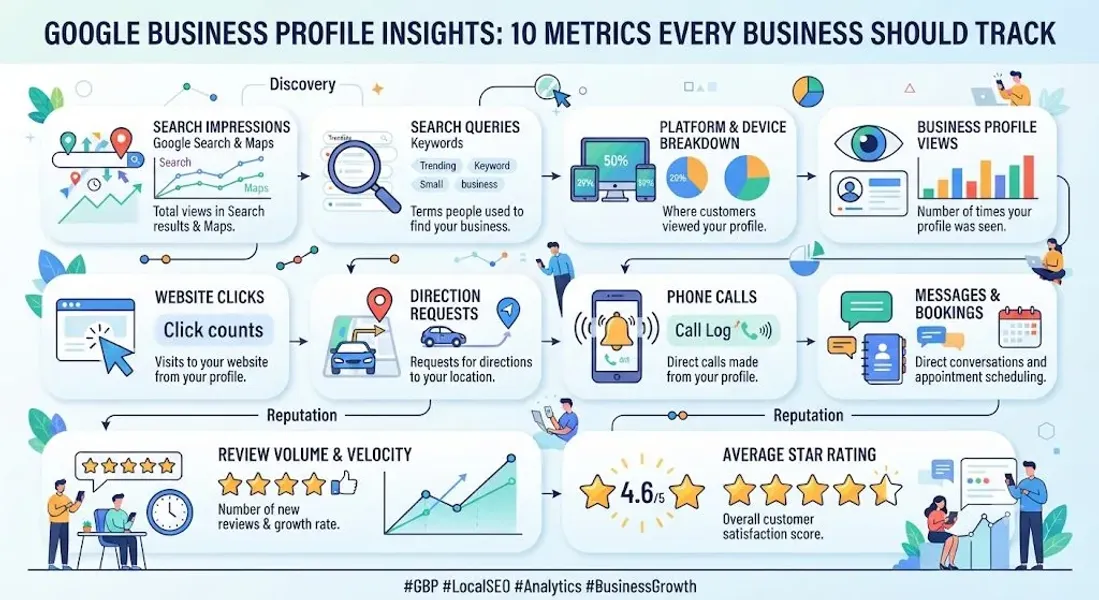
In this comprehensive guide, we’ll break down the 10 most important metrics in your Google Business Profile insights. We’ll explain what each metric means, why it matters, how to find it, and what actions you should take based on what you see. By the end, you’ll be able to turn raw data into a clear action plan for growing your local presence.
What Are Google Business Profile Insights?
Google Business Profile insights are the analytics dashboard built into your Google Business Profile. They show you how customers are finding and interacting with your listing across Google Search and Google Maps.
You can access your insights by signing in to your Google Business Profile at google.com/business and selecting “Performance” or “Insights” from the menu.
The data is typically broken into several categories:
- How customers find you: The search queries and platforms that led to your listing
- Where customers find you: Whether they found you on Google Search or Google Maps
- What customers do: The actions they take once they view your listing
- How customers search: The specific terms and queries that triggered your listing The insights dashboard also lets you filter data by time period, compare periods, and export reports.
Why Insights Matter
Insights tell you what’s working and what isn’t. Without them, you’re guessing. With them, you can:
- Identify high-performing keywords and lean into them
- Spot declining trends before they become problems
- Optimize your profile based on real customer behavior
- Prove the value of your local marketing efforts
- Make data-driven decisions instead of assumptions For more on optimizing your profile, see our guide on how often to update Google Business Profile.
The 10 Metrics Every Business Should Track
Here are the 10 most important metrics in your Google Business Profile insights, along with what they mean and what to do about them.
1. Profile Views
What it is: The total number of times your profile was viewed. This metric is usually broken into two categories: views from Google Search and views from Google Maps.
Why it matters: Profile views are your top-of-funnel metric. They tell you how many people are seeing your listing. If views are rising, your visibility is improving. If they’re falling, something has changed—ranking, seasonality, or profile activity.
What to do:
- Compare Search views vs. Maps views. If most of your traffic comes from Maps, your local relevance is strong. If most comes from Search, your brand recognition or SEO may be driving discovery.
- If views are dropping, check for profile issues, ranking changes, or seasonal factors.
- Post more frequently to boost visibility.
2. Search Queries
What it is: The specific search terms people used to find your business. Google shows you the top queries and groups them into categories like branded searches (your business name) and non-branded searches (generic terms like “plumber near me”).
Why it matters: This is one of the most valuable metrics in your insights. It tells you exactly what your customers are searching for—and whether your profile is appearing for the right terms.
What to do:
- Look for non-branded queries that are driving views. These are new customers discovering you.
- Identify queries you’re appearing for but shouldn’t be (irrelevant terms). Adjust your category or description if needed.
- Find queries you want to appear for but aren’t. Add relevant services, products, or keywords to your profile.
- For more on targeting search terms, see our guide on Google Maps keywords.
3. Calls
What it is: The number of times customers called your business directly from your Google Business Profile by tapping the “Call” button.
Why it matters: Calls are one of the highest-intent actions a customer can take. Someone who calls is usually ready to buy, book, or get information immediately.
What to do:
- Track call volume month over month. Rising calls usually mean improving visibility.
- Compare calls to views. If views are high but calls are low, your profile may not be compelling enough—improve your description, photos, or reviews.
- Ensure your phone number is correct and monitored. For more, see our guide on Google Business Profile calls.
4. Direction Requests
What it is: The number of times customers requested directions to your business from your Google Business Profile.
Why it matters: Direction requests signal strong purchase intent. Someone asking for directions is planning to visit. This metric is especially important for brick-and-mortar businesses like restaurants, retail stores, and clinics.
What to do:
- Track direction requests alongside calls and website clicks.
- If direction requests are high but foot traffic is low, check your signage, hours, or location accuracy.
- Ensure your address is correct. For more, see our guide on how to fix Google Business Profile errors.
5. Website Clicks
What it is: The number of times customers clicked through to your website from your Google Business Profile.
Why it matters: Website clicks show that customers want more information—menus, service details, pricing, or booking options. It’s a sign of deeper engagement.
What to do:
- Ensure your website link is correct and loads quickly on mobile.
- Track which pages customers visit after clicking. If your contact or booking page is popular, prioritize it.
- For more on tracking clicks, see our guide on Google Business Profile calls.
6. Messages
What it is: The number of conversations started through the messaging feature on your profile (if enabled).
Why it matters: Messages are direct interactions with potential customers. They often indicate specific questions, booking requests, or concerns.
What to do:
- Respond to messages promptly—within a few hours if possible.
- Use messaging to answer questions, book appointments, and build relationships.
- If you’re not getting messages, consider enabling the feature or promoting it in your posts.
7. Bookings
What it is: For businesses with booking integrations, this metric shows how many customers booked appointments directly from your profile.
Why it matters: Bookings are direct conversions. They represent revenue generated from your Google Business Profile.
What to do:
- Enable booking if your industry supports it (salons, clinics, restaurants, etc.).
- Track booking trends to see which services are most popular.
- Optimize your booking flow to reduce friction.
8. Photo Views
What it is: The number of times customers viewed photos on your profile, broken down by photo category (exterior, interior, product, team, etc.).
Why it matters: Photos drive engagement. Profiles with more photos get more clicks, calls, and direction requests. Tracking which photos perform best tells you what customers want to see.
What to do:
- Identify which photo categories get the most views.
- Add more photos in high-performing categories.
- Refresh your photo library regularly. For more, see our guide on Google Business Profile photos.
9. Review Metrics
What it is: Your review count, average rating, and the number of new reviews over a given period.
Why it matters: Reviews are a major ranking factor and a major trust signal. Tracking review growth helps you understand your reputation trajectory.
What to do:
- Monitor review velocity—a steady flow is better than bursts.
- Respond to all reviews, especially negative ones. For more, see our guide on how to respond to negative Google reviews.
- Actively ask for reviews. For more, see our guide on ask for Google reviews.
10. Post Performance
What it is: The number of views, clicks, and engagement on your Google Posts.
Why it matters: Posts are a key engagement tool. Tracking which posts perform best helps you refine your content strategy.
What to do:
- Double down on post types that drive clicks and calls.
- Rotate content to avoid repetition. For ideas, see our guide on Google Business Profile post ideas.
- Post consistently—at least weekly. For a schedule, see our guide on how often to update Google Business Profile.
How to Access and Use Your Insights
Here’s how to find and interpret your data.
Step 1: Sign In to Your Google Business Profile
Go to google.com/business and sign in with your Google account.
Step 2: Navigate to Performance
Select “Performance” or “Insights” from the left-hand menu.
Step 3: Choose Your Time Period
Filter by the last 7 days, 30 days, or a custom range. Compare periods to spot trends.
Step 4: Review Each Metric
Look at views, queries, calls, direction requests, and other key metrics. Note changes from the previous period.
Step 5: Export Reports
You can export your insights as a CSV or PDF for reporting or further analysis.
Step 6: Take Action
Use what you learn to make changes. Adjust your category, update photos, add services, or refine your description.
Step 7: Track Changes Over Time
Improvements won’t happen overnight. Track month over month to see the impact of your changes.
Best Practices for Using Google Business Profile Insights
Follow these best practices to get the most from your data.
Check Insights Monthly
Set a recurring reminder to review your insights at least once a month.
Compare Periods
Look at month-over-month and year-over-year changes. This helps you separate seasonal fluctuations from real trends.
Focus on Actions, Not Just Views
Views are nice, but calls, direction requests, and website clicks are what drive revenue. Prioritize these metrics.
Look for Patterns
Which queries drive the most views? Which photos get the most attention? Which posts generate clicks? Patterns reveal opportunities.
Pair Insights With Other Tools
Combine Google insights with Google Analytics, rank trackers, and review management tools for a fuller picture. For more, see our guide on local SEO performance.
Use Insights for Reporting
If you’re reporting to stakeholders, use insights data to demonstrate ROI. For a framework, see our guide on local SEO report.
Manage Multiple Profiles Centrally
If you have multiple locations, use a dashboard to compare insights across them. For more, see our guide on how to manage multiple Google Business Profiles.
Common Mistakes to Avoid
Avoid these mistakes when working with insights.
Ignoring Insights Entirely
If you’re not reviewing your data, you’re flying blind. Check your insights monthly.
Fixating on Views
Views alone don’t pay the bills. Focus on the metrics that drive revenue—calls, bookings, direction requests.
Reacting to Short-Term Fluctuations
A one-week dip doesn’t mean much. Look at longer trends before making changes.
Not Comparing Periods
Without context, numbers are meaningless. Always compare to a previous period.
Failing to Act on Insights
Data is only useful if you use it. Make changes based on what you learn.
Overlooking Query Data
Search queries are the most actionable insights. Pay close attention to what customers are searching.
Not Tracking Post Performance
If you’re posting but not tracking, you don’t know what’s working. Monitor post views and clicks.
How Insights Support Your Local SEO
Insights are the feedback loop that makes local SEO work. They tell you what’s working, so you can do more of it. They reveal what isn’t working, so you can adjust.
When you use insights consistently, you can:
- Improve your profile’s relevance by adjusting categories and services
- Increase engagement by adding photos and posting more often
- Boost visibility by targeting keywords that drive views
- Strengthen your reputation by responding to reviews and collecting more
- Track progress over time and prove the value of your efforts For more on how to measure local SEO performance overall, see our guide on local SEO performance.
Conclusion
Google Business Profile insights are one of the most powerful—and most underused—tools available to local businesses. They tell you exactly how customers find you, what they search for, and what actions they take. They’re free, they’re detailed, and they’re sitting right there in your dashboard.
The 10 metrics in this guide—profile views, search queries, calls, direction requests, website clicks, messages, bookings, photo views, review metrics, and post performance—form the core of your local performance tracking. Review them monthly, compare periods, and act on what you learn.
Businesses that use their insights consistently outperform those that don’t. Not because they work harder, but because they make better decisions. They know where to focus, what to fix, and what to double down on.
Start reviewing your insights this month. You’ll be surprised by what you learn.
Call to Action
Not sure how to interpret your Google Business Profile insights? Let our local SEO experts help. We’ll analyze your data, identify opportunities, and build a strategy that turns insights into real growth.
Contact Us Today for a Free Local SEO Audit!
FAQs
Q1: What are Google Business Profile insights? A: Insights are the analytics dashboard built into your Google Business Profile. They show how customers find you, what they search for, and what actions they take.
Q2: How do I access my Google Business Profile insights? A: Sign in to your Google Business Profile at google.com/business and select “Performance” or “Insights” from the menu.
Q3: How often should I check my insights? A: At least once a month. For businesses in competitive markets, weekly reviews can help you spot trends faster.
Q4: What’s the most important metric in Google Business Profile insights? A: It depends on your business. For brick-and-mortar businesses, calls and direction requests are critical. For service-area businesses, calls and website clicks matter most. For all businesses, search queries are the most actionable metric.
Q5: Why are my profile views dropping? A: Declining views can be caused by ranking changes, reduced posting activity, seasonal factors, or profile issues. Check for suspensions, verify your information, and increase posting frequency. For more, see our guide on business not showing on Google Maps.
Q6: What are search queries in insights? A: Search queries show the specific terms people used to find your business. They’re broken into branded (your business name) and non-branded (generic) searches.
Q7: How do I track calls from my Google Business Profile? A: Use the “Calls” metric in your insights dashboard. For more, see our guide on Google Business Profile calls.
Q8: Can I export my insights data? A: Yes. You can export insights as a CSV or PDF for reporting or further analysis.
Q9: How do insights help with local SEO? A: Insights tell you what’s working so you can do more of it. They reveal which keywords drive views, which photos get engagement, and which posts generate clicks. For more, see our guide on local SEO performance.
Q10: How do I create a monthly local SEO report? A: Combine insights data with rank tracking, review metrics, and website analytics. For a framework, see our guide on local SEO report.
Q11: What should I do if my Google Business Profile is suspended? A: If your profile is Google Business Profile suspended, review Google’s guidelines, fix any violations, and submit an appeal. Our guide on suspended profiles covers this in depth.
Q12: How do I fix incorrect information on my Google Business Profile? A: If your profile shows incorrect information, you can edit it directly from your dashboard. For persistent issues, see our guide on how to fix Google Business Profile errors.
Internal Links
-
What Is Google Business Profile and How Does It Work? A Complete Guide
-
Google Business Profile vs Google Maps: What’s the Difference?
-
Google Business Profile Verification: Complete Step-by-Step Guide
-
How to Write the Perfect Google Business Profile Description
-
Google Business Profile Photos: Best Practices for Local SEO
-
Google Business Profile Services: How to Add and Optimize Them
-
Google Business Profile Attributes: What Are They and Why Do They Matter?
-
Google Business Profile Suspended? Common Causes and What to Do
-
Why Your Business Is Not Showing on Google Maps## External Links
-
Google’s Guidelines for Representing Your Business on Google
Keep reading
Grow Your Google Maps Ranking on Autopilot
Stop spending hours every week manually replying to customer reviews and writing Google posts. Busirank automates your Google Business Profile to boost your local SEO rankings and turn searchers into paying clients.
 Busirank Team