 Busirank Team
Introduction
Every day, potential customers are searching Google for businesses just like yours. They’re looking for a reliable plumber, a trusted dentist, a nearby restaurant, or a local boutique. The businesses that appear in those search results are the ones that get the call, the visit, and the sale. If your business isn’t showing up, you’re handing customers to your competitors.
The good news is that getting your business in front of local searchers is entirely within your control—and it costs nothing. Creating a Google Business Profile is the single most impactful step you can take to establish your online presence and attract local customers. It’s free, it’s powerful, and it puts your business on Google Search and Google Maps where millions of people look every day.
But creating a profile that actually works requires more than just filling in a few fields. You need to understand the process, avoid common pitfalls, and optimize every element for maximum visibility. In this comprehensive guide, we’ll walk you through exactly how to create Google Business Profile from start to finish, with practical steps, expert tips, and everything you need to know to succeed.
What Is a Google Business Profile?
Before diving into the setup process, let’s clarify what you’re creating. A Google Business Profile—formerly known as Google My Business—is a free listing that displays your business information across Google Search and Google Maps.
When someone searches for your business name or for a service you offer in your area, your Google Business Profile is what generates the results they see. It can display your business name, address, phone number, website, hours of operation, photos, customer reviews, products, services, and more.
Think of it as your digital storefront. It’s often the first interaction a potential customer has with your business, and it frequently appears above your actual website in search results. A well-crafted profile builds trust, provides essential information, and drives real business results.
The profile is also the foundation of local pack SEO—the block of three map-based results that appears at the top of Google for local searches. Appearing in this local pack is the goal for most local businesses, as it captures the highest-intent traffic.
Why You Need a Google Business Profile
If you’re still on the fence about whether creating a profile is worth your time, consider these benefits:
It’s Completely Free
Unlike paid advertising, Google Business Profile costs nothing to create, verify, or manage. There are no subscription fees and no hidden costs. It’s one of the most cost-effective marketing tools available to any local business.
It Drives Local Visibility
When someone searches for “plumber near me” or “best coffee shop in [city],” Google prioritizes businesses with complete, active, and well-reviewed profiles. Without one, you simply won’t appear in these high-intent searches.
It Builds Trust and Credibility
A complete profile with positive reviews, professional photos, and accurate information signals to both Google and potential customers that your business is legitimate and trustworthy.
It Attracts Customers at the Moment of Intent
Your profile provides all the information a customer needs to take action: call you, get directions, visit your website, or book an appointment. This removes friction from the customer journey.
It Provides Free Insights
The Google Business Profile insights feature shows you how customers find you—how many viewed your profile, called you, or requested directions. This data is invaluable for refining your marketing strategy.
Prerequisites Before You Create Your Profile
Before you begin, gather the following information to make the process smooth and efficient:
- Business name: Your real-world business name, exactly as it appears on your storefront and legal documents.
- Business address: Your physical location, or your service area if you travel to customers.
- Phone number: A local phone number that customers can reach you on.
- Website URL: Your business website, if you have one.
- Business hours: Your regular operating hours, including any variations.
- Business category: The primary category that best describes your core business.
- Business description: A short summary of what you do and who you serve.
- Photos: High-quality images of your storefront, interior, team, and products.
- Google account: You’ll need a Google account to create and manage your profile. Having this information ready before you start will save you time and ensure your profile is complete from day one.
How to Create a Google Business Profile: Step-by-Step
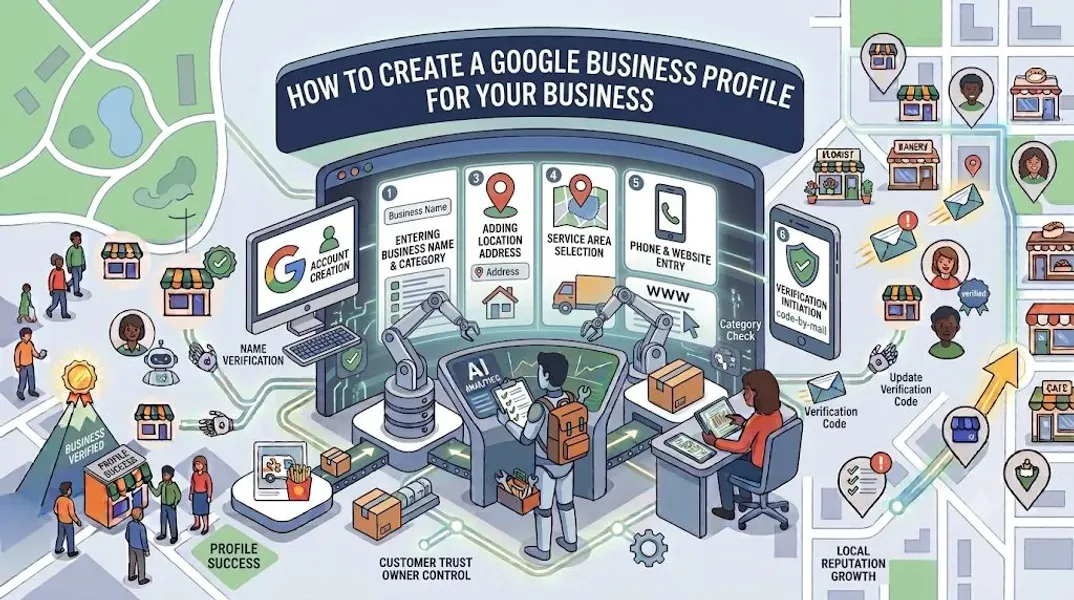
Now let’s walk through the exact process to create Google Business Profile for your business.
Step 1: Go to the Official Google Business Profile Website
Open your browser and navigate to google.com/business. Click the “Manage now” button to begin. You’ll be prompted to sign in with your Google account. If you don’t have one, you can create a free Google account in minutes.
Step 2: Enter Your Business Name
Type your business name exactly as it appears in the real world. This is critical. Do not add keywords, locations, or promotional phrases like “Best Plumber NYC” or “Cheap Dentist Near Me.” Doing so violates Google’s guidelines and can result in your profile being Google Business Profile suspended.
If your business name is “Smith & Sons Plumbing,” enter it exactly like that—not “Smith & Sons Plumbing – Emergency Services 24/7.”
Step 3: Choose Your Business Category
Selecting the correct Google Business Profile category is one of the most important steps in the entire process. Your primary category has a massive influence on which searches your business appears for.
Google will suggest categories as you type. Choose the most specific category that accurately describes your core business. For example, if you run a pizza restaurant, choose “Pizza restaurant” rather than the broader “Restaurant.” You can add secondary categories later to capture additional search terms.
Step 4: Add Your Location
If your business has a physical location where customers visit, enter your address. Google will place a pin on the map to show your exact location.
If you’re a service-area business—like a plumber, electrician, or mobile therapist—you can specify the geographic areas you serve. You can also choose to hide your address if you operate from home and don’t want it public.
Step 5: Specify Your Service Areas
If you provide services at customer locations, add the areas you serve. You can list cities, postal codes, or regions. This helps you appear in searches from those areas.
Step 6: Add Contact Information
Enter your business phone number and website URL. Make sure this information matches what’s on your website and other online listings. NAP consistency—Name, Address, Phone—is a critical ranking factor for local SEO.
Step 7: Verify Your Business
Before your profile becomes publicly visible, you must complete the Google Business Profile verification process. Google offers several verification methods depending on your business type and location:
- Postcard by mail: Google mails a postcard with a verification code to your business address. This typically takes up to 14 days.
- Phone verification: Some businesses can verify instantly by receiving a code via phone call or text.
- Email verification: Select businesses may receive a verification link by email.
- Video verification: You record a video showing your business location, equipment, and proof of ownership.
- Instant verification: If your business is already verified in Google Search Console, you may be verified automatically. Follow the instructions Google provides for your specific situation.
Step 8: Complete Every Section of Your Profile
Once verified, your work isn’t done—it’s just beginning. Complete every section of your profile to maximize visibility:
- Business description: Write a compelling Google Business Profile description that explains what you do, who you serve, and what makes you unique. Use your primary keywords naturally.
- Hours of operation: Set your regular hours and add special hours for holidays.
- Photos: Upload high-quality images of your storefront, interior, team, and products. Follow Google Business Profile photos best practices for best results.
- Services and products: List the specific services you offer or products you sell. Optimizing your Google Business Profile services is essential for service-based businesses.
- Attributes: Select relevant tags like “Wheelchair accessible,” “Free Wi-Fi,” or “Women-led.” Understanding Google Business Profile attributes helps you appear in more specific searches.
- Opening date: Add your business opening date for a small ranking boost.
Step 9: Start Collecting Reviews
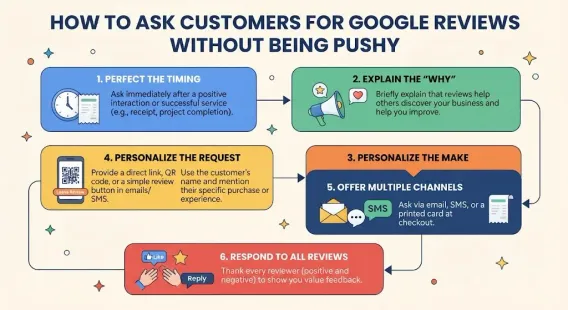
Reviews are one of the strongest ranking factors for local search. Reach out to your existing customers and ask for Google reviews. The more positive reviews you have, the stronger your profile becomes. Respond to every review—positive or negative—to show Google and customers that you’re engaged.
Step 10: Post Regularly
Use Google Business Profile Posts to share updates, offers, and news. Consistent posting keeps your profile active and gives customers reasons to engage. For inspiration, check out our Google Business Profile post ideas.
Common Mistakes to Avoid When Creating Your Profile
Avoid these pitfalls to protect your profile and maximize your results:
Keyword Stuffing Your Business Name
Adding keywords to your business name violates Google’s guidelines and can get your profile suspended. Use your real business name only.
Choosing the Wrong Category
Your primary category determines which searches you appear for. Choose the most specific category that accurately describes your core business.
Skipping Verification
An unverified profile won’t appear publicly. Complete the verification process as soon as possible.
Using Inconsistent NAP Information
Your name, address, and phone number must be identical across your website, Google Business Profile, social media, and all local citations. Inconsistency confuses Google and hurts your ranking.
Neglecting Photos
Profiles with photos receive significantly more clicks and direction requests than those without. Invest in professional photography or use a good smartphone camera in natural light.
Ignoring Reviews
Failing to respond to reviews—especially negative ones—damages your reputation and signals to Google that you’re not engaged.
Not Posting Regularly
A dormant profile looks abandoned. Post at least once a week to keep your profile active.
Tips for Optimizing Your New Profile
Once your profile is created and verified, follow these tips to maximize its performance:
Add New Photos Regularly
Google favors active profiles. Add new photos every month—new menu items, seasonal decorations, team members, or customer events.
Respond to Every Review
Thank customers for positive reviews and address concerns in negative reviews professionally. Learning to respond to negative Google reviews is a critical skill.
Use Posts Strategically
Share offers, events, and updates. Posts expire after seven days, so post regularly to maintain visibility.
Monitor Your Q&A Section
Customers can ask questions on your profile, and anyone can answer. Monitor this section and provide authoritative answers yourself.
Track Your Insights
Use Google Business Profile insights to see how customers find and interact with your business. Pay attention to which searches trigger your listing and what actions customers take.
Keep Information Updated
Update your hours for holidays, change your description as your business evolves, and add new services as you offer them.
Conclusion
Creating a Google Business Profile is the single most impactful step you can take to establish your local online presence. It’s free, powerful, and directly connects you with customers who are already searching for what you offer.
The process is straightforward: go to google.com/business, enter your business information, choose the right category, verify your listing, and complete every section of your profile. But the real work begins after verification—optimizing your profile, collecting reviews, posting regularly, and monitoring your performance.
Businesses that invest time in their Google Business Profile consistently outperform those that don’t. They appear in more local searches, attract more reviews, and convert more customers. Whether you’re a new business just starting out or an established company looking to improve your local visibility, your Google Business Profile is the foundation of your success.
Call to Action
Ready to create your Google Business Profile but don’t know where to start? Or maybe you’ve already created one but aren’t seeing results? Let our local SEO experts handle it for you. We’ll set up your profile, optimize every section, manage your reviews, and track your performance so you can focus on running your business.
Contact Us Today for a Free Local SEO Audit!
FAQs
Q1: Is creating a Google Business Profile really free? A: Yes, Google Business Profile is completely free to create, verify, and manage. There are no subscription fees and no hidden costs. You only pay if you choose to run paid ads, which are separate from your profile.
Q2: How long does it take to create and verify a Google Business Profile? A: You can set up the profile in about 15-30 minutes. Verification time varies—some businesses are verified instantly by phone or email, while postcard verification can take up to 14 days.
Q3: Can I create a Google Business Profile without a physical address? A: Yes, if you’re a service-area business that travels to customers. You can set your profile to hide your address and specify the areas you serve. However, you must still have a legitimate business and meet Google’s guidelines.
Q4: What if my business is already listed on Google? A: If your business already appears on Google, you can claim the existing listing rather than creating a new one. Search for your business on Google Maps, click “Claim this business,” and follow the verification process.
Q5: How many Google Business Profiles can I have? A: You can have one profile per business location. If you operate multiple locations, you need a separate profile for each. You can manage multiple profiles from a single dashboard. For more help, see our guide on how to manage multiple Google Business Profiles.
Q6: What should I do if my Google Business Profile gets suspended? A: If your profile is Google Business Profile suspended, you can appeal the decision through Google’s reinstatement process. Identify the likely cause, fix it, and submit a detailed appeal. Our guide on suspended profiles covers this in depth.
Q7: How do I fix incorrect information on my Google Business Profile? A: If your profile shows incorrect information, you can edit it directly from your dashboard. For help with persistent issues, see our guide on how to fix Google Business Profile errors.
Internal Links
-
What Is Google Business Profile and How Does It Work? A Complete Guide
-
Google Business Profile vs Google Maps: What’s the Difference?
-
Google Business Profile Verification: Complete Step-by-Step Guide
-
How to Write the Perfect Google Business Profile Description## External Links
-
Google’s Guidelines for Representing Your Business on Google
Keep reading
Grow Your Google Maps Ranking on Autopilot
Stop spending hours every week manually replying to customer reviews and writing Google posts. Busirank automates your Google Business Profile to boost your local SEO rankings and turn searchers into paying clients.
 Busirank Team