 Busirank Team
Introduction
Imagine a customer searching for exactly what you offer. They find your Google Business Profile, see your stellar reviews and prime location, and they’re ready to take the next step. But then they ask themselves: “Do they actually offer what I need?”
If your services aren’t clearly listed on your profile, that customer will move on to a competitor who makes it obvious. This is the silent killer of local businesses—not being found is one problem, but being found and then failing to communicate what you do is equally damaging.
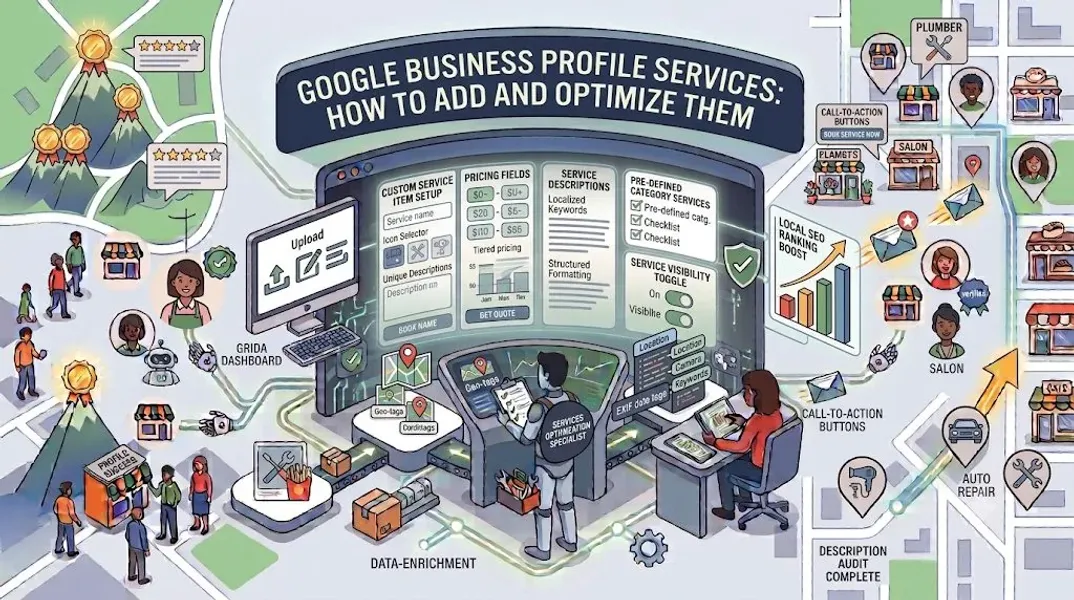
Your Google Business Profile Services section is one of the most powerful yet underutilized features available to local businesses. It allows you to showcase everything you offer, complete with descriptions, pricing, and even direct links to booking or purchase pages. When optimized correctly, it becomes a conversion machine that turns profile visitors into paying customers.
Unfortunately, many business owners either skip this section entirely or fill it out hastily without understanding its potential. They’re leaving money on the table—and handing customers to competitors who’ve taken the time to do it right.
In this comprehensive guide, we’ll walk you through everything you need to know about Google Business Profile services. We’ll explain why this section matters, how to add services step by step, optimization strategies that drive results, and common mistakes to avoid. By the end, you’ll have a clear roadmap for turning your Services section into a lead-generation powerhouse.
What Are Google Business Profile Services?
Google Business Profile Services is a dedicated section of your profile where you can list and describe the specific services your business offers. Unlike your business description, which provides a general overview, the Services section allows you to get granular—listing individual services with names, descriptions, and prices.
This section appears prominently on your profile when customers view your business on Google Search or Google Maps. It’s often one of the first things potential customers look at after reading your reviews, because it directly answers the question: “Can this business solve my problem?”
Services vs. Products
It’s important to understand the distinction between Services and Products on your Google Business Profile.
Services are intangible offerings—work you perform for customers. Examples include plumbing repair, dental cleaning, legal consultation, or hair styling.
Products are tangible items you sell. Examples include clothing, electronics, furniture, or packaged food items.
If your business offers both, you can use both sections to showcase everything you provide. For more on products, see our guide on Google Business Profile products.
Where Services Appear
Your Services section appears:
- On your Google Business Profile when viewed on Google Search
- On your Google Maps listing
- When customers click “Services” on your profile
- In some local search results
Why Google Business Profile Services Matter
The Services section is more than just a list—it’s a strategic tool that impacts your visibility, credibility, and conversion rates. Here’s why it matters.
It Improves Your Local SEO
Your Services section contains valuable keywords that help Google understand what your business offers. When someone searches for a specific service you provide, having that service listed can improve your relevance and ranking.
For example, if you’re a plumber and you list “water heater installation,” “drain cleaning,” and “emergency plumbing repair” as services, you’re more likely to appear for those specific searches.
It Attracts the Right Customers
Customers searching for specific services want to know quickly if you offer what they need. A well-populated Services section answers that question immediately, attracting qualified leads and reducing time-wasters.
It Builds Trust and Credibility
A complete Services section with detailed descriptions shows that your business is professional and transparent. It signals that you take your online presence seriously and that you’re confident in what you offer.
It Increases Conversions
When customers can see exactly what you offer—and how much it costs—they’re more likely to take action. The Services section reduces friction in the customer journey by providing the information they need to make a decision.
It Differentiates You From Competitors
Many businesses neglect their Services section. By optimizing yours, you gain a competitive advantage. You’ll appear more complete, more professional, and more relevant than businesses that don’t.
How to Add Services to Your Google Business Profile
Adding services to your profile is a straightforward process. Here’s how to do it step by step.
Step 1: Sign In to Your Google Business Profile
Go to google.com/business and sign in with your Google account.
Step 2: Navigate to the Services Section
In the left-hand menu, click on “Edit profile,” then find the “Services” section. Depending on your business category, this may be labeled differently.
Step 3: Choose Your Service Categories
Google may provide suggested service categories based on your business type. These are pre-defined categories that help organize your services. Select the ones that apply to your business.
If you don’t see relevant categories, you can often add custom services.
Step 4: Add Individual Services
For each service you offer, add:
- Service name: A clear, descriptive name (e.g., “Water Heater Installation”)
- Description: A brief explanation of what the service includes
- Price: Optional, but recommended if you want to display pricing
Step 5: Add Descriptions
Write clear, concise descriptions for each service. Include relevant keywords naturally, and focus on benefits as well as features.
Step 6: Set Prices (Optional)
You can add prices for your services. This can be a fixed price, a price range, or “starting at” pricing. If you prefer not to display prices, you can leave this blank.
Step 7: Save and Publish
Review your services, then click “Save” to publish them to your profile.
Step 8: Verify Your Changes
Check your profile on Google Search and Google Maps to confirm your services appear correctly.
How to Optimize Your Google Business Profile Services
Adding services is just the first step. To get the most from this feature, you need to optimize. Here’s how.
Use Relevant Keywords
Incorporate keywords that your customers are searching for. Use tools for local keyword research to identify terms with high search volume and relevance. Include these keywords naturally in your service names and descriptions.
Example: Instead of just “Plumbing Repair,” use “Emergency Plumbing Repair” or “Residential Plumbing Repair” to capture more specific searches.
Write Detailed Descriptions
Don’t just list your services—describe them. Explain what’s included, what makes your service different, and why customers should choose you. Detailed descriptions improve your SEO and help customers understand your offerings.
Example:
- Service Name: Water Heater Installation
- Description: Professional installation of tank and tankless water heaters. Includes removal of old unit, setup, and safety inspection. Licensed technicians with 15+ years of experience. Same-day service available.
Include Pricing When Possible
Displaying prices can increase conversions by setting clear expectations. If you can’t display exact prices, use ranges or “starting at” pricing.
Tip: If your pricing varies significantly based on the job, consider using “Contact for Quote” or providing a starting price.
Categorize Your Services
If Google provides service categories for your business type, use them to organize your services. This makes it easier for customers to find what they’re looking for.
Add Booking or Purchase Links
Where available, add links to booking pages or product pages so customers can take action directly from your profile.
Update Services Regularly
As your business evolves, your services may change. Review and update your Services section regularly to ensure it reflects your current offerings.
Highlight Your Most Popular Services
If you have services that are particularly popular or profitable, prioritize them. Place them at the top of your list and give them detailed descriptions.
Use High-Quality Images
If the option is available, add images to your services. Visual content increases engagement and helps customers understand what you offer.
Monitor Performance
Use Google Business Profile insights to track how customers interact with your services. See which services get the most views and clicks, and adjust your strategy accordingly.
Best Practices for Google Business Profile Services
Follow these best practices to maximize the impact of your Services section.
Be Specific
Avoid vague service names like “Consultation” or “Repair.” Be specific about what you offer. “Business Tax Consultation” and “Air Conditioner Repair” are clearer and more searchable.
Focus on Benefits
While features describe what you do, benefits explain why customers should care. Incorporate both into your descriptions.
Example:
- Feature: “We use eco-friendly cleaning products.”
- Benefit: “Safe for your family, pets, and the environment.”
Keep Descriptions Concise
Aim for 1-2 sentences per service description. Enough to inform, but not so long that customers lose interest.
Use Natural Language
Write as if you’re explaining your services to a customer. Avoid jargon and technical terms that might confuse your audience.
Prioritize Your Most Valuable Services
List your most popular or profitable services first. These are the ones you want customers to see immediately.
Include Service Areas
If you serve specific geographic areas, mention them in your descriptions. This reinforces your local relevance.
Stay Consistent With Your Website
Your Google Business Profile services should match what you offer on your website. Inconsistency can confuse customers and hurt trust.
Respond to Service-Related Questions
If customers ask about specific services in your Q&A section, respond promptly and thoroughly.
Common Mistakes to Avoid
Avoid these common mistakes when setting up your Services section.
Leaving It Blank
The biggest mistake is not using the Services section at all. This leaves valuable SEO real estate empty and makes it harder for customers to understand what you offer.
Using Vague Service Names
Names like “Service 1” or “General Work” don’t help customers or Google. Be specific about what you offer.
Keyword Stuffing
Cramming keywords into your service descriptions doesn’t help and can hurt your credibility. Write naturally and incorporate keywords organically.
Ignoring Pricing
If you can display pricing, do so. Customers appreciate transparency, and it can increase conversions.
Not Updating Services
If you’ve added or discontinued services, update your profile. Outdated information hurts trust and rankings.
Forgetting to Categorize
If Google provides service categories for your business type, use them. This helps organize your services and improves visibility.
Neglecting Descriptions
A service name alone doesn’t tell customers much. Add descriptions that explain what’s included and why customers should choose you.
Violating Google’s Guidelines
Promotional language, misleading claims, and prohibited content can get your profile flagged or suspended. Always follow Google’s guidelines.
Service Ideas for Different Business Types
Different business types have different services to showcase. Here are some examples to inspire you.
Home Services (Plumber, Electrician, HVAC)
- Emergency repair
- Installation
- Maintenance and tune-ups
- Inspections
- Estimates and consultations
Health and Wellness (Dentist, Chiropractor, Therapist)
- Initial consultations
- Specific treatments or procedures
- Preventive care
- Follow-up appointments
- Telehealth services
Professional Services (Lawyer, Accountant, Consultant)
- Initial consultations
- Specific practice areas or specialties
- Document preparation
- Representation
- Ongoing support
Personal Services (Salon, Spa, Fitness)
- Specific treatments or services
- Packages and memberships
- Consultations
- Group sessions
- Special occasion services
Automotive (Mechanic, Detailer, Dealership)
- Diagnostic services
- Specific repairs
- Maintenance packages
- Inspections
- Detailing services
How Services Impact Your Local SEO
Your Services section plays a supporting role in your local SEO strategy. Here’s how.
Improved Relevance
When you list specific services, you improve your relevance for searches related to those services. Google can match your business to more specific queries.
More Keyword Opportunities
Each service name and description is an opportunity to include relevant keywords. This expands the number of searches you can potentially appear for.
Increased Engagement
Profiles with complete Services sections receive more engagement—more clicks, calls, and direction requests. This engagement signals to Google that your business is valuable.
Support for Local Pack SEO
A complete Services section supports your local pack SEO efforts by making your profile more comprehensive and relevant.
Competitive Advantage
If your competitors have sparse Services sections, a well-optimized section gives you an edge in local search results.
Conclusion
Your Google Business Profile Services section is a powerful tool for attracting local customers and improving your local SEO. It answers the critical question—“Do they offer what I need?”—and provides the information customers need to take action.
The key is to be specific, detailed, and strategic. List all your services with clear names and descriptions. Use keywords naturally. Include pricing when possible. Categorize your services if Google provides options. And update regularly as your business evolves.
Don’t neglect this section. It’s prime real estate on your profile, and optimizing it can make a significant difference in your local visibility and conversion rates. Take the time to get it right, and you’ll see the results in your bottom line.
Call to Action
Not sure if your Google Business Profile Services section is optimized for maximum impact? Let our local SEO experts help. We’ll review your current services, identify opportunities, and optimize your profile to attract more local customers.
Contact Us Today for a Free Local SEO Audit!
FAQs
Q1: What’s the difference between Services and Products on Google Business Profile? A: Services are intangible offerings—work you perform for customers, like plumbing repair or dental cleaning. Products are tangible items you sell, like clothing or electronics. If you offer both, use both sections.
Q2: Can I add prices to my services? A: Yes, you can add prices to your services. You can use fixed prices, price ranges, or “starting at” pricing. If you prefer not to display prices, you can leave this field blank.
Q3: How many services can I add? A: Google allows you to add multiple services, though the exact limit may vary by business category. Focus on quality over quantity—list your most important services with detailed descriptions.
Q4: Do services help with local SEO? A: Yes, services improve your local SEO by increasing your relevance for specific searches and adding keyword opportunities to your profile.
Q5: How often should I update my services? A: Review your services quarterly and update immediately when you add, change, or discontinue a service. Keeping your services current ensures accuracy and maintains customer trust.
Q6: What if Google doesn’t offer service categories for my business type? A: If pre-defined categories aren’t available, you can often add custom services. Check your Google Business Profile dashboard for available options.
Q7: What should I do if my Google Business Profile is suspended? A: If your profile is Google Business Profile suspended, it may be due to a guideline violation. Review Google’s guidelines, fix any issues, and submit an appeal. Our guide on suspended profiles covers this in depth.
Q8: How do I fix incorrect information on my Google Business Profile? A: If your profile shows incorrect information, you can edit it directly from your dashboard. For persistent issues, see our guide on how to fix Google Business Profile errors.
Internal Links
-
What Is Google Business Profile and How Does It Work? A Complete Guide
-
Google Business Profile vs Google Maps: What’s the Difference?
-
Google Business Profile Verification: Complete Step-by-Step Guide
-
How to Write the Perfect Google Business Profile Description
-
Google Business Profile Photos: Best Practices for Local SEO
-
Google Business Profile Attributes: What Are They and Why Do They Matter?## External Links
-
Google’s Guidelines for Representing Your Business on Google
Keep reading
Grow Your Google Maps Ranking on Autopilot
Stop spending hours every week manually replying to customer reviews and writing Google posts. Busirank automates your Google Business Profile to boost your local SEO rankings and turn searchers into paying clients.
 Busirank Team