 Busirank Team
Introduction
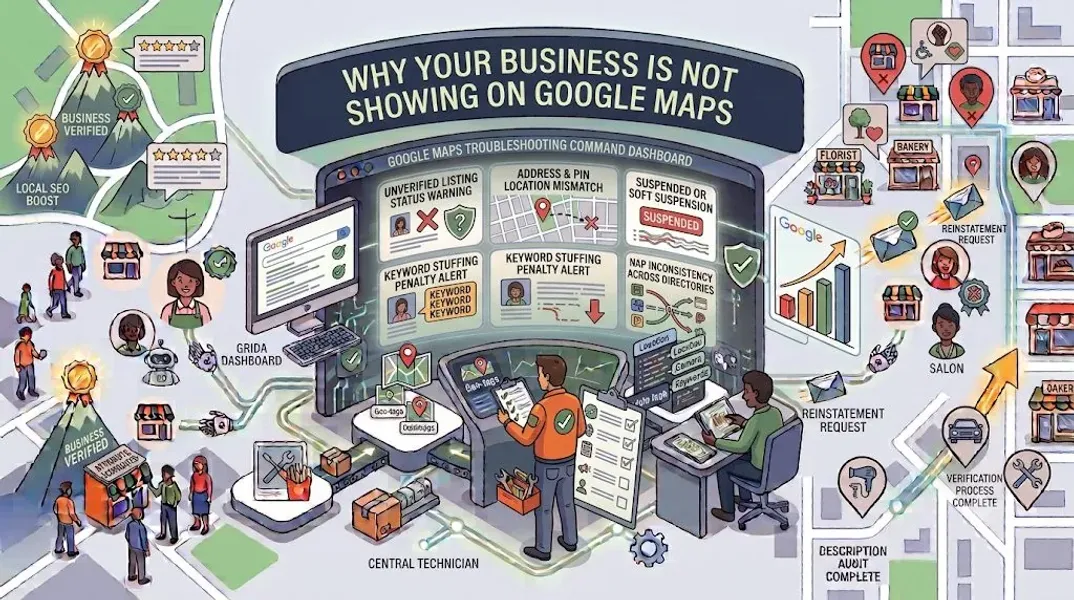
You’ve done everything right. You created your Google Business Profile, verified your listing, added photos, and optimized your information. You’re ready for the customers to start rolling in. But when you search for your business on Google Maps, nothing appears. Your competitors show up, but you’re invisible.
This is one of the most frustrating experiences for local business owners. You’ve invested time and effort into your online presence, yet Google Maps seems to be ignoring you. Every day your business doesn’t appear is a day you’re losing potential customers to competitors who are showing up.
The good news is that this problem is almost always solvable. Whether your business isn’t showing due to a verification issue, a suspension, a ranking problem, or a simple oversight, there’s a solution. The key is to diagnose the root cause and apply the right fix.
In this comprehensive guide, we’ll walk you through every possible reason your business not showing on Google Maps and provide step-by-step solutions for each. We’ll cover verification issues, suspension problems, ranking factors, technical glitches, and everything in between. By the end, you’ll have a clear roadmap to get your business visible and attract the local customers you deserve.
How Google Maps Determines Which Businesses to Show
Before we dive into the problems, it helps to understand how Google Maps decides which businesses to display.
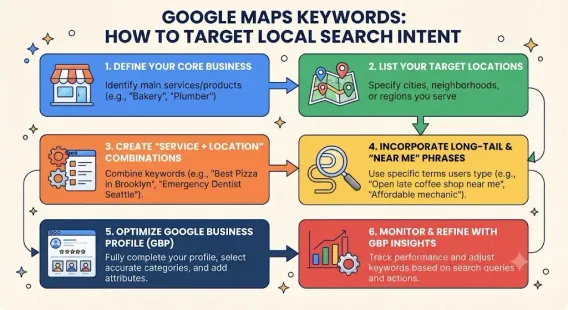
When someone searches on Google Maps, Google’s algorithm considers three primary factors:
Relevance
How well does your business match the search query? Google looks at your business category, description, services, products, and other information to determine relevance.
Distance
How close is your business to the searcher’s location or the location they’ve specified? Proximity is a major factor in local search rankings.
Prominence
How well-known and well-regarded is your business? Google considers reviews, ratings, citations, backlinks, and overall online presence to determine prominence.
If your business isn’t showing, it’s usually because one or more of these factors is working against you—or because there’s a technical issue preventing your listing from appearing at all.
Common Reasons Your Business Is Not Showing on Google Maps
Let’s break down the most common reasons your business might not be appearing on Google Maps.
Reason 1: Your Profile Is Not Verified
This is the most common reason new businesses don’t appear on Google Maps. Until your profile is verified, it won’t be publicly visible.
How to check: Sign in to your Google Business Profile dashboard. If you see a prompt to verify, your profile isn’t verified yet.
How to fix: Complete the Google Business Profile verification process. Depending on your business type, you may be able to verify by phone, email, video, or postcard. Once verified, your profile will appear on Google Maps.
Reason 2: Your Profile Is Suspended
If your profile has been suspended, it won’t appear on Google Maps. Suspensions can happen for various reasons, including guideline violations, suspicious activity, or user reports.
How to check: Sign in to your dashboard. If you see a suspension notice, your profile is suspended.
How to fix: Identify the cause of the suspension, fix any violations, and submit an appeal. For a detailed guide, see our article on Google Business Profile suspended.
Reason 3: Your Business Category Is Wrong
Your primary category has a huge impact on which searches your business appears for. If your category doesn’t match what people are searching for, you won’t show up.
How to check: Review your primary and secondary categories in your dashboard. Are they the most specific and accurate options for your business?
How to fix: Choose the most specific Google Business Profile category that describes your core business. Review competitor categories for insights.
Reason 4: Your Address Is Incorrect or Ineligible
If your address is wrong, incomplete, or ineligible (like a virtual office or PO box), your business may not appear.
How to check: Review your address in your dashboard. Is it accurate and complete? Is it a legitimate business location?
How to fix: Correct your address. If you’re a service-area business, hide your address and specify your service areas instead.
Reason 5: Your Service Area Is Too Broad or Too Narrow
For service-area businesses, your service area settings affect where you appear. If your service area is too broad, you may not rank well anywhere. If it’s too narrow, you may not appear in searches outside that area.
How to check: Review your service area settings. Are they realistic for your business?
How to fix: Set realistic service areas based on where you actually provide services. Focus on a manageable geographic area.
Reason 6: Your Business Name Violates Guidelines
If your business name includes keywords, locations, or promotional phrases, Google may suppress or suspend your listing.
How to check: Does your business name match your real-world business name exactly? If not, it may be the problem.
How to fix: Change your business name to match your real business name. If the field is locked, contact Google support.
Reason 7: Your Profile Is Incomplete
Google favors complete profiles. If your profile is missing key information—hours, description, photos, services—it may rank lower or not appear at all.
How to check: Review your profile completeness. Have you filled out every section?
How to fix: Complete every section of your profile. Add a Google Business Profile description, photos, services, products, and attributes.
Reason 8: You Have Duplicate Profiles
If you have multiple profiles for the same location, Google may suppress all of them. Duplicate profiles confuse Google and violate its guidelines.
How to check: Search for your business name on Google Maps. Do multiple listings appear?
How to fix: Remove duplicate profiles. Keep one profile per location and merge or delete the others.
Reason 9: Your NAP Information Is Inconsistent
If your name, address, and phone number differ across your website, social media, and local citations, Google may lose trust in your listing and reduce its visibility.
How to check: Search for your business name and NAP information online. Is it consistent everywhere?
How to fix: Ensure NAP consistency across all online platforms. Update any outdated or incorrect citations.
Reason 10: You Have Few or No Reviews
Reviews are a major ranking factor for Google Maps. If you have few reviews or a low rating, your business may rank lower than competitors with more reviews.
How to check: Review your review count and rating. How do they compare to competitors?
How to fix: Actively ask for Google reviews from satisfied customers. Respond to all reviews professionally. For more tips, see our guide on customer reviews local SEO.
Reason 11: Your Competitors Are More Prominent
If competitors have stronger signals—more reviews, better ratings, more citations, more backlinks—they may outrank you in Google Maps.
How to check: Compare your profile to top-ranking competitors. What do they have that you don’t?
How to fix: Improve your prominence by building citations, earning reviews, and optimizing your profile. See our guide on how to improve Google Maps visibility.
Reason 12: You’re Outside the Search Radius
Google Maps results are heavily influenced by proximity. If you’re outside the radius for a particular search, you won’t appear—even if you’re relevant.
How to check: Search for your business from different locations. Do you appear when searching from nearby?
How to fix: You can’t change your location, but you can optimize for searches within your area. Focus on local keywords and build citations in your service area.
Reason 13: Your Profile Is New
New profiles sometimes take time to appear in search results. Google needs time to index your information and determine your ranking.
How to check: How long ago did you verify your profile?
How to fix: Be patient. In the meantime, complete your profile, add photos, and start collecting reviews.
Reason 14: Technical Glitches or Bugs
Occasionally, Google Maps experiences technical issues that prevent businesses from appearing.
How to check: Search for other businesses in your area. Are they appearing normally?
How to fix: Wait a few hours and try again. If the issue persists, contact Google support.
Reason 15: Your Business Is Ineligible
Some business types aren’t eligible for Google Business Profiles, including online-only businesses without a physical location or service area, lead generation companies, and certain restricted businesses.
How to check: Review Google’s guidelines for eligibility.
How to fix: If your business is ineligible, you may need to adjust your business model or focus on other marketing channels.
How to Diagnose Why Your Business Is Not Showing
If you’re not sure why your business isn’t appearing, follow these diagnostic steps.
Step 1: Search for Your Business Name
Search for your exact business name on Google Maps. If it doesn’t appear, there’s a visibility issue.
Step 2: Check Your Dashboard
Sign in to your Google Business Profile dashboard. Look for suspension notices, verification prompts, or other alerts.
Step 3: Search for Your Category
Search for your business category in your area (e.g., “plumber near me”). Do you appear? If not, your category or ranking may be the issue.
Step 4: Check Your Information
Review your name, address, phone number, hours, and category. Are they accurate and complete?
Step 5: Compare to Competitors
Look at top-ranking competitors. What are they doing that you’re not?
Step 6: Check Your Citations
Search for your business name and NAP information online. Is it consistent across all platforms?
How to Fix Your Google Maps Visibility: Step-by-Step
Once you’ve identified the issue, here’s how to fix it.
Step 1: Verify Your Profile
If your profile isn’t verified, complete the Google Business Profile verification process.
Step 2: Appeal Any Suspension
If your profile is suspended, fix the violation and submit an appeal. See our guide on Google Business Profile suspended.
Step 3: Correct Your Information
Update your name, address, phone number, hours, and category to ensure accuracy.
Step 4: Complete Every Section
Fill out your description, add photos, list services and products, and select attributes.
Step 5: Build Local Citations
Ensure your NAP information is consistent across all local citations. Build new citations on relevant directories.
Step 6: Collect Reviews
Actively ask for Google reviews and respond to all reviews professionally.
Step 7: Optimize for Local Keywords
Research local keyword research and near me keywords to understand what customers are searching for. Incorporate these keywords naturally into your profile.
Step 8: Post Regularly
Use Google Business Profile post ideas to keep your profile active and engaging.
Step 9: Monitor Your Insights
Use Google Business Profile insights to track your performance and identify areas for improvement.
Step 10: Be Patient
Some fixes take time to show results. Monitor your progress and adjust as needed.
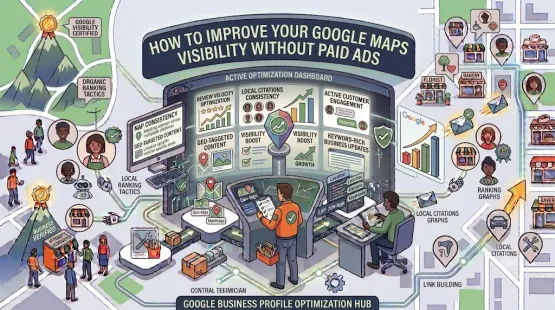
How to Improve Google Maps Visibility Without Paid Ads
If you want to improve your visibility without spending on ads, focus on these strategies.
Optimize Your Profile Completely
A complete profile ranks better than an incomplete one. Fill out every section.
Build Local Citations
Consistent citations across directories help Google verify your business and improve your ranking.
Earn Reviews Consistently
Reviews are a major ranking factor. Ask for reviews regularly and respond to all of them.
Create Local Content
Blog posts, landing pages, and social media content that mention your location can improve your local relevance.
Build Backlinks From Local Sources
Links from local newspapers, blogs, and organizations can boost your prominence.
Engage With Your Community
Sponsor local events, partner with other businesses, and participate in community activities. This builds your online and offline reputation.
Post Regularly on Google Business Profile
Regular posts signal to Google that your business is active and engaged.
Conclusion
If your business not showing on Google Maps, don’t panic. The problem is almost always solvable. Whether it’s a verification issue, a suspension, a ranking problem, or a technical glitch, there’s a fix.
Start by diagnosing the root cause. Check your dashboard for suspension notices or verification prompts. Review your information for accuracy and completeness. Compare your profile to competitors. Once you’ve identified the issue, apply the appropriate fix.
Remember: Google Maps visibility is a marathon, not a sprint. It takes time to build the signals Google looks for—reviews, citations, engagement, and prominence. But with consistent effort and the right strategy, you can get your business showing on Google Maps and attract the local customers you deserve.
Call to Action
Still can’t figure out why your business isn’t showing on Google Maps? Let our local SEO experts help. We’ll diagnose the issue, fix your profile, and optimize your visibility so you can start attracting more local customers.
Contact Us Today for a Free Local SEO Audit!
FAQs
Q1: How long does it take for a new business to appear on Google Maps? A: After verification, it typically takes a few days to a few weeks for your business to appear on Google Maps. Completing your profile and building citations can speed up the process.
Q2: Why is my competitor showing on Google Maps but not my business? A: Your competitor may have a more complete profile, more reviews, stronger citations, or better proximity to the searcher. Compare your profile to theirs and identify areas for improvement.
Q3: Can I appear on Google Maps without a physical address? A: Yes, if you’re a service-area business. You can hide your address and specify your service areas. However, you must still be a legitimate business that serves customers at their locations.
Q4: How do I know if my Google Business Profile is suspended? A: You’ll see a suspension notice in your dashboard and receive an email from Google. Your profile will also disappear from Google Search and Google Maps.
Q5: How often should I update my Google Business Profile to improve Maps visibility? A: Post at least weekly, add photos monthly, and review your information quarterly. Regular activity signals to Google that your business is active. For a detailed schedule, see our guide on how often to update Google Business Profile.
Q6: What if my business is not showing on Google Maps after verification? A: If your business isn’t showing after verification, check for suspensions, review your information for accuracy, ensure your category is correct, and build citations and reviews. If the issue persists, contact Google support.
Q7: Can I pay to appear on Google Maps? A: You can run Google Ads to appear in sponsored results, but organic Google Maps visibility can’t be bought. It’s earned through profile optimization, reviews, citations, and engagement. See our guide on how to improve Google Maps visibility without paid ads.
Q8: What should I do if my Google Business Profile is suspended? A: If your profile is Google Business Profile suspended, review Google’s guidelines, fix any violations, and submit an appeal. Our guide on suspended profiles covers this in depth.
Q9: How do I fix incorrect information on my Google Business Profile? A: If your profile shows incorrect information, you can edit it directly from your dashboard. For persistent issues, see our guide on how to fix Google Business Profile errors.
Internal Links
-
What Is Google Business Profile and How Does It Work? A Complete Guide
-
Google Business Profile vs Google Maps: What’s the Difference?
-
Google Business Profile Verification: Complete Step-by-Step Guide
-
How to Write the Perfect Google Business Profile Description
-
Google Business Profile Photos: Best Practices for Local SEO
-
Google Business Profile Services: How to Add and Optimize Them
-
Google Business Profile Attributes: What Are They and Why Do They Matter?
-
Google Business Profile Suspended? Common Causes and What to Do## External Links
-
Google’s Guidelines for Representing Your Business on Google
Keep reading
Grow Your Google Maps Ranking on Autopilot
Stop spending hours every week manually replying to customer reviews and writing Google posts. Busirank automates your Google Business Profile to boost your local SEO rankings and turn searchers into paying clients.
 Busirank Team