 Busirank Team
Introduction
You’ve done the hard work. You’ve created your Google Business Profile, filled in all your business details, uploaded photos, and you’re ready to start attracting local customers. There’s just one problem: your profile isn’t showing up publicly yet. You’re stuck at the verification stage, and nothing you try seems to work.
If this sounds familiar, you’re not alone. Google Business Profile verification is one of the most common stumbling blocks for business owners. The process can feel confusing, the wait times can be frustrating, and when verification fails, it’s easy to feel like you’re going in circles. But here’s the truth: verification is essential, and once you understand how it works, you can get through it smoothly.
Think of verification as Google’s way of protecting its platform. It ensures that only legitimate business owners can manage their listings, keeping spam and fake businesses out of search results. It’s a necessary step, but it doesn’t have to be a painful one.
In this complete guide, we’ll walk you through every Google Business Profile verification method, explain how to choose the right one for your business, provide troubleshooting tips for common issues, and share strategies to speed up the process. By the end, you’ll have everything you need to get verified and start reaping the benefits of a fully active profile.
What Is Google Business Profile Verification?
Google Business Profile verification is the process Google uses to confirm that you are the legitimate owner or authorized representative of a business. Until your business is verified, your profile won’t appear publicly on Google Search or Google Maps.
Verification serves several important purposes:
- Prevents spam and fraud: It stops bad actors from creating fake listings or hijacking existing ones.
- Protects business owners: It ensures that only authorized people can manage a business’s information.
- Builds trust with users: Verified listings signal to customers that the business is real and legitimate.
- Unlocks full features: Once verified, you gain access to all profile features, including posts, messaging, and insights. Without verification, your profile is essentially invisible. You can’t respond to reviews, you can’t post updates, and you can’t appear in local search results. That’s why getting verified quickly and correctly is so important.
Why Verification Matters for Your Business
You might wonder why Google makes such a big deal about verification. After all, you just want to get your business online. But verification is more than a formality—it’s a critical step that impacts your entire local SEO strategy.
It’s Required for Visibility
An unverified profile won’t appear in Google Search or Google Maps. Period. No matter how complete your profile is, you won’t show up until verification is complete.
It Builds Customer Trust
Verified businesses display a “Verified” badge on their profiles. This small detail goes a long way in building trust with potential customers who are wary of fake listings.
It Unlocks All Features
Once verified, you can access insights, respond to reviews, create posts, enable messaging, and manage every aspect of your profile.
It Protects Your Business
Without verification, your business could be misrepresented or even hijacked by someone else. Verification ensures that you control your listing.
It Impacts Local Rankings
Google’s algorithm favors verified, active profiles. Verification is the first step toward optimizing your profile for local pack SEO and improving your local ranking.
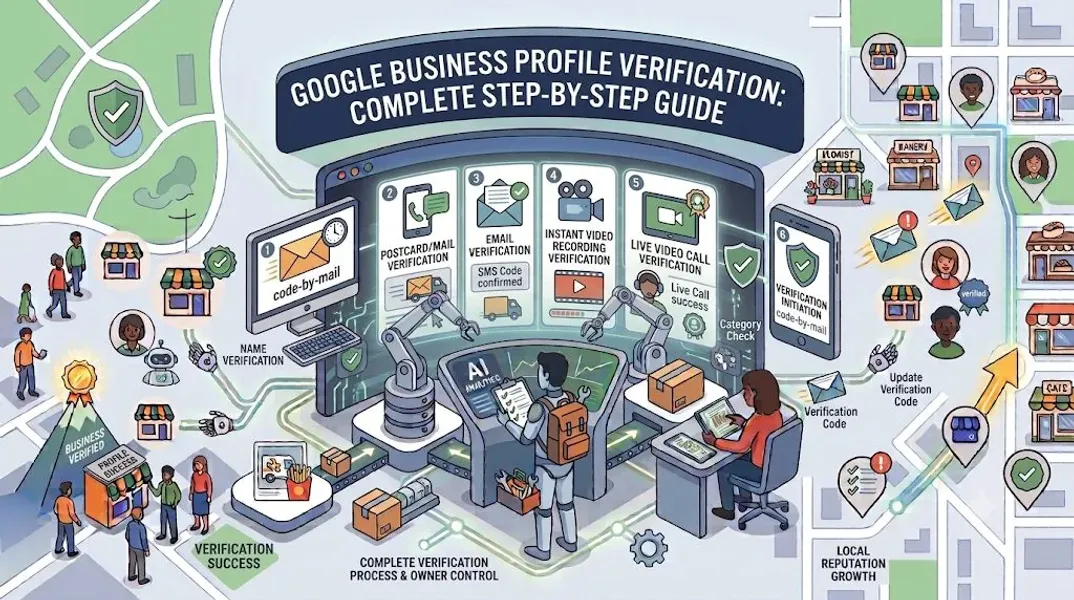
Google Business Profile Verification Methods
Google offers several verification methods, and the one you’ll use depends on your business type, location, and the information you’ve provided. Here’s a breakdown of each method.
1. Postcard Verification
Postcard verification is the most common method, especially for businesses with a physical storefront.
How it works:
- You request a postcard through your Google Business Profile dashboard.
- Google mails a postcard to your business address.
- The postcard contains a unique verification code.
- You log into your profile and enter the code to verify. Timeline: Postcards typically arrive within 5-14 business days, though delays can occur.
Tips for success:
- Make sure your business address is accurate and complete.
- Check your mail daily, as postcards can look like junk mail.
- Don’t request a new postcard until you’ve waited at least 14 days for the first one.
2. Phone Verification
Some businesses are eligible for phone verification, which is faster and more convenient than waiting for a postcard.
How it works:
- You request phone verification through your profile.
- Google calls or texts a code to your business phone number.
- You enter the code to verify. Eligibility: Phone verification is typically available for businesses that have a local phone number that matches their business category and location.
Tips for success:
- Use a phone number that’s actively monitored.
- Be ready to answer when Google calls—missed calls may require a new request.
3. Email Verification
Email verification is available for some businesses, particularly those that have already verified their domain through Google Search Console.
How it works:
- You request email verification.
- Google sends a verification link to your email.
- You click the link to verify. Eligibility: This method is less common and typically available for businesses with a verified website domain.
4. Video Verification
Video verification is becoming increasingly common, especially for service-area businesses and businesses without a traditional storefront.
How it works:
-
You schedule a video call with a Google representative.
-
During the call, you show your business location, equipment, signage, and proof of ownership.
-
Google reviews the video and verifies your business. What to prepare:
-
Your business location (storefront, office, or workspace)
-
Business signage or branding
-
Equipment or inventory related to your business
-
Documents like a business license or utility bill
-
Access to your Google Business Profile dashboard Tips for success:
-
Ensure good lighting and a stable internet connection.
-
Have all documents ready before the call.
-
Be prepared to answer questions about your business operations.
5. Instant Verification
Some businesses can be verified instantly if their information matches what’s already in Google’s system.
How it works:
- You sign in to your Google Business Profile.
- Google checks your information against existing data.
- If everything matches, you’re verified immediately. Eligibility: This is most common for businesses that have already verified their website with Google Search Console or have an existing verified listing.
6. Bulk Verification
If you manage multiple locations of the same business, you may be eligible for bulk verification.
How it works:
- You apply for bulk verification through your Google Business Profile dashboard.
- Google reviews your request and verifies all locations at once. Eligibility: Businesses with 10 or more locations of the same brand.
How to Complete Google Business Profile Verification: Step-by-Step
Now let’s walk through the verification process from start to finish.
Step 1: Sign In to Your Google Business Profile
Go to google.com/business and sign in with the Google account you used to create your profile.
Step 2: Locate the Verification Option
If your business isn’t verified yet, you’ll see a prompt to verify. Click “Verify now” to begin.
Step 3: Choose Your Verification Method
Google will show you the available verification methods for your business. Select the one that works best for you.
Step 4: Follow the Instructions
Depending on your chosen method, follow the on-screen instructions. For postcard verification, confirm your address. For phone verification, confirm your phone number. For video verification, schedule your call.
Step 5: Complete the Verification
- Postcard: Wait for the postcard to arrive, then enter the code in your dashboard.
- Phone: Answer the call or text and enter the code.
- Email: Click the verification link in your email.
- Video: Complete the video call and wait for Google’s review.
Step 6: Confirm Your Verification
Once verified, you’ll receive a confirmation. Your profile will now be publicly visible, and you’ll have access to all features.
Troubleshooting Common Verification Issues
Verification doesn’t always go smoothly. Here are solutions to the most common problems.
Postcard Never Arrived
If your postcard hasn’t arrived after 14 days, request a new one. Double-check that your address is correct and complete. Consider adding a suite or unit number if applicable.
Verification Code Not Working
Make sure you’re entering the code exactly as it appears. Codes are case-sensitive and may contain numbers and letters. If the code has expired, request a new one.
Phone Verification Not Available
Not all businesses are eligible for phone verification. If it’s not an option, you’ll need to use another method, such as postcard or video verification.
Video Verification Failed
If your video verification fails, review Google’s feedback carefully. Common issues include poor video quality, missing documentation, or inability to verify your business location.
Profile Suspended After Verification
If your profile is Google Business Profile suspended after verification, it’s usually due to a guideline violation. Common causes include keyword stuffing in your business name, using a virtual address, or having inconsistent NAP information. You can appeal the suspension through Google’s reinstatement process.
Business Not Showing on Google Maps
If your business isn’t showing on Google Maps after verification, check that your profile is complete and your address is accurate. For more help, see our guide on business not showing on Google Maps.
Tips to Speed Up Verification
Verification can take time, but these tips can help you get through it faster.
Complete Your Profile Fully
Before requesting verification, make sure every section of your profile is complete. Incomplete profiles may face longer review times.
Use a Matching Phone Number
If you’re eligible for phone verification, use a phone number that matches your business category and location. A local number is more likely to be approved.
Verify Your Website Domain
If you’ve verified your website with Google Search Console, you may be eligible for instant verification.
Request Video Verification
Video verification is often faster than waiting for a postcard, especially if you’re prepared and have all your documents ready.
Avoid Requesting Multiple Postcards
Requesting multiple postcards in a short period can trigger Google’s spam filters and delay verification. Wait at least 14 days before requesting a new one.
Keep Your Information Consistent
Ensure your business name, address, and phone number are identical across your website, social media, and all local citations. NAP consistency helps Google verify your business faster.
What to Do After Verification
Congratulations! You’re verified. Now what?
Complete Every Section of Your Profile
Add your Google Business Profile description, hours, services, products, and attributes. The more complete your profile, the better your visibility.
Upload High-Quality Photos
Follow Google Business Profile photos best practices: use natural lighting, avoid stock photos, and add new images regularly.
Start Collecting Reviews
Reach out to satisfied customers and ask for Google reviews. Reviews are a major ranking factor and build trust with potential customers.
Post Regularly
Use Google Business Profile post ideas to share updates, offers, and news. Consistent posting keeps your profile active.
Monitor Insights
Use Google Business Profile insights to track how customers find and interact with your business.
Respond to Reviews
Engage with every review—positive or negative. Learning to respond to negative Google reviews professionally protects your reputation.
Conclusion
Google Business Profile verification is a necessary step to unlock the full power of your local listing. While the process can sometimes be frustrating, understanding the available methods and following best practices can help you get verified quickly and start attracting local customers.
Remember: verification isn’t just a formality. It’s Google’s way of ensuring that only legitimate businesses appear in search results. Once you’re verified, you gain access to all the features that make Google Business Profile such a powerful tool for local marketing.
Whether you choose postcard, phone, email, video, or instant verification, the key is to be prepared, follow Google’s guidelines, and avoid common mistakes that can delay or derail the process. With this guide in hand, you’re ready to get verified and start growing your local presence.
Call to Action
Struggling with Google Business Profile verification? You’re not alone—and you don’t have to figure it out on your own. Let our local SEO experts help you get verified fast. We’ll guide you through the process, troubleshoot any issues, and optimize your profile for maximum visibility.
Contact Us Today for a Free Local SEO Audit!
FAQs
Q1: How long does Google Business Profile verification take? A: It depends on the method. Phone and email verification can be instant. Postcard verification takes 5-14 business days. Video verification typically takes a few days for review after your call.
Q2: Can I skip verification? A: No, verification is required for your profile to appear publicly on Google Search and Google Maps. Without it, your listing won’t be visible.
Q3: What if my postcard never arrives? A: If your postcard hasn’t arrived after 14 days, request a new one through your dashboard. Double-check your address for accuracy before requesting a new card.
Q4: Why is phone verification not available for my business? A: Phone verification is only available for certain business types and locations. If it’s not an option, you’ll need to use postcard or video verification instead.
Q5: What should I do if my profile is suspended after verification? A: If your profile is Google Business Profile suspended, you can appeal through Google’s reinstatement process. Identify the cause, fix it, and submit a detailed appeal. Our guide on suspended profiles covers this in depth.
Q6: Can I verify multiple locations at once? A: Yes, if you have 10 or more locations of the same business, you may be eligible for bulk verification. You can apply through your Google Business Profile dashboard.
Q7: How do I fix incorrect information on my Google Business Profile? A: If your profile shows incorrect information after verification, you can edit it directly from your dashboard. For persistent issues, see our guide on how to fix Google Business Profile errors.
Internal Links
-
What Is Google Business Profile and How Does It Work? A Complete Guide
-
Google Business Profile vs Google Maps: What’s the Difference?
-
How to Write the Perfect Google Business Profile Description
-
Google Business Profile Photos: Best Practices for Local SEO
-
Google Business Profile Services: How to Add and Optimize Them
-
Google Business Profile Attributes: What Are They and Why Do They Matter?## External Links
-
Google’s Guidelines for Representing Your Business on Google
Keep reading
Grow Your Google Maps Ranking on Autopilot
Stop spending hours every week manually replying to customer reviews and writing Google posts. Busirank automates your Google Business Profile to boost your local SEO rankings and turn searchers into paying clients.
 Busirank Team