 Busirank Team
Introduction
You’ve optimized your categories, written a compelling description, and uploaded stunning photos. Your Google Business Profile is looking great. But there’s one feature that could be the difference between a browsing customer and a buying one—and most businesses aren’t using it.
It’s the Products section. And if you sell anything—whether it’s physical goods, digital downloads, or even packaged services—this feature is your secret weapon for converting local searches into actual sales.
Think about how people shop today. Before visiting a store, they research online. Before calling a business, they check what’s available. And increasingly, they’re doing all of this directly on Google. When someone searches for your business and sees a curated showcase of your products—complete with images, descriptions, and prices—they’re far more likely to take the next step. They might visit your store, place an order, or book a service on the spot.
Here’s the frustrating part: Google offers this feature for free, yet countless businesses either don’t know it exists or don’t bother to use it. They’re leaving money on the table and giving an advantage to competitors who’ve taken the time to populate their Products section.
In this comprehensive guide, we’ll walk you through everything you need to know about Google Business Profile products. We’ll explain what the Products section is, why it matters, how to add products step by step, optimization strategies, and common mistakes to avoid. By the end, you’ll have the tools to turn your profile into a powerful product showcase.
What Are Google Business Profile Products?
Google Business Profile Products is a feature that allows you to showcase the items you sell directly on your profile. Each product listing can include a name, image, description, price, and a link to purchase or learn more.
This section appears on your Google Business Profile when customers view your business on Google Search or Google Maps. It gives potential customers a visual, informative overview of what you offer—without them needing to visit your website first.
Products vs. Services
It’s important to distinguish between the Products and Services sections on your Google Business Profile.
Products are tangible items you sell. Examples include clothing, electronics, furniture, packaged food, or handmade crafts.
Services are intangible offerings—work you perform for customers. Examples include plumbing repair, dental cleaning, or legal consultation.
If your business offers both, use both sections. For more on services, see our guide on Google Business Profile services.
Where Products Appear
Your Products section appears:
- On your Google Business Profile when viewed on Google Search
- On your Google Maps listing
- When customers click “Products” on your profile
- In some local search results and shopping-related searches
Why Google Business Profile Products Matter
The Products section is more than a catalog—it’s a strategic tool that impacts your visibility, credibility, and sales. Here’s why it matters.
It Improves Your Local SEO
Your Products section contains valuable keywords—product names, descriptions, and categories—that help Google understand what you sell. When someone searches for a specific product you carry, having that product listed can improve your relevance and ranking.
For example, if you’re a pet store and you list “organic dog food,” “cat toys,” and “aquarium supplies” as products, you’re more likely to appear for those specific searches.
It Attracts Ready-to-Buy Customers
Customers searching for products are often further along in the buying journey. They know what they want and are looking for a place to buy it. A well-populated Products section captures this high-intent traffic and directs it to your business.
It Showcases Your Inventory
Your Products section acts as a mini-catalog on your profile. Customers can browse your offerings without visiting your website, making it easier for them to find what they need and decide to buy.
It Builds Trust and Transparency
A complete Products section with detailed descriptions, images, and prices shows that your business is professional and transparent. It signals that you’re confident in your products and that you value customer convenience.
It Differentiates You From Competitors
Many businesses neglect their Products section. By optimizing yours, you gain a competitive advantage. You’ll appear more complete, more professional, and more appealing than businesses that don’t.
How to Add Products to Your Google Business Profile
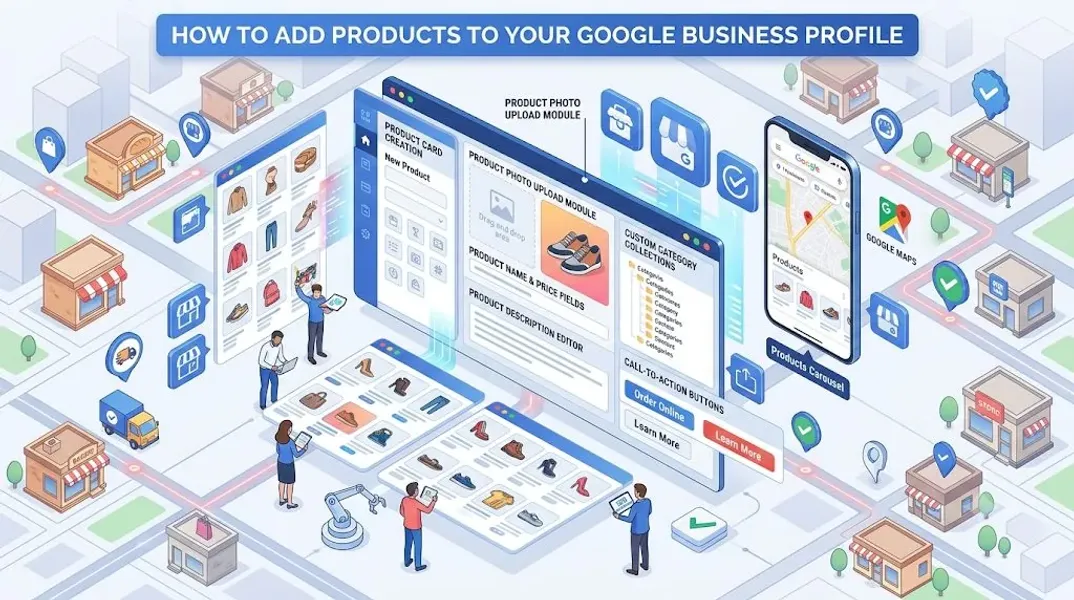
Adding products to your profile is a straightforward process. Here’s how to do it step by step.
Step 1: Sign In to Your Google Business Profile
Go to google.com/business and sign in with your Google account.
Step 2: Navigate to the Products Section
In the left-hand menu, click on “Edit profile,” then find the “Products” section. Depending on your business category, this may be labeled differently or located in a different area.
Step 3: Click “Add Product”
Click the “Add product” button to begin creating a new product listing.
Step 4: Add Product Details
For each product, you’ll typically add:
- Product name: A clear, descriptive name (e.g., “Organic Cotton T-Shirt”)
- Category: Choose from available categories or create a custom one
- Description: A brief explanation of the product
- Price: The price or price range
- Image: A high-quality photo of the product
- Link: A URL to the product page on your website
Step 5: Upload Product Images
Add a high-quality image for each product. Images are critical—they’re often what catches a customer’s eye and convinces them to click.
Step 6: Add Descriptions
Write clear, concise descriptions for each product. Include relevant keywords naturally, and focus on benefits as well as features.
Step 7: Set Prices
Add prices for your products. If you prefer not to display exact prices, you can use ranges or “starting at” pricing. Transparency about pricing builds trust.
Step 8: Add Links
Where available, add links to product pages on your website so customers can learn more or make a purchase.
Step 9: Save and Publish
Review your products, then click “Save” to publish them to your profile.
Step 10: Verify Your Changes
Check your profile on Google Search and Google Maps to confirm your products appear correctly.
How to Optimize Your Google Business Profile Products
Adding products is just the first step. To get the most from this feature, you need to optimize. Here’s how.
Use Relevant Keywords
Incorporate keywords that your customers are searching for. Use tools for local keyword research to identify terms with high search volume and relevance. Include these keywords naturally in your product names and descriptions.
Example: Instead of just “Dog Food,” use “Organic Grain-Free Dog Food” to capture more specific searches.
Write Detailed Descriptions
Don’t just list your products—describe them. Explain what’s included, what makes your product different, and why customers should choose it. Detailed descriptions improve your SEO and help customers understand your offerings.
Example:
- Product Name: Organic Cotton T-Shirt
- Description: Soft, breathable 100% organic cotton t-shirt. Available in five colors. Pre-shrunk and machine washable. Ethically made in the USA.
Include Pricing When Possible
Displaying prices can increase conversions by setting clear expectations. If you can’t display exact prices, use ranges or “starting at” pricing.
Tip: If your pricing varies significantly, consider using “Contact for Price” or providing a starting price.
Use High-Quality Images
Product images are critical. Use high-resolution photos with clean backgrounds. Show products from multiple angles and in context when possible. Avoid stock photos—use real images of your actual products.
Categorize Your Products
If Google provides product categories for your business type, use them to organize your products. This makes it easier for customers to find what they’re looking for.
Add Purchase or Learn More Links
Where available, add links to product pages on your website so customers can take action directly from your profile.
Update Products Regularly
As your inventory changes, update your Products section. Remove discontinued items, add new products, and update prices as needed.
Highlight Your Best Sellers
If you have products that are particularly popular or profitable, prioritize them. Place them at the top of your list and give them detailed descriptions.
Monitor Performance
Use Google Business Profile insights to track how customers interact with your products. See which products get the most views and clicks, and adjust your strategy accordingly.
Best Practices for Google Business Profile Products
Follow these best practices to maximize the impact of your Products section.
Be Specific
Avoid vague product names like “Item 1” or “Miscellaneous.” Be specific about what you sell. “Handmade Leather Wallet” and “Wireless Bluetooth Headphones” are clearer and more searchable.
Focus on Benefits
While features describe what your product is, benefits explain why customers should care. Incorporate both into your descriptions.
Example:
- Feature: “Made with stainless steel.”
- Benefit: “Durable and rust-resistant for years of use.”
Keep Descriptions Concise
Aim for 1-3 sentences per product description. Enough to inform, but not so long that customers lose interest.
Use Natural Language
Write as if you’re explaining your products to a customer. Avoid jargon and technical terms that might confuse your audience.
Prioritize Your Most Valuable Products
List your most popular or profitable products first. These are the ones you want customers to see immediately.
Stay Consistent With Your Website
Your Google Business Profile products should match what you offer on your website. Inconsistency can confuse customers and hurt trust.
Respond to Product-Related Questions
If customers ask about specific products in your Q&A section, respond promptly and thoroughly.
Update Seasonally
If your product offerings change seasonally, update your Products section to reflect current inventory.
Common Mistakes to Avoid
Avoid these common mistakes when setting up your Products section.
Leaving It Blank
The biggest mistake is not using the Products section at all. This leaves valuable SEO real estate empty and makes it harder for customers to understand what you sell.
Using Low-Quality Images
Blurry, poorly lit, or irrelevant images hurt your credibility. Invest in high-quality product photography.
Writing Vague Descriptions
Descriptions like “Great product” or “High quality” don’t tell customers anything. Be specific about what your product is and what it offers.
Keyword Stuffing
Cramming keywords into your product descriptions doesn’t help and can hurt your credibility. Write naturally and incorporate keywords organically.
Ignoring Pricing
If you can display pricing, do so. Customers appreciate transparency, and it can increase conversions.
Not Updating Products
If you’ve added or discontinued products, update your profile. Outdated information hurts trust and rankings.
Forgetting to Categorize
If Google provides product categories for your business type, use them. This helps organize your products and improves visibility.
Violating Google’s Guidelines
Promotional language, misleading claims, and prohibited content can get your profile flagged or suspended. Always follow Google’s guidelines.
Product Ideas for Different Business Types
Different business types have different products to showcase. Here are some examples to inspire you.
Retail Stores
- Individual clothing items
- Accessories
- Home goods
- Electronics
- Seasonal items
Restaurants and Food Businesses
- Packaged goods
- Signature sauces or spices
- Merchandise
- Gift cards
- Catering packages
Health and Beauty
- Skincare products
- Cosmetics
- Supplements
- Personal care items
- Gift sets
Specialty Shops
- Handmade crafts
- Artisan goods
- Collectibles
- Custom items
- Limited editions
Online-Only Businesses With Local Pickup
- Bestselling items
- New arrivals
- Clearance items
- Bundles
- Gift cards
How Products Impact Your Local SEO
Your Products section plays a supporting role in your local SEO strategy. Here’s how.
Improved Relevance
When you list specific products, you improve your relevance for searches related to those products. Google can match your business to more specific queries.
More Keyword Opportunities
Each product name and description is an opportunity to include relevant keywords. This expands the number of searches you can potentially appear for.
Increased Engagement
Profiles with complete Products sections receive more engagement—more clicks, calls, and direction requests. This engagement signals to Google that your business is valuable.
Support for Local Pack SEO
A complete Products section supports your local pack SEO efforts by making your profile more comprehensive and relevant.
Competitive Advantage
If your competitors have sparse Products sections, a well-optimized section gives you an edge in local search results.
Enhanced Shopping Intent
Products capture high-intent shoppers who are ready to buy. This can lead to more conversions and a higher return on your local SEO efforts.
Conclusion
Your Google Business Profile Products section is a powerful tool for showcasing your inventory, attracting local customers, and improving your local SEO. It answers the question—“What do they sell?”—and provides the information customers need to take action.
The key is to be specific, visual, and strategic. List your products with clear names and detailed descriptions. Use high-quality images. Include pricing when possible. Categorize your products if Google provides options. And update regularly as your inventory changes.
Don’t neglect this section. It’s prime real estate on your profile, and optimizing it can make a significant difference in your local visibility and sales. Take the time to get it right, and you’ll see the results in your bottom line.
Call to Action
Not sure if your Google Business Profile Products section is optimized for maximum impact? Let our local SEO experts help. We’ll review your current products, identify opportunities, and optimize your profile to attract more local shoppers.
Contact Us Today for a Free Local SEO Audit!
FAQs
Q1: What’s the difference between Products and Services on Google Business Profile? A: Products are tangible items you sell, like clothing or electronics. Services are intangible offerings—work you perform for customers, like plumbing repair or dental cleaning. If you offer both, use both sections.
Q2: Can I add prices to my products? A: Yes, you can add prices to your products. You can use fixed prices, price ranges, or “starting at” pricing. If you prefer not to display prices, you can leave this field blank.
Q3: How many products can I add? A: Google allows you to add multiple products, though the exact limit may vary by business category. Focus on quality over quantity—list your most important products with detailed descriptions.
Q4: Do products help with local SEO? A: Yes, products improve your local SEO by increasing your relevance for specific searches and adding keyword opportunities to your profile.
Q5: How often should I update my products? A: Review your products monthly and update immediately when you add, change, or discontinue a product. Keeping your products current ensures accuracy and maintains customer trust.
Q6: What if Google doesn’t offer product categories for my business type? A: If pre-defined categories aren’t available, you can often add custom products. Check your Google Business Profile dashboard for available options.
Q7: Can I add products if I don’t have an online store? A: Yes, you can add products even if you don’t sell online. The Products section showcases what you offer, and customers can visit your physical location to purchase.
Q8: What should I do if my Google Business Profile is suspended? A: If your profile is Google Business Profile suspended, it may be due to a guideline violation. Review Google’s guidelines, fix any issues, and submit an appeal. Our guide on suspended profiles covers this in depth.
Q9: How do I fix incorrect information on my Google Business Profile? A: If your profile shows incorrect information, you can edit it directly from your dashboard. For persistent issues, see our guide on how to fix Google Business Profile errors.
Internal Links
-
What Is Google Business Profile and How Does It Work? A Complete Guide
-
Google Business Profile vs Google Maps: What’s the Difference?
-
Google Business Profile Verification: Complete Step-by-Step Guide
-
How to Write the Perfect Google Business Profile Description
-
Google Business Profile Photos: Best Practices for Local SEO
-
How Often Should You Update Your Google Business Profile?## External Links
-
Google’s Guidelines for Representing Your Business on Google
Keep reading
Grow Your Google Maps Ranking on Autopilot
Stop spending hours every week manually replying to customer reviews and writing Google posts. Busirank automates your Google Business Profile to boost your local SEO rankings and turn searchers into paying clients.
 Busirank Team