 Busirank Team
Introduction
Running one successful local business is challenging enough. Running five, ten, or fifty locations is a completely different beast. Every location has its own Google Business Profile—its own reviews, its own photos, its own posts, its own insights. Each one needs attention. Each one needs to be optimized. And each one represents a potential customer touchpoint that can either drive revenue or damage your brand.
Here’s the problem: Google Business Profile was designed for single-location businesses. If you manage multiple locations, you’ve probably felt the pain. Logging in and out of different accounts. Switching between profiles. Trying to remember which location got a new review that needs a response. Losing track of which locations have posted this week. Missing critical alerts because they got buried in a sea of notifications.
The result is predictable: inconsistency. Some locations get attention, others don’t. Reviews go unanswered. Posts stop. Photos become stale. And your multi-location brand starts to look fragmented—with some locations thriving and others quietly underperforming.
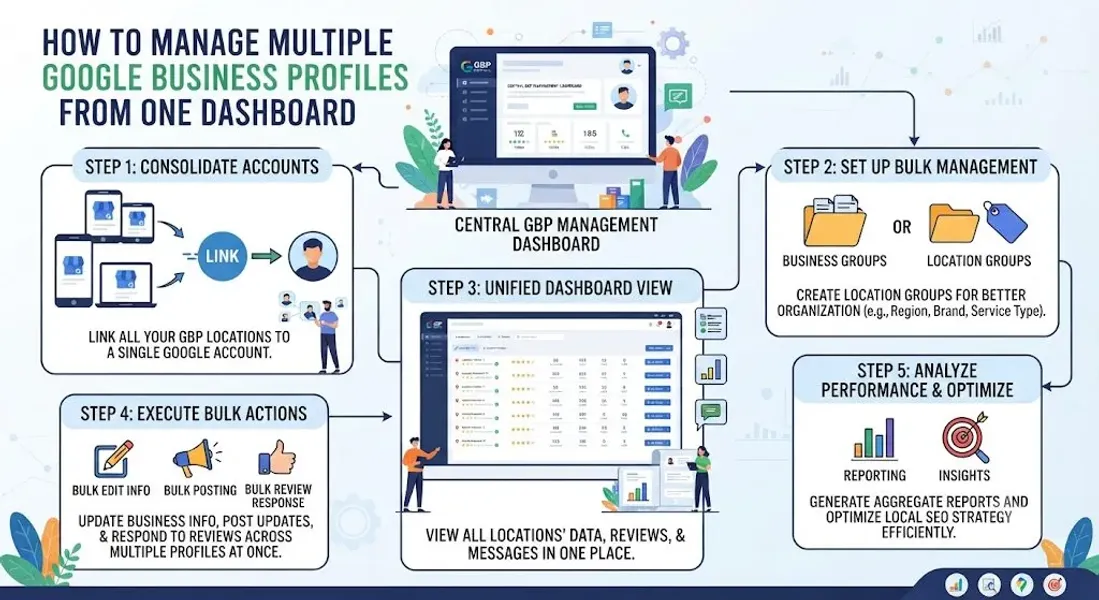
The solution is centralizing your management. When you manage all your Google Business Profiles from one dashboard, you gain visibility, efficiency, and control. You can respond to reviews across all locations in minutes instead of hours. You can publish posts to every location at once. You can compare performance and spot problems before they escalate.
In this comprehensive guide, we’ll walk you through exactly how to manage multiple Google Business Profiles from one dashboard. We’ll cover the native Google tools, the third-party platforms that make multi-location management easier, the workflows that save time, and the best practices that keep every location performing at its best. By the end, you’ll have a complete system for multi-location success.
Why Managing Multiple Google Business Profiles Is Challenging
Before we get into solutions, let’s acknowledge the real difficulties of multi-location management.
Each Location Has Its Own Profile
A Google Business Profile represents a physical location. If you have five locations, you have five profiles. Each one needs to be claimed, verified, and maintained separately.
Each Profile Has Its Own Reviews
Reviews are left on individual location profiles. A customer who had a bad experience at your downtown location leaves a review there—not on your flagship store. If you’re not monitoring every profile, negative reviews can sit unanswered for weeks.
Each Profile Has Its Own Insights
Performance data is segmented by location. To understand your overall local SEO performance, you need to compare and aggregate data across every profile.
Each Profile Needs Its Own Content
While you can publish the same post to multiple locations, local nuance matters. A promotion in one city may not make sense in another. Hours vary. Staff vary. Local events vary.
Verification Is Per Location
New locations require verification, which can be a slow, manual process. Managing verifications across multiple locations adds complexity.
User Permissions Get Complicated
Who manages which location? How do you grant access to regional managers without giving them access to every location? Google’s permission system can be unwieldy.
Suspensions Can Impact Individual or Multiple Locations
If one location violates Google’s guidelines, it can be suspended—and if the issue is systemic, multiple locations may be affected. For more, see our guide on Google Business Profile suspended.
Scale Makes Manual Management Impossible
Managing one profile manually is feasible. Managing ten or fifty manually is not. Without a system, quality and consistency inevitably suffer.
Google’s Native Tools for Multi-Location Management
Before investing in third-party tools, it helps to understand what Google provides natively.
Google Business Profile Manager
Google Business Profile Manager allows you to manage multiple locations from a single account. You can:
- View all your locations in one list
- Switch between profiles quickly
- Manage reviews, photos, and posts per location
- Access insights for each location Limitations: The native dashboard doesn’t offer bulk actions, advanced reporting, or centralized review management across locations. It’s functional but basic.
Location Groups
Google allows you to organize locations into groups. This is useful for franchises, regional clusters, or any business with a logical structure.
How to use it: Create groups like “West Coast,” “Franchise Partners,” or “Downtown Locations” to filter and manage subsets of your locations.
User Roles and Permissions
Google offers several permission levels:
- Primary owner: Full control, can manage users
- Owner: Full control except managing users
- Manager: Can manage most aspects but not users
- Site manager: Limited access to specific locations Best practice: Assign permissions based on role. Regional managers should only have access to their region. Corporate marketing should have access to all.
Bulk Verification
If you have 10 or more locations of the same brand, you may be eligible for bulk verification. This allows you to verify all locations at once rather than individually.
How to apply: Submit a bulk verification request through your Google Business Profile dashboard. Google reviews the request and verifies all locations if approved.
For more on verification, see our guide on Google Business Profile verification.
Third-Party Tools for Managing Multiple Profiles
Google’s native tools are a starting point, but for serious multi-location management, you’ll want a third-party platform. Here are the leading options.
Birdeye
Best for: Comprehensive reputation and multi-location management.
Features:
- Centralized review management across all locations
- Bulk posting to multiple profiles
- Review response templates and AI-assisted replies
- Insights and reporting across locations
- Messaging and customer interaction
Podium
Best for: Local businesses and franchises wanting messaging and reviews in one place.
Features:
- Multi-location review management
- Bulk messaging and review requests
- Post scheduling
- Analytics dashboard
Reputation.com
Best for: Enterprise brands with many locations.
Features:
- Centralized dashboard for all locations
- Review monitoring and response
- Local listings management
- Competitive benchmarking
- Advanced reporting
Chatmeter
Best for: Multi-location brands focused on local SEO and reputation.
Features:
- Bulk post publishing
- Review management across locations
- Local rank tracking
- Competitive insights
Yext
Best for: Managing business listings across many platforms.
Features:
- Centralized listing management
- Syncs data across directories
- Review monitoring
- Analytics
BrightLocal
Best for: Agencies and businesses managing multiple locations with a focus on local SEO.
Features:
- Local rank tracking across locations
- Citation audits and building
- Review management
- Reporting
Local Falcon
Best for: Grid-based local rank tracking across multiple locations.
Features:
- Visualize rankings on a map grid
- Compare locations
- Track competitor rankings
SEMrush
Best for: All-in-one SEO with local features.
Features:
- Local rank tracking
- Listing management
- Review monitoring
- Competitive analysis For more on tools, see our guide on local SEO performance.
How to Set Up Centralized Management
Ready to centralize? Here’s a step-by-step process.
Step 1: Audit Your Current Profiles
Make a list of every location and its associated Google Business Profile. Note:
- Verification status
- Review count and rating
- Recent activity (posts, photos)
- Any suspensions or issues
Step 2: Claim and Verify All Profiles
Ensure every location has a claimed and verified profile. If any are unverified, complete the verification process.
For bulk verification, apply through Google. For individual verifications, follow the standard process. For more, see our guide on Google Business Profile verification.
Step 3: Organize Locations Into Groups
Use Google’s location groups or your third-party tool to organize locations logically:
- By region
- By franchise owner
- By business type
- By performance tier
Step 4: Set Up User Permissions
Assign permissions based on role:
- Corporate marketing: Access to all locations
- Regional managers: Access to their region only
- Location managers: Access to their location only
Step 5: Choose Your Management Platform
Select a third-party tool based on your needs. Consider:
- Number of locations
- Budget
- Required features (reviews, posts, listings, reporting)
- Integration with existing tools
Step 6: Connect All Profiles
Connect your Google Business Profiles to your chosen platform. This typically involves OAuth authentication and granting the platform access to your locations.
Step 7: Configure Workflows
Set up workflows for:
- Review responses
- Post publishing
- Photo updates
- Reporting
Step 8: Train Your Team
Ensure everyone who manages locations knows how to use the platform, follow brand guidelines, and escalate issues appropriately.
Step 9: Monitor and Optimize
Review performance regularly. Identify top and bottom performers. Share best practices across locations.
Workflows for Multi-Location Management
Centralized management is about workflows as much as tools. Here are the workflows that matter most.
Review Management Workflow
Daily:
-
Check for new reviews across all locations
-
Respond to negative reviews within 24 hours
-
Flag reviews requiring escalation (legal, safety, sensitive) Weekly:
-
Respond to remaining positive reviews
-
Review sentiment trends
-
Identify recurring issues Monthly:
-
Report on review volume, rating, and response rate by location For more on reviews, see our guide on how to respond to negative Google reviews.
Post Publishing Workflow
Monthly:
-
Plan posts for the month
-
Create content (copy, images)
-
Schedule posts for each location Weekly:
-
Verify posts published correctly
-
Monitor engagement
-
Respond to comments Quarterly:
-
Review post performance
-
Adjust content strategy For more, see our guide on Google Business Profile content calendar.
Photo Management Workflow
Monthly:
-
Add new photos to each location
-
Ensure photo quality and relevance
-
Remove outdated photos Quarterly:
-
Refresh photo library
-
Encourage customer photos For more, see our guide on Google Business Profile photos.
Reporting Workflow
Monthly:
-
Pull insights from all locations
-
Compare performance
-
Identify top and bottom performers
-
Share findings with stakeholders Quarterly:
-
Deep-dive analysis
-
Strategic recommendations For more, see our guide on local SEO report.
Best Practices for Multi-Location Management
Follow these best practices to keep every location performing at its best.
Standardize Where Possible, Customize Where Necessary
Brand guidelines should be consistent—logos, tone, core messaging. But local details—hours, promotions, staff—should reflect each location.
Centralize Strategy, Decentralize Execution
Corporate sets the strategy. Local managers execute with local nuance.
Monitor Performance by Location
Not all locations perform equally. Track metrics by location to identify top performers and those needing support.
Share Best Practices
When one location excels, understand why. Share those lessons with other locations.
Respond to Reviews Quickly
Reviews left unanswered damage trust. Respond within 24-48 hours, especially to negative reviews.
Keep NAP Consistent
Ensure name, address, and phone number are consistent across all locations and all platforms. For more, see our guide on NAP consistency.
Build Citations for Each Location
Each location needs its own citations. Build them consistently. For more, see our guide on local citation building.
Use Bulk Actions Where Available
Publishing the same post to 10 locations manually is inefficient. Use bulk actions to save time.
Train Local Managers
Local managers should understand local SEO basics, review response best practices, and brand guidelines.
Monitor for Suspensions
Check profiles regularly for issues. If a location is suspended, act quickly. For more, see our guide on Google Business Profile suspended.
Common Mistakes to Avoid
Avoid these mistakes when managing multiple profiles.
Treating All Locations the Same
Each location has its own customers, competitors, and context. Customize where it matters.
Neglecting Smaller Locations
It’s easy to focus on flagship locations and neglect smaller ones. Every location deserves attention.
Inconsistent Branding
Inconsistent logos, messaging, or tone across locations damages brand trust.
Slow Review Responses
Reviews left unanswered—especially negative ones—hurt reputation and rankings.
Ignoring Local Nuance
A promotion that works in one city may flop in another. Adapt to local preferences.
Not Using Bulk Tools
Manual management doesn’t scale. Use platforms that support bulk actions.
Failing to Report
Without reporting, you can’t identify problems or prove ROI. Report monthly.
Giving Everyone Full Access
Not everyone needs access to every location. Assign permissions based on role.
Conclusion
Managing multiple Google Business Profiles doesn’t have to be overwhelming. With the right tools, workflows, and best practices, you can centralize management, maintain consistency, and ensure every location performs at its best.
The key is to start with Google’s native tools, then invest in a third-party platform that supports your scale. Organize locations into groups, set up permissions, configure workflows, and train your team. Monitor performance by location, share best practices, and respond to reviews quickly.
Whether you manage five locations or five hundred, the principles are the same: centralize strategy, decentralize execution, and never stop optimizing. Your multi-location brand depends on it.
Call to Action
Managing multiple Google Business Profiles but struggling to keep up? Let our local SEO experts help. We’ll set up your centralized dashboard, build efficient workflows, and ensure every location performs at its best.
Contact Us Today for a Free Local SEO Audit!
FAQs
Q1: Can I manage multiple Google Business Profiles from one account? A: Yes. Google Business Profile Manager lets you manage multiple locations from a single account. For advanced features like bulk actions and centralized reporting, use a third-party tool.
Q2: How many Google Business Profiles can I manage? A: Google allows you to manage multiple profiles. There’s no hard limit, but managing more than a few manually becomes impractical. Most businesses use third-party tools once they exceed 5-10 locations.
Q3: What’s the best tool for managing multiple Google Business Profiles? A: It depends on your needs. Birdeye, Podium, Reputation.com, and Chatmeter are excellent for reputation and multi-location management. BrightLocal and Local Falcon are strong for local SEO and rank tracking.
Q4: Can I post to multiple locations at once? A: Yes. Many third-party tools support bulk posting. You can publish the same post to multiple locations or customize per location.
Q5: How do I handle reviews across multiple locations? A: Use a centralized dashboard to monitor and respond to reviews across all locations. Respond to negative reviews within 24-48 hours. For more, see our guide on how to respond to negative Google reviews.
Q6: How do I verify multiple locations at once? A: If you have 10 or more locations of the same brand, you may be eligible for bulk verification. Apply through your Google Business Profile dashboard. For more, see our guide on Google Business Profile verification.
Q7: How do I manage user permissions across locations? A: Assign permissions based on role. Corporate marketing gets access to all locations. Regional managers get access to their region. Location managers get access to their location only.
Q8: How do I report on multiple locations? A: Use a tool that aggregates insights across locations. Report on visibility, engagement, reputation, and conversions by location. For more, see our guide on local SEO report.
Q9: What should I do if one location is suspended? A: If a location is Google Business Profile suspended, review Google’s guidelines, fix any violations, and submit an appeal. Our guide on suspended profiles covers this in depth.
Q10: What should I do if a location is not showing on Google Maps? A: Check for verification issues, suspensions, incorrect information, or ranking problems. See our guide on business not showing on Google Maps.
Q11: How do I keep NAP consistent across locations? A: Ensure name, address, and phone number are identical across all platforms for each location. Use a citation management tool to audit and fix inconsistencies. For more, see our guide on NAP consistency.
Q12: How do I build citations for multiple locations? A: Build citations for each location individually. Focus on core directories, industry-specific platforms, and local sources. For more, see our guide on local citation building.
Q13: How do I fix incorrect information on multiple profiles? A: Edit information directly from your Google Business Profile dashboard or use a third-party tool to push updates across locations. For persistent issues, see our guide on how to fix Google Business Profile errors.
Internal Links
-
What Is Google Business Profile and How Does It Work? A Complete Guide
-
Google Business Profile vs Google Maps: What’s the Difference?
-
Google Business Profile Verification: Complete Step-by-Step Guide
-
How to Write the Perfect Google Business Profile Description
-
Google Business Profile Photos: Best Practices for Local SEO
-
Google Business Profile Services: How to Add and Optimize Them
-
Google Business Profile Attributes: What Are They and Why Do They Matter?## External Links
-
Google’s Guidelines for Representing Your Business on Google
Keep reading
Grow Your Google Maps Ranking on Autopilot
Stop spending hours every week manually replying to customer reviews and writing Google posts. Busirank automates your Google Business Profile to boost your local SEO rankings and turn searchers into paying clients.
 Busirank Team