 Busirank Team
Page 1: Why Scheduling Google Business Profile Posts Matters
The Problem With Manual Posting
Google Business Profile posts expire fast. “What’s New” posts disappear after just seven days. Offers and Events last until their end date, but they still need to be created, published, and monitored.
For businesses trying to stay visible, this creates a grinding problem. Post on Monday, and by the following Monday your profile is empty again. Miss a week, and your profile looks dormant. Miss a month, and you might as well not have the feature enabled at all.
Most local businesses don’t fail at GBP posting because they lack content ideas. They fail because manual posting isn’t sustainable. Someone has to remember, log in, write the post, find an image, publish it, and repeat the cycle every single week. That’s a lot of friction for a task that feels optional—until you realize your competitors
are doing it and outranking you.
Why Automation Changes the Equation
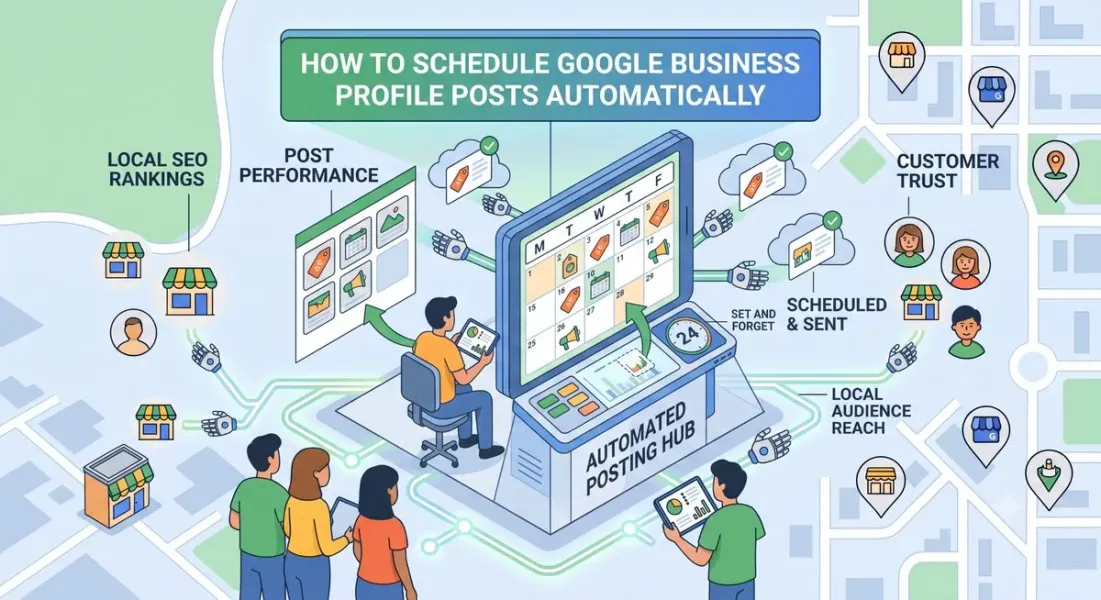
Scheduling and automation solve the sustainability problem. Instead of scrambling for a post every Monday morning, you batch-create a month’s worth of content in one sitting and let a tool publish it on schedule.
The benefits compound:
-
Consistency without willpower. Your profile stays active even during busy weeks, vacations, or staff turnover.
-
Better content quality. Batching lets you plan themes, align posts with promotions, and write more thoughtfully than last-minute scrambling allows.
-
Time savings. One hour per month beats fifteen minutes per week, every time.
-
Strategic alignment. You can plan posts around seasonal peaks, product launches, and local events well in advance.
-
Reduced risk of gaps. Automated scheduling removes the human error that causes dormant profiles.
The Catch: Google’s Native Scheduling Is Limited
Here’s the honest reality: Google Business Profile does not offer robust native scheduling. You can’t queue up a month of posts inside the GBP dashboard the way you can with Facebook or Instagram.
Google has tested limited scheduling features over the years, and some accounts occasionally see a “schedule” option, but it’s inconsistent and not something you can rely on. For most businesses, true automation requires a third-party tool.
That’s not a dealbreaker. Several reputable tools handle GBP scheduling well, and some integrate it with your existing review management, social media, or CRM workflow.
What This Guide Covers
Over the next four pages, you’ll learn:
- Page 1: Why scheduling matters and what Google actually offers
- Page 2: Native options and how to set up scheduling with third-party tools
- Page 3: Bulk scheduling, workflows, and content planning systems
- Page 4: Best practices, mistakes, tracking, and conclusion
Page 2: Native Options and Third-Party Tools
What Google Actually Offers
Before investing in a tool, understand what you get for free.
Native scheduling status:
Google has experimented with a scheduling feature that lets you set a future publish date and time for “What’s New” posts. However:
- It’s not available on all accounts
- It’s not available in all regions
- It’s not documented as a permanent feature
- It typically doesn’t support Events, Offers, or Products on a schedule How to check if you have it:
- Go to business.google.com and sign in
- Select your business
- Click Add update (or Posts)
- Look for a scheduling icon or a “Schedule” option near the publish button If you see it, use it. If you don’t, you’re not alone—and you’ll need a third-party tool for reliable automation.
Manual workaround: Some businesses use calendar reminders to post manually. It works, but it’s not automation—and it fails the moment life gets busy.
Third-Party Tools That Support GBP Posting
Several tools support Google Business Profile posts, and many include scheduling. Here are the most commonly used options:
Podium
-
Best for: Multi-location businesses and review-heavy operations
-
GBP scheduling: Yes
-
Other features: Reviews, messaging, payments, webchat
-
Pricing: Mid to high range, quote-based Birdeye
-
Best for: Reputation management at scale
-
GBP scheduling: Yes
-
Other features: Reviews, surveys, listings, social
-
Pricing: Mid to high range BrightLocal
-
Best for: Agencies managing multiple clients
-
GBP scheduling: Limited—primarily audit and reporting
-
Other features: Citations, reviews, rank tracking
-
Pricing: Affordable for agencies Local Falcon
-
Best for: Local rank tracking and grid analysis
-
GBP scheduling: No
-
Other features: Geo-grid rank tracking, competitor analysis
-
Pricing: Moderate SOCi
-
Best for: Enterprise multi-location brands
-
GBP scheduling: Yes
-
Other features: Social, reviews, listings, ads
-
Pricing: Enterprise
Semrush Local / Yext
- Best for: Listings management with posting support
- GBP scheduling: Yes (varies by plan)
- Other features: Listings, reviews, analytics
- Pricing: Mid to high range Social media management tools Some tools like Hootsuite, Sprout Social, and Buffer have added or experimented with GBP posting. Coverage varies, so verify current support before committing.
Zapier and Make If you’re technical, you can connect Google Business Profile to scheduling tools via Zapier or Make. This is flexible but requires setup and maintenance.
How to Choose the Right Tool
Ask these questions before you commit:
| Question | Why It Matters |
|---|---|
| Does it support all four post types? | Some tools only handle “What’s New” |
| Can it manage multiple locations? | Critical for multi-location businesses |
| Does it include images and CTAs? | Post quality depends on visuals and buttons |
| What’s the pricing model? | Per location, per user, or flat rate? |
| Does it integrate with your reviews? | Consolidation reduces tool sprawl |
| Is there a free trial? | Test before you buy |
| How does it handle rejected posts? | You need alerts when something fails |
Recommendation: If you’re a single-location small business, start with a mid-range tool like Podium or Birdeye if budget allows, or handle posting manually with a strong calendar system. If you’re an agency or multi-location business, invest in a platform that handles scheduling, reviews, and reporting together.
Setting Up Your First Scheduled Post
Once you’ve chosen a tool, setup usually follows the same pattern:
Step 1: Connect your Google Business Profile. You’ll authorize the tool to access your GBP account. Make sure you’re signed into the correct Google account and that you have owner or manager access.
Step 2: Verify your business is synced. The tool should display your business name, address, and current posts. If it doesn’t, recheck permissions.
Step 3: Create a post. Choose your post type (What’s New, Event, Offer, or Product), upload an image, write your copy, add a CTA, and paste your link.
Step 4: Schedule it. Select your publish date and time. Most tools let you schedule weeks or months ahead.
Step 5: Review and confirm. Preview how the post will look. Confirm the schedule. Set a reminder to check performance after it publishes.
Step 6: Repeat in batch. Create your next three or four posts in the same session. This is where the time savings come from.
Page 3: Bulk Scheduling, Workflows, and Content Planning
Why Batching Beats Real-Time Posting
Batching is the single most effective habit for GBP posting. Instead of writing one post at a time, you sit down once a month and create everything at once.
The math:
- Manual, one-at-a-time: ~15 minutes per post × 4 posts = 60 minutes, spread across a month, with high risk of missed weeks
- Batched: ~45–60 minutes once a month, with zero risk of gaps Same output. Less friction. Better consistency.
Building a Monthly Batch Workflow
Step 1: Choose your posting frequency. Start with once a week. Aim for two to three times per week if you can sustain it.
Step 2: Map your month. Open a calendar. Mark:
- Holidays and seasonal moments
- Local events
- Promotions or sales
- Product launches
- Service reminders (e.g., “schedule your AC tune-up before summer”) Step 3: Assign a post type to each slot. Rotate through the four types to keep your profile varied:
| Week | Post Type | Purpose |
|---|---|---|
| Week 1 | What’s New (informational) | Build authority |
| Week 2 | Offer | Drive conversions |
| Week 3 | What’s New (trust-building) | Build connection |
| Week 4 | Event or Product | Timely relevance |
Step 4: Write all posts in one session. Use a simple template:
Hook: [First 100 characters—lead with value] Body: [150–300 characters explaining the benefit or offer] CTA: [Call now / Learn more / Book / Sign up] Link: [UTM-tagged URL] Image: [1200 x 900 px, real photo of your business]
Step 5: Upload and schedule. Load everything into your tool, schedule each post, and confirm.
Step 6: Set a mid-month review. Check performance halfway through. Swap out anything that isn’t landing. Add a timely post if something relevant comes up.
Creating a Content Bank
The most efficient schedulers keep a running content bank—a list of post ideas ready to pull from when they sit down to batch.
How to build one:
- Keep a note on your phone for ideas as they come
- Save customer questions and turn them into posts
- Screenshot seasonal moments and local events
- Track what competitors post and improve on it
- Note your best-performing past posts and create variations Aim for 20–30 ideas in the bank at all times. That’s enough for six months of weekly posting without ever staring at a blank page.
Multi-Location Scheduling
If you manage multiple locations, scheduling gets more complex—but also more valuable.
Best practices:
- Centralize templates. Create a core set of post templates that each location can adapt.
- Localize the details. Swap in location-specific offers, events, and photos.
- Stagger publish times. Avoid publishing identical posts across all locations at the same moment, which can look automated.
- Use location-specific links. Each post should point to the correct local landing page.
- Track per location. What works in one market may not work in another. Tools like SOCi, Yext, and Birdeye are built for this. If you’re managing more than five locations, a dedicated platform is worth the investment.
Handling Rejected Posts
Google sometimes rejects posts that violate its content policies—misleading claims, inappropriate content, or unrelated material. When this happens:
- You’ll usually get a notification from your tool or from Google
- Review the post against Google’s policies
- Revise and resubmit
- If you don’t know why it was rejected, simplify the post and remove any promotional language that could be flagged Prevention tip: Avoid excessive capitalization, exaggerated claims (“best in the world”), and content unrelated to your business.
Building a Yearly Posting Calendar
For maximum efficiency, build a yearly skeleton:
| Month | Theme | Seasonal Hooks |
|---|---|---|
| January | New year, fresh start | New Year resolutions, winter services |
| February | Love your customers | Valentine’s Day, loyalty offers |
| March | Spring prep | Spring cleaning, seasonal maintenance |
| April | Growth | Spring promotions, Earth Day |
| May | Community | Mother’s Day, local events |
| June | Summer readiness | Father’s Day, summer hours |
| July | Peak season | Independence Day, summer offers |
| August | Back to routine | Back-to-school, late summer |
| September | Fall prep | Labor Day, seasonal transitions |
| October | Harvest and Halloween | Fall offers, holiday preview |
| November | Gratitude | Thanksgiving, Black Friday, Small Business Saturday |
| December | Holidays | Holiday hours, gift guides, year-end offers |
Having this skeleton means you never start from zero. Each month already has a theme and hooks to build on.
Page 4: Best Practices, Mistakes, Tracking, and Conclusion
Best Practices for Automated GBP Posting
-
Keep the human touch. Automation handles publishing, not voice. Write posts that sound like your business, not a template.
-
Use real photos. Stock images underperform. Real photos of your team, work, and location build more trust.
-
Vary your post types. Don’t schedule four Offers in a row. Rotate through informational, promotional, trust-building, and seasonal content.
-
Front-load the hook. Only the first 100–150 characters show before “Read more.” Lead with value.
-
Always include a CTA. Every post should tell the reader what to do next. Match the CTA to your goal.
-
Tag your links with UTMs. Example: yourwebsite.com/offer?utm_source=google&utm_medium=gbp&utm_campaign=spring_special
-
Don’t schedule too far ahead without review. A month is reasonable. Six months is risky—your business context may change.
-
Leave room for real-time posts. Schedule 70–80% of your content. Save the rest for timely opportunities.
-
Check mobile display. Most local searches happen on phones. Preview posts on mobile before publishing.
-
Stay compliant. Review Google’s post content policies before scheduling in bulk. Avoid misleading claims, excessive promotion, and unrelated content.
Common Mistakes to Avoid
- Scheduling posts and never checking performance
- Using stock photos across every post
- Writing in corporate jargon instead of plain language
- Posting only promotional content
- Forgetting CTAs
- Scheduling identical posts across multiple locations
- Letting scheduled posts go out during a crisis or sensitive moment
- Ignoring post rejection notifications
- Over-automating to the point where posts feel robotic
- Not tagging links, making performance impossible to track
- Scheduling too far ahead and losing relevance
- Forgetting that “What’s New” posts expire in seven days
Tracking Scheduled Post Performance
Your scheduling tool may provide analytics, but always cross-check with your GBP dashboard.
In your GBP dashboard, monitor:
-
Calls
-
Website clicks
-
Direction requests
-
Messages
-
Bookings (if enabled) In Google Analytics, monitor:
-
Traffic from GBP (filter by utm_medium=gbp)
-
Conversion rate from GBP traffic
-
Which post campaigns drive the most conversions Metrics that actually matter:
| Metric | What It Tells You |
|---|---|
| Calls per month | Direct conversion from profile |
| Website clicks | Interest generated by posts |
| Direction requests | Physical visit intent |
| Post-level clicks (if tracked) | Which posts perform best |
| Conversion rate | Quality of traffic, not just volume |
Compare month over month. Look for trends, not single data points. If a post type consistently underperforms, adjust your mix.
Building a Sustainable Automation System
The goal isn’t to automate everything—it’s to remove friction from the parts that don’t need your daily attention while preserving the human elements that make your business distinctive.
A simple sustainable system:
- Monthly batch session (1 hour): Write and schedule 4–8 posts
- Weekly check-in (5 minutes): Confirm posts published, respond to any comments or messages
- Monthly review (15 minutes): Check performance, adjust next month’s plan
- Quarterly audit (30 minutes): Review content mix, seasonal alignment, and competitor activity That’s roughly two hours per month total—and it produces a consistently active profile that most competitors won’t match.
Quick Automation Checklist
- Confirm whether native scheduling is available in your account
- Choose a third-party tool if needed
- Connect your Google Business Profile
- Build a monthly content calendar
- Create a content bank of 20–30 ideas
- Write and schedule posts in batches
- Use real photos and clear CTAs
- Tag links with UTM parameters
- Check posts on mobile
- Track calls, clicks, and direction requests monthly
- Review and adjust quarterly
- Stay compliant with Google’s policies
Conclusion
Scheduling Google Business Profile posts automatically solves the biggest problem with the feature: it’s easy to start and hard to sustain. Google’s native scheduling is limited, but third-party tools fill the gap—and with a batch workflow, you can keep your profile consistently active in about two hours a month.
The strategy is straightforward:
- Choose your frequency and stick to it
- Batch-create posts monthly
- Rotate through post types
- Use real photos and clear CTAs
- Track what works
- Adjust quarterly Automation isn’t about removing the human element. It’s about removing the friction that stops you from showing up. When posting becomes a system instead of a scramble, consistency takes care of itself—and your profile keeps working even during your busiest weeks.
Call to Action
Ready to stop scrambling for posts every week? Download our free GBP Post Scheduling Kit, including a 12-month posting calendar, 52 post templates, a batch workflow checklist, and a UTM tracking guide. [Link to kit]
FAQs
Can I schedule Google Business Profile posts natively?
Sometimes. Google has tested a scheduling feature for “What’s New” posts, but it’s not available on all accounts or in all regions, and it typically doesn’t support Events, Offers, or Products. For reliable automation, use a third-party tool.
What’s the best tool for scheduling Google Business Profile posts?
It depends on your needs. Podium and Birdeye work well for single and multi-location businesses. SOCi and Yext suit enterprise brands. BrightLocal is popular with agencies. Always verify current GBP scheduling support before committing.
How far in advance should I schedule posts?
One month is a good baseline. Scheduling too far ahead risks losing relevance if your business context changes. Leave room for timely, real-time posts.
How often should I schedule GBP posts?
At least once a week. Two to three times per week is better if you can sustain it. Since “What’s New” posts expire after seven days, weekly posting keeps your profile consistently active.
Do scheduled posts perform worse than manual posts?
No. The publishing method doesn’t affect performance—content quality does. Scheduled posts that are well-written, well-timed, and include strong visuals perform the same as manual ones.
Can I schedule the same post across multiple locations?
Yes, but customize each one. Swap in location-specific offers, events, photos, and links. Identical posts across all locations can look automated and reduce local relevance.
What happens if a scheduled post gets rejected?
You’ll usually receive a notification from your tool or from Google. Review the post against Google’s content policies, revise it, and resubmit. Avoid exaggerated claims and unrelated content.
How do I track which scheduled posts perform best?
Use UTM parameters on every post link and monitor traffic in Google Analytics. Cross-check with your GBP dashboard for calls, clicks, and direction requests. Compare month over month.
Is automation against Google’s policies?
No. Scheduling tools that use the official Google Business Profile API are compliant. Avoid tools that automate fake engagement, reviews, or other policy-violating activity.
Do I still need to check my profile if posts are automated?
Yes. Automation handles publishing, not engagement. Check weekly for comments, messages, and questions. Respond to reviews and Q&A promptly. Review performance monthly.
Internal & External Links
Internal links: Replace these with your own URLs.
-
Local SEO checklist External links:
Grow Your Google Maps Ranking on Autopilot
Stop spending hours every week manually replying to customer reviews and writing Google posts. Busirank automates your Google Business Profile to boost your local SEO rankings and turn searchers into paying clients.
 Busirank Team