 Busirank Team
Introduction
Images are the most overlooked SEO opportunity on most business websites. They’re also one of the biggest causes of slow-loading pages.
Here’s the frustrating reality: your site can be perfectly optimized for keywords, internal links, and technical SEO — and still underperform because your images are bloated, poorly named, and invisible to search engines.
The good news is that image SEO sits at a rare intersection: fixing it improves both your search rankings and your site speed. That combination is hard to find in SEO.
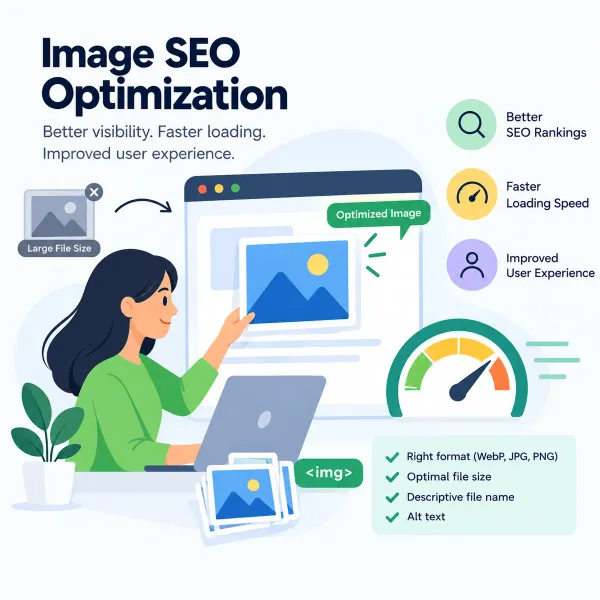
In this guide, you’ll learn exactly how to optimize images for search — file formats, filenames, alt text, compression, lazy loading, responsive images, structured data — plus the mistakes that quietly waste your image SEO potential.
What Is Image SEO?
Image SEO is the practice of optimizing images on your website so they:
- Rank in Google Images and contribute to overall page rankings
- Load quickly to improve Core Web Vitals and user experience
- Support accessibility through proper alt text and semantics
- Reinforce page relevance through filenames, captions, and surrounding context
Images aren’t just decoration. Google treats them as content — and content affects rankings.
Why Image SEO Matters
1. Google Images drives real traffic
For many industries — recipes, products, DIY, travel, real estate, fashion — Google Images is a significant traffic source. Even for service businesses, image results appear in local packs and visual search.
2. Images directly affect Core Web Vitals
The largest element on most pages is an image. That makes images the primary driver of LCP (Largest Contentful Paint) — a Core Web Vital.
Related: See our guide on Core Web Vitals for small business.
3. Poor images slow your entire site
A single uncompressed 5 MB image can add seconds to load time. Multiply that across a page and your rankings and conversions both suffer.
4. Images support topical relevance
Properly optimized images with descriptive filenames, alt text, and captions reinforce what your page is about.
5. Accessibility matters
Alt text isn’t just for SEO — it’s essential for screen readers and users with visual impairments. It’s also a legal requirement in many jurisdictions.
The Complete Image SEO Checklist
1. Choose the Right File Format
Different formats serve different purposes:
| Format | Best For | Notes |
|---|---|---|
| WebP | Most images | Excellent compression, wide browser support |
| AVIF | Modern browsers | Even better compression than WebP, growing support |
| JPEG | Photographs | Universal, but larger file sizes |
| PNG | Graphics with transparency | Larger files, avoid for photos |
| SVG | Icons, logos, illustrations | Vector, infinitely scalable, tiny file size |
| GIF | Simple animations | Large files, use video instead where possible |
Best practice: Use WebP or AVIF for most images, SVG for icons and logos. Fall back to JPEG/PNG only when needed.
2. Use Descriptive File Names
Your image filename is a direct signal to Google.
| ❌ Poor Filename | ✅ Better Filename |
|---|---|
| IMG_4823.jpg | emergency-plumber-austin.jpg |
| image1.png | commercial-cleaning-services.jpg |
| photo-final-v2.jpg | dental-implants-cost-guide.jpg |
Rules:
- Use lowercase
- Separate words with hyphens (not underscores)
- Be descriptive but concise
- Include the primary keyword if it fits naturally
- Avoid stuffing
3. Write Descriptive Alt Text
Alt text (alternative text) is the most important image SEO element after file compression.
What alt text should do:
- Describe the image accurately
- Include the keyword only if it’s genuinely relevant
- Stay under ~125 characters
- Read naturally as a sentence fragment
| ❌ Poor Alt Text | ✅ Better Alt Text |
|---|---|
| image | Licensed plumber repairing a burst pipe in Austin |
| plumber plumber plumbing austin plumber | Plumber installing a new water heater |
| (empty) | Always fill alt text for content images |
Decorative images: Use empty alt text (alt="") for purely decorative images. Don’t stuff keywords into images that don’t need them.
4. Add Title Text (Optional but Useful)
The title attribute appears as a tooltip on hover. It’s a minor SEO signal, but it can improve UX.
<img src="plumber-austin.webp" alt="Licensed plumber repairing a pipe" title="Emergency plumbing in Austin">Avoid duplicating alt and title text exactly — vary them slightly.
5. Compress Images Aggressively
Compression is where most websites lose speed. Two types:
- Lossless compression — reduces file size without quality loss
- Lossy compression — reduces file size with some quality loss (usually imperceptible at 70–85% quality)
Tools:
- TinyPNG / TinyJPG
- Squoosh (Google’s free tool)
- ImageOptim
- ShortPixel, Imagify, or Smush (WordPress plugins)
Target: Aim for images under 200 KB where possible. Hero images may need more, but rarely over 500 KB.
6. Size Images Correctly
Don’t upload a 4000px image and display it at 400px. Resize images to the dimensions they’ll actually display — with a maximum of 2x for retina displays.
| Display Size | Max Upload Size |
|---|---|
| 400px | 800px |
| 800px | 1600px |
| 1200px | 2400px |
7. Serve Responsive Images
Use the srcset and sizes attributes so browsers can load the right image for each device:
<img
src="plumber-800.webp"
srcset="plumber-400.webp 400w, plumber-800.webp 800w, plumber-1600.webp 1600w"
sizes="(max-width: 600px) 400px, (max-width: 1200px) 800px, 1200px"
alt="Licensed plumber repairing a pipe">
Modern CMS platforms handle this automatically — but verify your theme or plugins do it.
8. Implement Lazy Loading
Lazy loading defers loading off-screen images until the user scrolls near them.
<img src="plumber.webp" alt="..." loading="lazy" width="800" height="500">Important exception: Don’t lazy-load the LCP image (usually the hero image). It should load immediately to avoid hurting your Core Web Vitals.
9. Set Explicit Width and Height
Always specify dimensions to prevent layout shift (CLS):
<img src="plumber.webp" alt="..." width="800" height="500">This lets the browser reserve space before the image loads.
10. Use a CDN for Images
A Content Delivery Network serves images from servers closest to each visitor, dramatically reducing load times for geographically distributed audiences.
Related: CDNs are covered in our technical SEO checklist.
11. Add Structured Data
For certain image types, structured data can help with visibility:
- Product images — Product schema with ImageObject
- Recipe images — Recipe schema
- Article images — Article schema with image property
- Local business photos — LocalBusiness schema
Google also supports image metadata like license, creator, and acquireLicensePage.
12. Optimize Images for Google Images
To appear in Google Images:
- Use high-quality, relevant images
- Ensure alt text and filenames are descriptive
- Surround images with relevant text
- Use captions where appropriate
- Add image sitemaps (or include images in your main sitemap)
- Host images on your own domain (avoid hotlinking)
- Ensure images are crawlable (not blocked by robots.txt)
13. Use Image Sitemaps
Google recommends image sitemaps for sites with many images. You can either:
- Add images to your main XML sitemap with
<image:image>tags - Create a separate image sitemap
Image SEO and Core Web Vitals
Images directly impact all three Core Web Vitals:
| Metric | How Images Affect It | Fix |
|---|---|---|
| LCP | Large images delay the largest contentful paint | Compress, resize, preload the hero image |
| CLS | Missing dimensions cause layout shift | Always set width and height |
| INP | Heavy images slow interaction | Lazy-load off-screen images, use modern formats |
Related: Full breakdown in our Core Web Vitals for small business guide.
Common Image SEO Mistakes
- Filenames like
IMG_2948.jpg— missed keyword opportunity - Missing alt text — hurts accessibility and SEO
- Keyword-stuffed alt text — reads as spam
- Uncompressed images — 5 MB files dragging down speed
- Wrong format — PNG photos, JPEG graphics
- No width/height attributes — causes layout shift
- Lazy-loading the hero image — hurts LCP
- Serving desktop images to mobile — wasted bandwidth
- Hotlinking images from other sites — no SEO benefit, fragile
- Blocking images in robots.txt — prevents Google Images indexing
- Decorative images with descriptive alt text — noise, not signal
How to Audit Your Image SEO
Run this audit quarterly:
- Crawl your site with Screaming Frog — check for missing alt text, oversized images, wrong formats
- Run PageSpeed Insights — identify image-related speed issues
- Check Google Search Console — Performance → Search type: Image — see which images get impressions and clicks
- Review Core Web Vitals report — identify pages with LCP issues caused by images
- Spot-check alt text — ensure it’s descriptive, not spammy
- Verify lazy loading — confirm it’s applied correctly and not hurting LCP
Image SEO Tools
| Tool | Use |
|---|---|
| Squoosh | Free image compression and format conversion |
| TinyPNG | Quick batch compression |
| ImageOptim | Mac-based compression |
| ShortPixel / Imagify | WordPress image optimization |
| PageSpeed Insights | Diagnose image performance |
| Screaming Frog | Audit image alt text and sizes |
| Google Search Console | Track image search performance |
| WebP Converter | Convert JPEG/PNG to WebP |
Conclusion
Image SEO is one of the few areas where you can improve rankings and site speed simultaneously. Compressing images, using modern formats, writing descriptive alt text, and serving responsive images all pay dividends — for search engines, for user experience, and for Core Web Vitals.
Most business websites leave significant image SEO value on the table. A focused effort — one afternoon of compressing, renaming, and adding alt text — can deliver measurable improvements.
Do it once, and build it into your publishing workflow so every future image is optimized from the start.
Call to Action
Is your website losing speed — and rankings — because of unoptimized images?
BusiRank’s SEO and performance audit includes a full image SEO review: compression, formats, alt text, responsive delivery, and Core Web Vitals impact.
👉 Get Your Free Image SEO Audit
FAQs
1. What is image SEO?
Image SEO is the practice of optimizing images on your website so they load quickly, rank in Google Images, support page relevance, and improve user experience and accessibility.
2. Does alt text help SEO?
Yes. Alt text helps Google understand what an image shows, contributes to page relevance, and improves accessibility. It’s also required for compliance with accessibility standards.
3. What’s the best image format for SEO?
WebP is the best all-round format for most images today — excellent compression and wide browser support. AVIF is even better where supported. Use SVG for icons and logos, JPEG for maximum compatibility, PNG only when transparency is required.
4. How do I compress images without losing quality?
Use tools like Squoosh, TinyPNG, or ShortPixel. Aim for 70–85% quality in lossy compression — most viewers can’t tell the difference. Target file sizes under 200 KB where possible.
5. Should I use the same image filename for multiple pages?
No. Each image should have a unique, descriptive filename. Reusing the same file across pages is fine for branding (like a logo), but content images should be specific to each page.
6. What’s the difference between alt text and title text?
Alt text describes the image for accessibility and SEO. Title text shows a tooltip on hover. Alt text is essential; title text is optional and minor.
7. How do I check if my images are slowing down my site?
Run PageSpeed Insights or GTmetrix. They’ll flag large images, missing dimensions, and LCP issues. Screaming Frog can also audit image file sizes across your site.
8. Should I use Google Images to drive traffic?
Yes, if your industry benefits from visual search. Optimize filenames, alt text, and surrounding content, and ensure images aren’t blocked in robots.txt. Check Google Search Console’s Image search type report to track performance.
Internal & External Links
Internal Links
- Core Web Vitals for small business
- technical SEO checklist
- mobile-first SEO
- SEO-friendly URL structures
- optimizing content for search intent
- Get Your Free Image SEO Audit
External Sources
| Source | Purpose |
|---|---|
| Google Search Central – Image Best Practices | Official image SEO guidance |
| web.dev – Optimize Images | Image optimization and Core Web Vitals |
| Squoosh | Free image compression tool |
| Google Search Console Help – Image Search | Tracking image performance |
| W3C – Alt Text Decision Tree | Guidance on writing alt text |
Grow Your Google Maps Ranking on Autopilot
Stop spending hours every week manually replying to customer reviews and writing Google posts. Busirank automates your Google Business Profile to boost your local SEO rankings and turn searchers into paying clients.

 Busirank Team