 Busirank Team
Introduction
Here’s an uncomfortable truth: most organizations discover they have a permissions problem at the worst possible moment. A former employee still has access when you need to change your address. An old agency account blocks a critical ownership transfer. A shared login means no one can tell who made the edit that tanked your rankings.
Industry surveys suggest that roughly one in three local businesses that have worked with multiple marketing agencies still have at least one former agency account holding Manager or Owner-level access. This isn’t a ranking issue—it’s a control issue. And it surfaces exactly when you can least afford it.
The solution isn’t a one-time cleanup. It’s an operational discipline: auditing permissions on a regular cadence, applying least-privilege principles, and treating access management as a governance function rather than an afterthought.
This guide provides a repeatable audit framework for organizations managing multiple locations, brands, or agency relationships.
A Google Business Profile is often the highest-converting digital asset a local business owns. It carries reviews, calls, direction requests, and the operating hours customers depend on. When control of that asset lands in the wrong hands, the risk is multidimensional:
- Security risk: A former employee or agency can alter business information, respond to reviews, or transfer ownership entirely.
- Compliance risk: Shared logins mean you cannot trace who made which change, or when.
- Operational risk: When owner-level actions are required—handling a suspension, accepting updated terms—you discover you don’t have the access you need.
Google provides granular enough permission tools to manage all of this. The failure is almost never the tooling. It’s the habit.
Understand the Four Account Types and Role Hierarchy
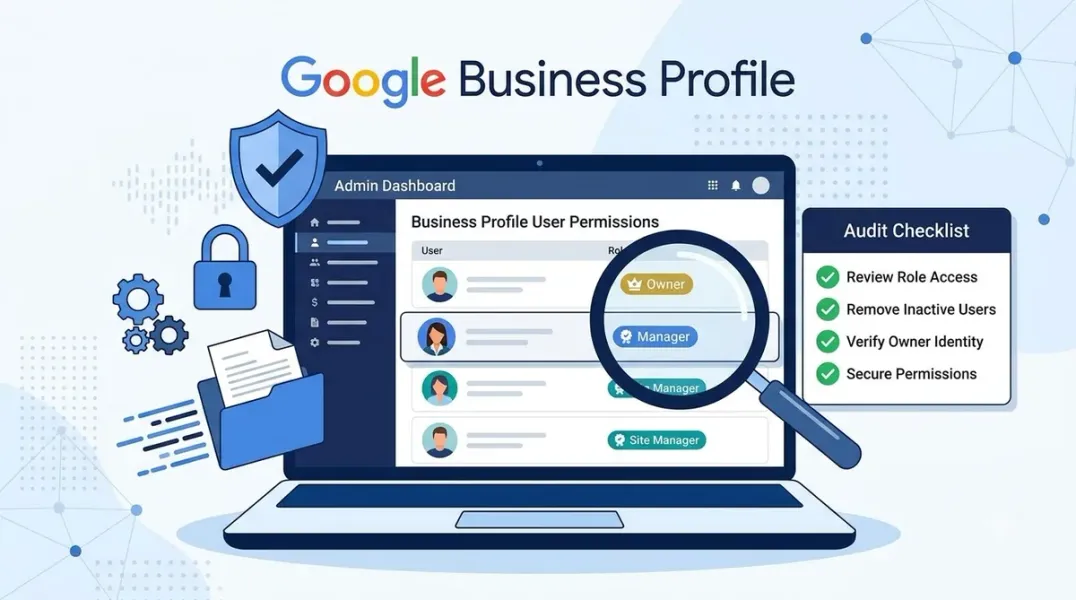
To audit effectively, you first need to understand Google Business Profile’s account architecture. Managing multiple locations involves four account types: personal accounts, organization accounts, location groups, and user groups.
- Personal accounts: Every user gets one when they create a Google account. A personal account can be an owner or manager of a profile.
- Organization accounts: The top-level account representing your company or agency. Location groups and user groups live inside the organization account.
- Location groups: Used to manage a set of locations and perform bulk actions. Organized by chain, region, or category.
- User groups: Used to manage permissions at scale. Add a personal account to a user group, then grant that user group access to multiple location groups.
On the role hierarchy, Google defines three core roles:
| Role | Scope of Access | Who Should Hold It |
|---|---|---|
| Primary Owner | Single. Can transfer primary ownership, add/remove owners and managers, delete the profile | Must be a company-domain account owned by the business itself |
| Owner | Broad control, including user management. Cannot remove the primary owner or delete the profile | A second trusted internal account (redundancy backup) |
| Manager | Edit info, create posts, respond to reviews, view data. Cannot manage users or delete the profile | Agencies, marketers, day-to-day operations staff |
The governing principle: grant the lowest role necessary. An agency should essentially always receive Manager access, never Owner.
Before You Audit: Build an Account Inventory
Before auditing profile by profile, create an internal record covering:
- Every profile: business name, address or service area, verification status
- Every user: name, email address, role (primary owner/owner/manager)
- Verification status: whether each location was verified by email, phone, postcard, or video
- Linked assets: Google Ads accounts, booking functionality, messaging, and so on
If you manage multiple locations, use the user groups feature in Google Business Profile Manager to view permissions centrally. Under your organization account, you can see all user groups and their members.
Audit Step 1: Review the User List Location by Location
For each Google Business Profile, do the following:
- Sign in to the account that manages the profile
- Go to Business Profile settings → People and access
- Review every user by name and email address
What to watch for:
- Former employees: departed staff still on the list
- Legacy agency accounts: agencies you no longer work with that still retain access
- Shared accounts: generic addresses like marketing@agency.com rather than a named person
- Unknown accounts: email addresses you simply don’t recognize
Industry guidance recommends auditing your user list every six months. Most owners who do this discover former employees, old agency accounts, or unknown users still holding access—sometimes years later.
Audit Step 2: Identify Over-Provisioned Access
Once you’ve found the users, evaluate whether their permission level is appropriate:
- Is the primary owner a company-domain account? If it’s an employee’s personal Gmail, that’s a high-risk signal. A former owner leaving with a personal Gmail creates the worst-case scenario: no primary owner access at all.
- How many owner accounts exist? Best practice is to keep at least two internal accounts at Owner level, so a single lost password or departing employee doesn’t lock you out completely.
- What role does your agency hold? If it’s Owner, downgrade it to Manager. An agency does not need the ability to transfer ownership or delete the profile.
Audit Step 3: Eliminate Shared Logins and Enforce Naming Conventions
Shared logins are the first thing to eliminate. They break audit trails, prevent selective revocation, and make it impossible to determine who made a change.
- Every person accessing a profile should have a named Google account
- Avoid using generic accounts like admin@company.com as an individual access channel
- Agency access should be granted to a specific person’s named account, not an agency-wide address
Audit Step 4: Account for the Waiting Period
Google imposes a restriction on newly added users: after becoming an owner or manager, there is a 7-day waiting period before they can perform certain sensitive actions, including:
- Deleting or restoring the profile
- Removing other owners or managers
- Transferring primary ownership
This means if your audit surfaces a new user who needs to perform one of these actions within seven days, you’ll hit an error. Factor this waiting period into any permission change plan.
Audit Step 5: Clean Up and Harden
After the audit, execute the cleanup:
Remove unnecessary users. Only owners can remove other owners and managers. If you can’t select a user for removal, it likely means you only have Manager-level access.
Transfer primary ownership if needed. If the primary owner is a personal account the business no longer controls, create a company-domain account, add it as an Owner, then transfer primary ownership. The new primary owner must accept the role change from their own Google account before the transfer completes.
Enforce two-factor authentication. Require 2FA on every account with GBP access. This is non-negotiable.
Keep a change log. Every permission change should record: who, when, what, and why. Without a log, you cannot correlate ranking fluctuations with access changes.
Build a Repeatable Audit Rhythm
A one-time audit is not enough. Establish a quarterly cadence:
- On onboarding: Add a named account for the new hire, grant the lowest necessary role
- On offboarding: Remove access immediately—not tomorrow, not next week
- On role change: Adjust the permission level rather than retaining old access
- On contract end: Remove agency access the day the relationship ends
Quarterly audit checklist:
- Remove departed employees
- Adjust permissions for changed roles
- Verify remaining permissions are still appropriate
- Flag unused accounts for removal
Conclusion
Auditing Google Business Profile user permissions isn’t a technical task—it’s a governance task. What it protects is your most important digital asset: reviews, rankings, customer trust, and control.
The logic is simple: every user should have a named account, every role should be the lowest necessary level, and every change should be traceable. Primary ownership must sit with a company-domain account the business itself controls, backed by at least one redundant Owner.
Organizations that only think about permissions during a vendor switch, a staff departure, or an address move are already too late. Those that build a quarterly audit rhythm eliminate the risk before it becomes a crisis.
Call to Action
Is your access setup secure? Download our GBP Permission Audit Checklist—a printable worksheet covering user inventory, role assessment, shared-login cleanup, and your quarterly audit cadence.
FAQs
Q: How do I know whether a user is still active? Check whether the user has signed in to Google Business Profile and made any changes in the last 90 days. If in doubt, remove access—you can always re-add them if genuinely needed.
Q: Can the primary owner use a personal Gmail? Technically yes, but strongly inadvisable. A personal Gmail leaves control when the employee leaves. Primary ownership should always be held by a company-domain account, with credentials stored in the company’s password manager.
Q: Can a Manager see the list of other users? They can view it, but they cannot add or remove users. Only Owners have user management permissions.
Q: What if a former agency still has access but won’t respond? If you are the business owner or primary owner, you can remove their account directly from People and access—no confirmation from them is required. If primary ownership isn’t in your hands, you’ll need to recover control through the ownership dispute process first.
Q: What’s the difference between a user group and a location group? Location groups categorize and bulk-manage locations. User groups categorize people, and then you grant the entire user group access to location groups. When a new team member joins, adding them to the user group grants them the same access as their colleagues.
Internal & External Links
Internal Links
- [Google Business Profile Ownership Disputes: How to Regain Control of a Listing]
- [How to Handle Unauthorized Changes to Your Google Business Profile]
- [How to Manage Google Business Profiles During a Merger or Business Acquisition]
External Sources
- Google Support: Manage owners and managers of your Business Profile
- Google Support: Manage agency user groups
- Google for Developers: Manage locations at scale
Grow Your Google Maps Ranking on Autopilot
Stop spending hours every week manually replying to customer reviews and writing Google posts. Busirank automates your Google Business Profile to boost your local SEO rankings and turn searchers into paying clients.
 Busirank Team