 Busirank Team
Introduction
Google Search Console is the most valuable free SEO tool available to any website owner. It shows you exactly how Google crawls, indexes, and serves your site — and where things are going wrong .
Yet most small business owners log in once, feel overwhelmed by the reports, and never return.
That’s a missed opportunity. Search Console is where you’ll find the pages Google can’t index, the keywords you’re ranking for without knowing it, the technical errors quietly suppressing your traffic, and the queries where you’re one position away from a page-one breakthrough.
This guide cuts through the complexity. You’ll learn which reports actually matter, what each one tells you, and how to fix the SEO problems they reveal.
What Is Google Search Console?
Search Console is a free Google tool that helps you monitor and troubleshoot your website’s presence in Google Search results .
It provides information on:
- How Google crawls your site — which pages Googlebot visits and how often
- How Google indexes your pages — which pages are indexed, excluded, or have errors
- How your site performs in search — clicks, impressions, rankings, and queries
- Technical health — Core Web Vitals, mobile usability, security issues
- Structured data — whether rich results are eligible and valid
Google recommends checking Search Console about once a month, or whenever you make significant changes to your site .
Getting Started: Verification and Setup
Step 1: Verify Site Ownership
You must verify ownership before accessing data. Common methods:
- Domain property — covers all URLs across all subdomains and protocols (recommended)
- URL prefix property — covers a specific protocol and subdomain (e.g.,
https://www.example.com)
Verify both www and non-www versions if you’re unsure which is primary .
Step 2: Submit Your Sitemap
Submitting a sitemap helps Google discover your pages faster. In Search Console, go to Sitemaps and enter your sitemap URL (usually /sitemap.xml).
A sitemap doesn’t guarantee indexing, but it speeds up discovery — especially for new sites or recently migrated ones .
Step 3: Set Email Preferences
Search Console sends email alerts when it finds new issues. Enable notifications so you don’t miss critical problems.
The Reports That Actually Matter
Search Console has many reports. These are the ones small businesses should focus on.
1. Performance Report
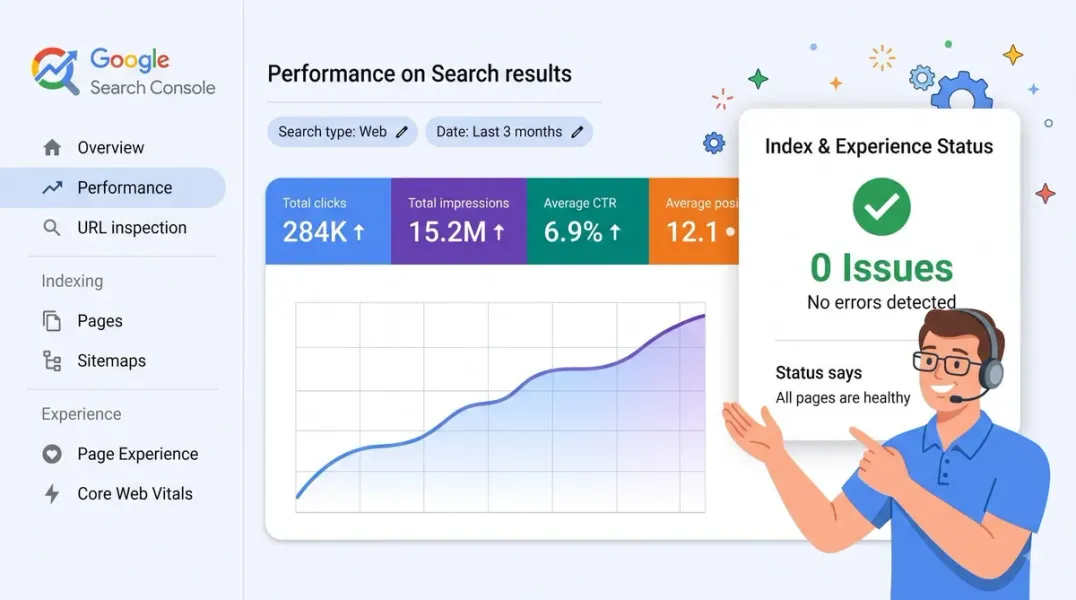
What it shows: How your site performs in Google Search — clicks, impressions, CTR, and average position for queries, pages, countries, and devices .
What to look for:
- High-impression, low-CTR queries — you rank but users aren’t clicking. Improve meta titles and descriptions.
- Queries at position 5–15 — you’re close to page one. Refresh and strengthen these pages.
- Declining clicks — compare periods to spot pages losing traffic.
- New queries you didn’t target — content opportunities you’re already ranking for.
How to use it:
- Sort by impressions to find visibility without clicks.
- Sort by position to find near-miss rankings.
- Filter by page to see which URLs drive the most queries.
The Performance report now includes a new Insights section that highlights “rising” and “declining” pages and queries, making it easier to spot opportunities without manual analysis .
2. Indexing Report (Pages)
What it shows: Which pages Google has indexed, which are excluded, and why .
Common statuses and what they mean:
| Status | Meaning | Action |
|---|---|---|
| Indexed | Page is in Google’s index | No action needed |
| Discovered – currently not indexed | Google knows about the URL but hasn’t crawled it | Improve internal linking, request indexing |
| Crawled – currently not indexed | Google crawled it but chose not to index | Review content quality — may be thin or duplicate |
| Excluded by noindex tag | Page has a noindex directive | Remove noindex if the page should rank |
| Not found (404) | Page doesn’t exist | Fix broken links or set up 301 redirects |
| Server error (5xx) | Server issue prevented crawling | Check hosting and server logs |
| Blocked by robots.txt | Robots.txt blocks Googlebot | Update robots.txt if unintentional |
Priority: Fix “Crawled – currently not indexed” and “Discovered – currently not indexed” for your most important pages. These often indicate content quality or internal linking problems .
3. URL Inspection Tool
What it shows: The index status of any specific URL — whether it’s indexed, why not, and what Google sees .
How to use it:
- Enter the full URL in the search bar at the top
- Review the “Page indexing” section for issues
- Click Test Live URL to see what Googlebot sees right now
- If everything is fine, click Request Indexing to prompt a fresh crawl
Common uses:
- Troubleshoot why a specific page isn’t ranking
- Verify you’ve fixed an issue
- Request indexing for new or updated pages
4. Sitemaps Report
What it shows: Submitted sitemaps, their status, and any errors .
What to check:
- Is your sitemap successfully processed?
- Does the number of URLs in the sitemap match your expectations?
- Are there errors that prevent Google from reading it?
If your sitemap contains broken or non-canonical URLs, clean it up and resubmit .
5. Core Web Vitals Report
What it shows: Real-world performance data for your pages — LCP, INP, and CLS .
What to look for:
- Pages marked “Poor” or “Needs improvement”
- Which specific metric is failing
- Mobile vs. desktop differences
Related: See our guide on Core Web Vitals for small business for fixes.
6. Rich Results (Structured Data) Report
What it shows: Whether your structured data is valid and eligible for rich results .
What to check:
- Errors that prevent rich results
- Warnings that limit appearance
- Which schema types are detected
Fix errors on priority pages first — especially FAQ, Product, and LocalBusiness schema.
7. Manual Actions and Security Issues
Manual Actions report: Shows if Google has applied a manual penalty to your site . If you see one, read the details carefully and fix the underlying issue.
Security Issues report: Alerts you if Google detects hacking, malware, or other threats .
These reports should always be checked first. A manual action or security issue can wipe out your visibility entirely.
Step-by-Step: How to Find and Fix Common SEO Problems
Problem 1: Important Pages Not Indexed
Where to look: Indexing → Pages
Steps:
- Filter for “Not indexed” pages
- Identify your priority pages in the list
- Inspect each URL with the URL Inspection tool
- Check:
- Is it blocked by robots.txt?
- Does it have a noindex tag?
- Is it canonicalized to another URL?
- Is the content thin or duplicate?
- Fix the underlying issue
- Request indexing for each fixed URL
Problem 2: Traffic Decline on Specific Pages
Where to look: Performance → Pages
Steps:
- Compare current period to previous period
- Sort by click decline
- For each declining page, check:
- Is it still indexed? (Indexing report)
- Has the ranking dropped? (Performance → Queries filter)
- Has intent shifted? (SERP analysis)
- Has content become outdated?
- Refresh content, improve internal links, request reindexing
Problem 3: High Impressions, Low CTR
Where to look: Performance → Queries
Steps:
- Sort by impressions (descending) and CTR (ascending)
- Identify queries with high visibility but low clicks
- Review your meta title and description for those pages
- Rewrite them to be more compelling and aligned with intent
- Monitor CTR changes over 2–4 weeks
Problem 4: Crawled – Currently Not Indexed
Where to look: Indexing → Pages
Steps:
- Review the list of affected URLs
- For each priority page, assess:
- Is the content thin, duplicate, or low-value?
- Is it linked from other pages on your site?
- Does it match search intent?
- Improve content depth and uniqueness
- Add internal links from relevant pages
- Request indexing
Problem 5: Server Errors (5xx)
Where to look: Indexing → Pages
Steps:
- Identify affected URLs
- Check if the issue is intermittent or persistent
- Contact your hosting provider if server issues continue
- Test the pages manually
- Request indexing once fixed
How Often to Check Search Console
| Frequency | What to Check |
|---|---|
| Weekly | Indexing errors, security issues, manual actions |
| Monthly | Performance trends, Core Web Vitals, sitemap status |
| After site changes | URL Inspection, request indexing for updated pages |
| Quarterly | Full audit — Performance, Indexing, Rich Results, Core Web Vitals |
Common Search Console Mistakes
- Only checking the homepage — inspect individual URLs for real diagnostics
- Ignoring “Crawled – currently not indexed” — this often signals content quality issues
- Not requesting indexing after fixes — Google won’t know you’ve changed anything
- Over-requesting indexing — there are quotas; prioritize only important URLs
- Panicking over every 404 — some 404s are normal; fix only those with traffic or links
- Checking only desktop data — most traffic is mobile
- Never comparing periods — trends matter more than snapshots
How Search Console Connects to Other SEO Strategies
| Strategy | Connection |
|---|---|
| Technical SEO checklist | Search Console reveals crawl and index issues |
| Core Web Vitals | Report shows real-user performance data |
| Refresh old content SEO | Performance report identifies declining pages |
| Keyword cannibalization | URL Inspection shows canonical choices |
| Content gap analysis | Performance queries reveal untapped keywords |
| Internal linking SEO | Indexing issues often trace to poor linking |
| Topical authority | Index coverage shows whether clusters are indexed |
Conclusion
Google Search Console is the single most useful free tool for diagnosing SEO problems. It tells you exactly what Google sees, where you’re falling short, and what to fix first.
Focus on the reports that matter: Performance, Indexing, URL Inspection, Sitemaps, and Core Web Vitals. Use them monthly, not once a year.
Fix indexing issues first. Then optimize for clicks. Then monitor trends and iterate.
The businesses that use Search Console consistently will always outrank those who guess.
Call to Action
Want a professional Search Console audit?
BusiRank reviews your Search Console data to identify indexing issues, uncover ranking opportunities, and deliver a prioritized fix list tailored to your site.
👉 Get Your Free Search Console Audit
FAQs
1. What is Google Search Console used for?
Search Console is a free Google tool that helps you monitor how your site performs in Google Search, troubleshoot indexing issues, and understand what queries bring traffic .
2. How often should I check Google Search Console?
Google recommends checking about once a month, or whenever you make significant site changes . For active troubleshooting, weekly checks help catch issues faster.
3. What does “Crawled – currently not indexed” mean?
Google crawled the page but chose not to index it. This usually means the content is considered thin, duplicate, or low-value compared to other pages .
4. How do I request indexing for a page?
Use the URL Inspection tool, enter the URL, click “Test Live URL,” then click “Request Indexing.” There are quotas, so prioritize important pages only .
5. Why does Search Console show pages as “not indexed” in my sitemap?
The sitemap lists URLs you want indexed, but Google may exclude pages for quality or technical reasons. Check the Indexing report for the specific exclusion reason .
6. What’s the difference between Performance and Indexing reports?
Performance shows how your indexed pages perform in search (clicks, impressions, queries). Indexing shows which pages Google has indexed and why others are excluded .
7. Can Search Console help fix ranking drops?
Yes. The Performance report shows which pages and queries declined. URL Inspection helps diagnose indexing issues. Combining both reveals whether the problem is ranking, indexing, or content quality .
8. Do I need to verify both www and non-www versions?
Yes, especially if you’re unsure which version Google treats as canonical. Verifying both helps you catch issues where one version has problems .
Internal & External Links
Internal Links
- technical SEO checklist
- Core Web Vitals for small business
- refresh old content SEO
- keyword cannibalization
- content gap analysis
- internal linking SEO
- topical authority for local business websites
- Get Your Free Search Console Audit
External Sources
| Source | Purpose |
|---|---|
| Google Search Central – Search Console Documentation | Official tool documentation |
| Google Search Console Help – Indexing Report | Troubleshooting indexing issues |
| Google Search Central – URL Inspection Tool | Page-level diagnostics |
| Google Search Central – Crawling & Indexing FAQ | Common indexing questions |
| Google Search Central Blog – New Insights Report | Latest feature updates |
Grow Your Google Maps Ranking on Autopilot
Stop spending hours every week manually replying to customer reviews and writing Google posts. Busirank automates your Google Business Profile to boost your local SEO rankings and turn searchers into paying clients.
 Busirank Team