 Busirank Team
Introduction
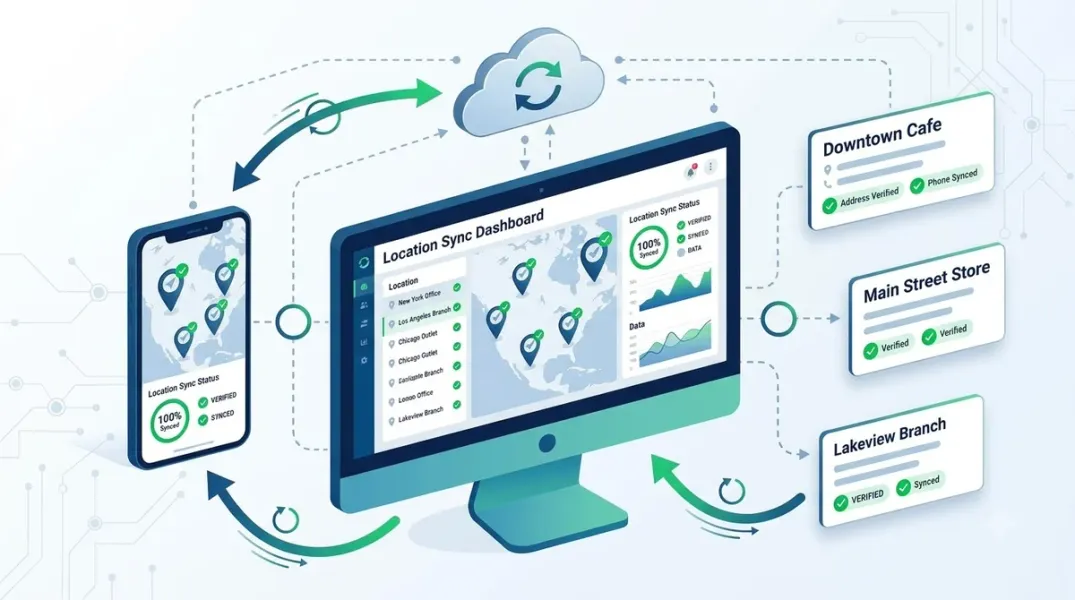
Every multi-location dashboard makes the same implicit promise: the data you see is the data Google sees. When that promise holds, you can manage hours, categories, and attributes from one place with confidence. When it breaks, you get the worst kind of failure—a dashboard that looks healthy while a storefront shows the wrong address or closed hours to customers.
Sync problems are rarely dramatic. They appear as a location that quietly stops updating, a phone number that reverts to an old value, or a category change that never propagates. Because the dashboard still loads and most locations still look correct, nobody investigates until a customer complains or a ranking drops. Verifying sync is not a one-time onboarding step. It is an ongoing control that belongs in every multi-location operation’s routine.
This guide defines what “synced correctly” means, identifies the most common failure modes, and provides a field-by-field verification checklist you can run monthly.
What “Synced Correctly” Actually Means
Sync is not a single state. It is a set of conditions that must all hold at once. The dashboard’s source of truth must match Google’s stored location data; changes made in the dashboard must propagate to Google within an expected window; changes made directly in Google must be visible in the dashboard; and the match must hold across every field that affects customer experience and search visibility.
A location can be “connected” and still be out of sync. The connection status indicator tells you the token is valid, not that the data matches. The only reliable way to verify sync is to compare values, not to check status badges.
Define your expected propagation window before you test. Most platforms push changes to Google within minutes to hours, but some batch updates overnight. If your platform’s documentation specifies a window, test against it. If it does not, ask support and record the answer. A “sync failure” that is actually a normal overnight batch is wasted investigation.
The Most Common Sync Failures
Understanding failure modes makes verification faster because you know where to look.
Field-level dropouts are the most common. A platform syncs the fields it prioritizes—name, address, phone—but silently stops syncing secondary fields such as attributes, special hours, or secondary categories. The location looks fine at a glance but is incomplete.
Partial location failures occur when one location in a group stops syncing while the rest continue. This usually traces to a permission change, a suspended listing, or a listing that was merged or duplicated on Google’s side.
Reverting edits happen when a change made in the dashboard is overwritten by a change made directly in Google, or by another platform with write access. Two systems writing to the same profile will fight, and the loser reverts silently.
Stale reads occur when the dashboard pulls data on a schedule that is slower than your team’s expectations. The dashboard is technically synced, but the view is hours old.
Mapping errors occur during initial connection, when a dashboard location is linked to the wrong Google listing—especially common when locations share similar names or addresses.
Building a Verification Checklist
A useful sync audit has four layers: connection health, location inventory, field-level comparison, and write-path testing.
Connection health confirms the integration token is valid and the platform is authorized for every location. This is the cheapest check and should be first.
Location inventory confirms that the number of locations in the dashboard matches the number in Business Profile Manager, that no location is duplicated, and that every location is mapped to the correct Google listing ID. A mismatched inventory makes every downstream comparison unreliable.
Field-level comparison checks the high-impact fields against Google’s stored values: business name, full address, primary phone, primary category, website, hours, and special hours. For each field, compare the dashboard value to the value shown in Business Profile Manager, not to your internal master data—the question is whether the two systems agree, not whether both are correct.
Write-path testing confirms the dashboard can actually push changes. Select one low-risk field, make a small change in the dashboard, wait for the propagation window, and confirm the change appears in Business Profile Manager. Revert the change. If the write path is broken, no amount of read-side verification will reveal it.
Field-by-Field Verification: What to Check and Why
Not all fields carry equal weight. Prioritize the ones that affect customer decisions and local search visibility.
Business name must match Google’s guidelines exactly. Inconsistency here can trigger suspension. Address must match Google’s formatting and must not include suite numbers in the first line if the platform splits them differently. Primary phone should be the local number, not a call center number, unless that is a deliberate decision. Primary category drives which searches the location appears in—a mismatch between dashboard and Google here is a ranking problem, not just a data problem.
Hours are the highest-risk field because errors are customer-facing and time-sensitive. Verify regular hours, special hours, and holiday hours separately. Website should point to the correct location page or store locator, not the homepage, where local relevance matters. Attributes—such as accessibility features, payment methods, and service options—are frequently dropped by platforms that do not prioritize them, so check a sample across locations.
For each field, record the dashboard value, the Google value, the comparison result, and the date. A spreadsheet with these columns becomes your sync audit trail and makes it easy to spot locations that fail repeatedly.
Detecting Silent Drift
The hardest sync problems are the ones nobody created. A location manager edits hours directly in Google. A franchisee updates a phone number. A platform’s API changes and stops syncing an attribute. The dashboard and Google diverge without any action from your team.
Detect drift by sampling. Each month, select a rotating subset of locations—perhaps ten percent—and run the field-level comparison against Google. Over a quarter, every location gets checked at least once. Combine sampling with event-triggered checks: any time a location manager reports a change, any time a listing is suspended or reinstated, and any time a platform announces an API change, run a targeted audit on the affected locations.
Watch for patterns rather than isolated errors. A single location with an outdated phone number is a data-entry issue. Five locations across one region with outdated phone numbers suggests a broken sync path or a local team editing outside the dashboard.
Setting Up Ongoing Sync Monitoring
Verification becomes sustainable when it is automated or scheduled. Most mature platforms expose webhooks or sync status APIs that report when a location’s data was last successfully pushed to Google. Use these signals to build an exception report: locations that have not synced successfully within the expected window should surface in a weekly review.
Pair technical monitoring with a human check. A monthly one-page report listing locations with sync exceptions, field mismatches found during sampling, and any write-path failures gives leadership a clear view of data integrity without requiring them to understand the integration mechanics.
Document the expected propagation window for each platform and field. Without it, your team cannot distinguish a slow sync from a broken one, and investigations will consume time that should go to fixes.
Conclusion
Sync verification is unglamorous work, but it is the foundation of every multi-location claim you make to clients and customers. A dashboard that looks healthy while Google shows the wrong hours is worse than no dashboard at all, because it creates false confidence. Verify connection health, inventory, fields, and write paths on a schedule. Sample for drift. Record what you find. The operations that do this rarely experience the customer-facing sync failures that dominate support tickets for everyone else.
Call to Action
Run a sync audit this week. Start with inventory matching and a write-path test, then move to field-level comparison on your ten highest-traffic locations. Add a monthly sampling rotation to your operations calendar so drift is caught before customers see it.
FAQs
How often should I verify location data sync?Monthly sampling plus event-triggered checks. High-traffic locations and locations with recent changes deserve more frequent verification.
The dashboard says “connected”—is that enough?No. Connection status only confirms the token is valid. It does not confirm that field values match or that writes propagate.
Why do some fields sync and others do not?Platforms prioritize fields differently. Attributes, special hours, and secondary categories are common dropouts. Check your platform’s documentation for its supported field list.
What causes a location to stop syncing while others continue?Permission changes, suspended listings, duplicated or merged listings on Google’s side, and mapping errors during initial connection are the usual causes.
Can two platforms write to the same profile?Yes, but they will conflict. If two systems both push changes, edits can revert unpredictably. Assign write authority to one platform.
Internal and External Links
Internal links:
- How to Restore a Broken Google Business Profile Connection After Authorization Expires
- How to Use Activity Logs to Review Changes Made to Business Profiles
- A Practical Guide to Importing Multiple Google Business Locations Into One Workspace
External links:
- Google Business Profile APIs: Locations reference
- Google Business Profile Help: Edit your business information
- Google Business Profile Help: Guidelines for representing your business
Batch complete: Blogs 61–63. Say “continue” and I’ll deliver Blogs 64–66 (Importing Multiple Locations, Rebranding Management, and Preventing Conflicting Posts) in the same full format.
This response is AI-generated, for reference only.
c
The user said “c” — likely shorthand for “continue”. I should deliver blogs 64-66 in the same full format.
Let me produce blogs 64, 65, 66 with full structure: title, meta title, meta description, URL, introduction, body, conclusion, CTA, FAQs, internal & external links. Aim for ~2000 words each.
Blog 64: A Practical Guide to Importing Multiple Google Business Locations Into One Workspace — keyword: import multiple Google Business Profiles
Grow Your Google Maps Ranking on Autopilot
Stop spending hours every week manually replying to customer reviews and writing Google posts. Busirank automates your Google Business Profile to boost your local SEO rankings and turn searchers into paying clients.

 Busirank Team