 Busirank Team
Introduction
Importing multiple locations into a single workspace sounds like a technical task. In practice, it is a data governance task that happens to have a button. The import itself takes minutes. The preparation, matching, and validation around it determine whether the resulting workspace is a reliable management layer or a list of listings that mostly works.
The stakes are higher than they appear. An import that creates duplicate listings, mismatches a dashboard location to the wrong Google profile, or overwrites a verified field can take weeks to untangle. Google’s own duplicate-handling and suspension processes are not fast, and a bad import can leave you with listings that are live to customers but broken in your dashboard.
This guide covers the full import lifecycle: deciding what to import, preparing the source data, choosing the right import method, handling the matching logic, resolving errors, and validating the result. It assumes you are importing into a platform or workspace that connects to Google Business Profile—whether that is Google’s own Business Profile Manager with a location group, or a third-party management platform.
Decide What You Are Actually Importing
Before touching a CSV, define the scope. “All our locations” is not a specification. You need to know which locations exist in Google Business Profile today, which of those you own or manage, and which of those should live in the workspace you are building.
Start with an inventory from Business Profile Manager. Export or record every listing associated with your organization account, including its Google location ID, name, address, and current verification status. This inventory is the ground truth against which every imported row will be checked.
Then segment. Locations that are verified, active, and owned belong in the import. Locations that are suspended, permanently closed, or duplicates should be excluded and handled separately. Locations you manage on behalf of a client belong in a separate workspace or location group, not mixed into your own portfolio.
This segmentation step prevents the most common import failure: bringing in listings that should never have been in the workspace, then spending weeks figuring out which ones to remove.
Preparing the Source Data
The import file is only as good as the data in it. Google’s bulk upload template and most platform import templates ask for the same core fields: location name, address lines, city, region, postal code, country, phone number, website, primary category, and hours. Some templates add attributes, service areas, and labels.
Build your import file from a single authoritative source—usually your location master list—rather than assembling it from multiple spreadsheets. Mixed sources produce mixed conventions: one file uses “Suite 200,” another uses “#200,” another puts the suite on a separate line. Google’s address parsing is strict, and inconsistency across locations creates verification and matching problems later.
Standardize before importing. Confirm that business names follow your brand convention exactly, including spacing and punctuation. Confirm that phone numbers are formatted consistently and are local numbers rather than call center numbers, unless that is a deliberate choice. Confirm that categories are chosen from Google’s category list rather than invented. Confirm that hours are entered in the format your template expects, including special hours if the template supports them.
Validate the file structurally. Check row counts against your inventory, check for duplicate addresses, check for empty mandatory fields, and check that every row has a corresponding Google location ID if the template requires one. A fifteen-minute structural check prevents most import errors.
Choosing the Right Import Method
There are three broad paths, and the right one depends on how many locations you have and what tooling you are using.
Manual addition is appropriate for a handful of locations. You add each location individually through the workspace interface, search for it on Google, and confirm the match. It is slow but precise, and it gives you a feel for how the platform handles matching.
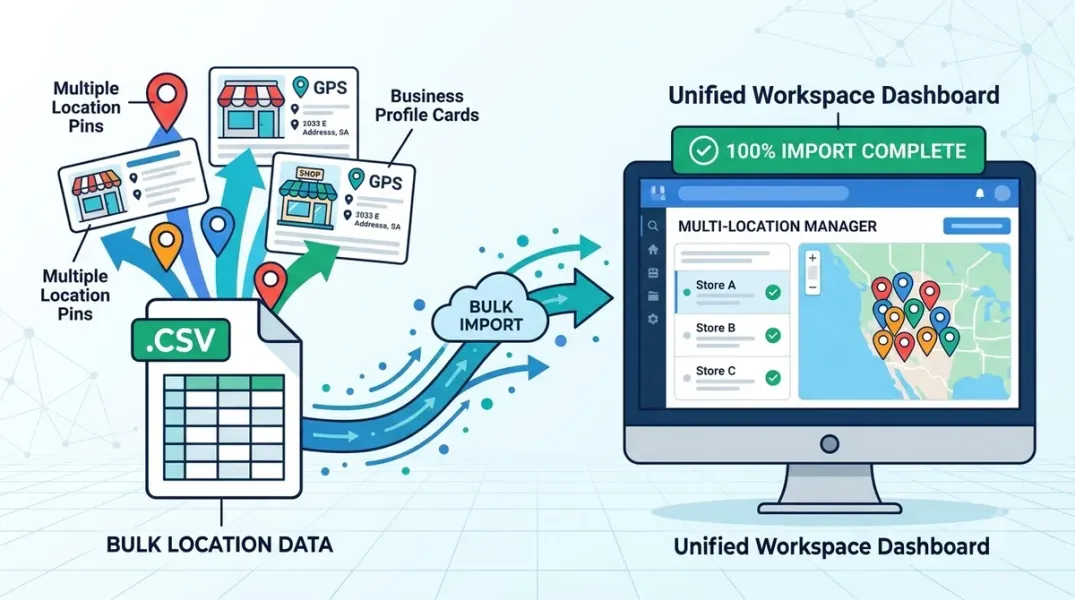
Bulk CSV import is the standard method for dozens to hundreds of locations. You upload a file, the platform attempts to match each row to an existing Google listing, and you review the results. The quality of the match depends on how well your file identifies each location—Google location ID is the most reliable identifier, followed by exact name and address.
API-based import is the right choice at scale or when the import is recurring. Google’s Business Profile APIs allow programmatic access to locations, and many platforms expose their own import endpoints. API imports are less error-prone for large volumes because they can be validated programmatically, but they require engineering support and a clear data contract.
For most teams, bulk CSV import is the practical middle ground. Choose it unless you have a specific reason not to.
Handling the Matching Logic
Matching is where imports succeed or fail. When you upload a row, the platform tries to determine which Google listing that row refers to. If it matches correctly, the row becomes a managed location. If it matches incorrectly, you get a location pointing at the wrong profile. If it cannot match, you get an error or an unlinked row.
Prefer imports that identify locations by Google location ID. The ID is unambiguous and immune to address formatting quirks. If your template supports it—and most do—include it. If you do not have the IDs, export them from Business Profile Manager before you start.
When matching by name and address, expect edge cases. Locations in shopping centers may share addresses with neighboring businesses. Locations with generic names—“Downtown,” “Airport”—match ambiguously. Franchise locations with slight name variations may fail to match. Review every match, not just the failures. A confident wrong match is more damaging than an obvious error, because it silently attaches your management actions to the wrong profile.
Some platforms offer a review queue where you approve or reject proposed matches. Use it. Do not auto-approve a batch of matches you have not inspected.
Resolving Errors and Exceptions
Expect a portion of rows to fail. The most common failures are missing mandatory fields, address formatting that Google cannot parse, locations that are already claimed by another account, locations that are suspended, and locations that no longer exist on Google.
Handle these in categories rather than one by one. Rows with missing or malformed data should be corrected at the source and re-imported. Rows that are already claimed by another account require an ownership request process, which is separate from the import and can take days. Suspended locations should be excluded from the import and addressed through Google’s reinstatement process before being added. Locations that do not exist on Google should be created rather than imported.
Keep an error log. For each failed row, record the location identifier, the error message, the cause, and the resolution. The log becomes the basis for your next import and prevents the same failures from recurring.
Validating the Import
The import is not complete when the platform says “success.” It is complete when you have verified that the workspace reflects reality.
Check three things. First, inventory: the number of locations in the workspace should match the number of rows you successfully imported, with no unexplained duplicates or omissions. Second, mapping: spot-check ten locations—including any that had ambiguous names or shared addresses—and confirm that each workspace location is linked to the correct Google profile. Third, inheritance: if the workspace applies group-level settings, branding, or permissions, confirm that imported locations inherited them correctly.
Then run a field-level comparison on a sample, comparing workspace values to Google’s values for name, address, phone, category, and hours. If the import wrote values to Google, confirm that the write was intentional and correct. If it only read values, confirm that the read matches.
Only after these checks should you announce that the workspace is ready for use.
Conclusion
Importing multiple locations is a data project disguised as a setup step. The teams that do it well spend most of their effort before the upload—inventorying, standardizing, and validating source data—and the rest after it, in review and verification. The teams that struggle upload first and debug for weeks. Treat the import as a controlled process with a clear inventory, a clean file, a reviewed match set, and a validated result.
Call to Action
Before your next import, export your current Google Business Profile inventory and reconcile it against your location master. Use the difference to build a clean, standardized import file that includes Google location IDs. Then import in batches and review every match.
FAQs
Should I import using Google location IDs or names and addresses?Use location IDs whenever the template supports them. They eliminate ambiguity. Fall back to name and address matching only when IDs are unavailable.
What happens if I import a location that is already claimed by another Google account?The import will fail or the location will appear as unverified. Ownership must be resolved through Google’s request-access process before the location can be managed.
Can I undo an import?You can remove locations from the workspace, but any changes the import pushed to Google must be reverted manually. Validate before you commit.
How many locations can I import at once?Platform limits vary. Google’s bulk upload supports large files, but most platforms recommend batches of a few hundred to make review manageable.
What should I do with suspended locations during import?Exclude them, resolve the suspension through Google’s process, and import them once reinstated. Importing suspended listings creates mismatches.
Internal and External Links
Internal links:
- How to Organize Google Business Profiles Into Groups for Easier Management
- How to Verify That Business Location Data Is Synced Correctly Across Your Dashboard
- How to Separate Client Workspaces When Managing Multiple Local Brands
External links:
- Google Business Profile Help: Bulk upload spreadsheet
- Google Business Profile APIs: accounts.locations reference
- Google Business Profile Help: Request ownership of a business
Grow Your Google Maps Ranking on Autopilot
Stop spending hours every week manually replying to customer reviews and writing Google posts. Busirank automates your Google Business Profile to boost your local SEO rankings and turn searchers into paying clients.

 Busirank Team