 Busirank Team
Introduction
The failure is quiet at first. Posts that should have published do not appear. Review counts stop updating. The dashboard shows data from three days ago, then five. By the time someone notices, the team has been operating on stale information, and the connection that was supposed to automate management has silently stopped working.
In most cases, the cause is not a bug in the software or a change at Google. It is an expired or revoked authorization token. Google issues access tokens when you connect a third-party platform to Google Business Profile, and those tokens can become invalid for a predictable set of reasons: a password change, a two-factor authentication update, a Google-initiated security check, or simply the natural expiration of a long-lived token that has not been used recently. Understanding why the connection breaks is the first step to restoring it correctly—and preventing it from breaking again.
This guide explains the causes, the diagnostic steps, the exact restoration sequence, and the controls that keep a reconnect from becoming a recurring fire drill.
Why Google Business Profile Connections Expire
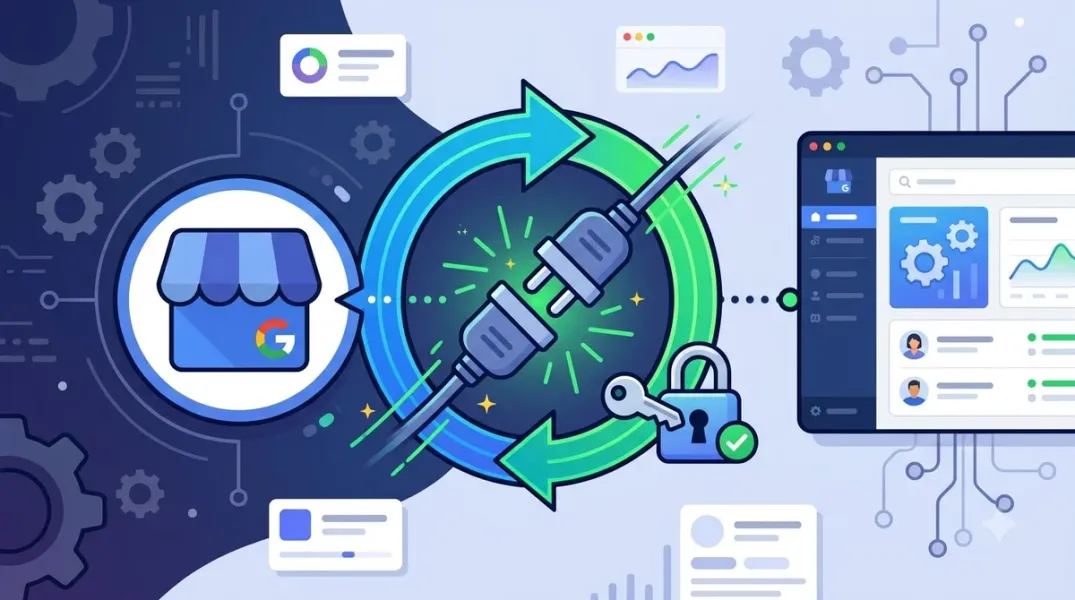
Every integration between Google Business Profile and a third-party dashboard relies on OAuth. When you first connect the platform, Google asks you to sign in and grant permissions. Google then issues a token that the platform uses to read and write profile data on your behalf. That token is not permanent.
The most common causes of invalidation fall into four categories. Google-initiated revocation happens when Google detects a security event—a password change, a 2FA change, or unusual sign-in activity—and invalidates existing tokens as a protective measure. Natural token expiry occurs when a long-lived token reaches the end of its lifespan, especially if the integration has not accessed the account for an extended period. Permission changes break the connection when the Google account used for the integration is removed from a Business Profile location or loses owner or manager access to the resources the platform is trying to manage. Account-level security events, including suspicious sign-in alerts or captcha challenges, can silently revoke third-party app access without an obvious notification at the point of disconnection.
The symptoms vary by platform, but the pattern is consistent. Google Search Console data stops refreshing. Google Business Profile locations show a TOKEN_EXPIRED_OR_REVOKED error or a login challenge warning. The connected account appears as disconnected in settings, sometimes without any visible alert until someone tries to publish or pull data.
One detail matters more than any other: the token is tied to the specific Google account that authorized the connection. If that account leaves the company, changes its password, or loses access to the Business Profile locations, the integration breaks even though the platform is functioning correctly. The fix is almost always at the account level, not the platform level.
Diagnosing the Problem Before You Reconnect
Do not reconnect blindly. A reconnect that does not address the underlying cause will fail again, sometimes within minutes. Diagnose first.
Check the platform’s connection status page. Most tools show a connected/disconnected indicator for each Google integration. If the status says disconnected or expired, confirm whether the issue is isolated to one integration or affects every Google service connected through that account. If Google Search Console and Google Business Profile both show errors, the problem is likely at the Google account level—a password change, a security challenge, or a permission removal—rather than a GBP-specific issue.
Next, check the Google account directly. Go to myaccount.google.com/security and review Third-party apps with account access. If the platform is listed, the token may still exist but be invalid. If the platform is not listed, access has been fully revoked and a fresh authorization is required. Also review recent security alerts and complete any pending verification steps, such as confirming a recovery email or phone number. A login challenge that has not been resolved will block reconnection even if you complete the platform’s reconnect flow.
Finally, confirm that the Google account you are using still has the right level of access to the Business Profile locations. If the account was downgraded from owner to manager, or removed from a location group, the token may be valid but the permissions it carries are insufficient. Reconnecting with an account that no longer has the necessary access will produce a successful authorization flow and a broken integration.
Document the diagnosis. Record the error message, the date it appeared, the account involved, and whether any security events preceded it. This record is what turns a recurring failure into a fixable one.
Step-by-Step: Restoring the Connection
The exact interface differs by platform, but the sequence is consistent across tools that integrate with Google Business Profile.
Step 1: Disconnect cleanly. Open the platform’s integration settings and use the disconnect or revoke access option. Do not simply start a new connection while the old one is still registered—that can create duplicate connections or conflicting tokens.
Step 2: Revoke access at the Google account level. Go to myaccount.google.com/permissions and remove the platform from the list of third-party apps, if it is still present. This clears any stale token state on Google’s side.
Step 3: Resolve any security challenges. Check your Google account for pending verification prompts, recovery method confirmations, or suspicious sign-in alerts. Complete them before reconnecting. An unresolved challenge will cause the reconnect to fail even if every other step is correct.
Step 4: Confirm account access. Verify that the Google account you will use has owner or manager access to every location the integration needs to manage. For multi-location accounts, check access at the location group level.
Step 5: Reconnect. Return to the platform’s integration settings, select connect, sign in with the correct Google account, and grant the requested permissions. Read the permission screen carefully—if the platform asks for access to all Business Profile locations, confirm that is intended for your use case.
Step 6: Verify the connection. Do not assume success because the dashboard shows “connected.” Pull one location’s data, make one low-risk change (such as updating a secondary field and reverting it), and confirm the change reflects in Business Profile Manager. A connection that authenticates but cannot write is still broken.
Reconnecting Specific Platforms: What to Expect
Most local SEO platforms follow a similar pattern, but a few quirks are worth knowing. Platforms that connect through Google’s Business Profile APIs will request OAuth scopes for location management and reviews. If the reconnect flow returns a “redirect_uri_mismatch” error, the issue is on the platform’s side and should be escalated to their support, not resolved by repeated reconnects.
If you use a Google Workspace account rather than a consumer Google account, confirm that the Workspace administrator has not restricted third-party app access through the Admin console. An organization-level OAuth policy can block the connection regardless of the user’s individual permissions, and the error message often does not make this clear.
For agencies reconnecting client accounts, use the client’s Google account only with explicit authorization, and record the authorization in your access log. Reconnecting a client integration through a staff member’s personal Google account creates a dependency on that person’s continued employment.
Preventing Recurrence
The best recovery is the one you never need. A few controls dramatically reduce the frequency of expired connections.
Use a dedicated, documented Google account for integrations rather than a personal account. Store the account credentials in a password manager with shared, audited access. Avoid changing that account’s password without scheduling a reconnect immediately afterward. Complete all recovery method setup in advance so security challenges resolve quickly. Review third-party app access quarterly. Most importantly, add connection health to your regular monitoring: a simple weekly check that each integration is connected and syncing prevents the slow drift from becoming a client-facing incident.
What to Do If Reconnection Fails
If you have followed the sequence and the connection still fails, isolate the layer. Test whether the Google account can access Business Profile Manager directly in a browser. If it can, the problem is between the platform and Google, and the next step is the platform’s support with a timestamped description of the error. If the account cannot access Business Profile Manager directly, the problem is Google-side permission or security, and the next step is Business Profile support.
Conclusion
An expired authorization is not a crisis—it is a predictable event in any OAuth-based integration. The teams that handle it well are the ones that diagnose before reconnecting, disconnect cleanly, resolve security state at the Google account level, and verify that the restored connection actually reads and writes. The teams that struggle are the ones that click “reconnect” repeatedly without addressing the cause. Restoring the connection is a process, not a click.
Call to Action
Audit your Google Business Profile integrations today. Confirm which Google account each platform is connected through, check its third-party access list, and add a weekly connection health check to your operations calendar. If a connection has already failed, follow the diagnostic sequence above before reconnecting.
FAQs
Why did my Google Business Profile connection expire without warning?Google often revokes tokens silently after a password change, 2FA update, security challenge, or permission change. The platform may not surface a notification until it next attempts a read or write.
Will reconnecting lose my data?Reconnecting restores access; it does not delete your Business Profile data. Posts, reviews, and location details remain on Google’s side. Draft content stored only in the third-party platform may need review.
Can I reconnect using a different Google account?Yes, but only if that account has owner or manager access to the locations the integration needs to manage. Reconnecting with an account that lacks access will fail.
How often do GBP tokens expire?It varies by platform and Google’s security posture. Some tokens last months; others are invalidated within days of a security event. Regular health checks are more reliable than guessing.
Who should own the integration account?Use a dedicated, documented account—not a personal one—with credentials stored in a shared password manager and access reviewed quarterly.
Internal and External Links
Internal links:
- How to Verify That Business Location Data Is Synced Correctly Across Your Dashboard
- How to Control Staff Access to Individual Business Locations
- How to Use Activity Logs to Review Changes Made to Business Profiles
External links:
- Google Account Help: Third-party apps with account access
- Google Business Profile APIs: OAuth overview
- Google Workspace Admin Help: Control third-party app access
Grow Your Google Maps Ranking on Autopilot
Stop spending hours every week manually replying to customer reviews and writing Google posts. Busirank automates your Google Business Profile to boost your local SEO rankings and turn searchers into paying clients.
 Busirank Team