 Busirank Team
Introduction
Managing a handful of Google Business Profiles is a manual task. Managing fifty is an operational discipline. The difference between the two is not effort—it is structure. Without a grouping system, every update, every review response, and every permission change becomes a one-off action repeated across every listing you own. Google Business Profile location groups exist precisely to remove that repetition.
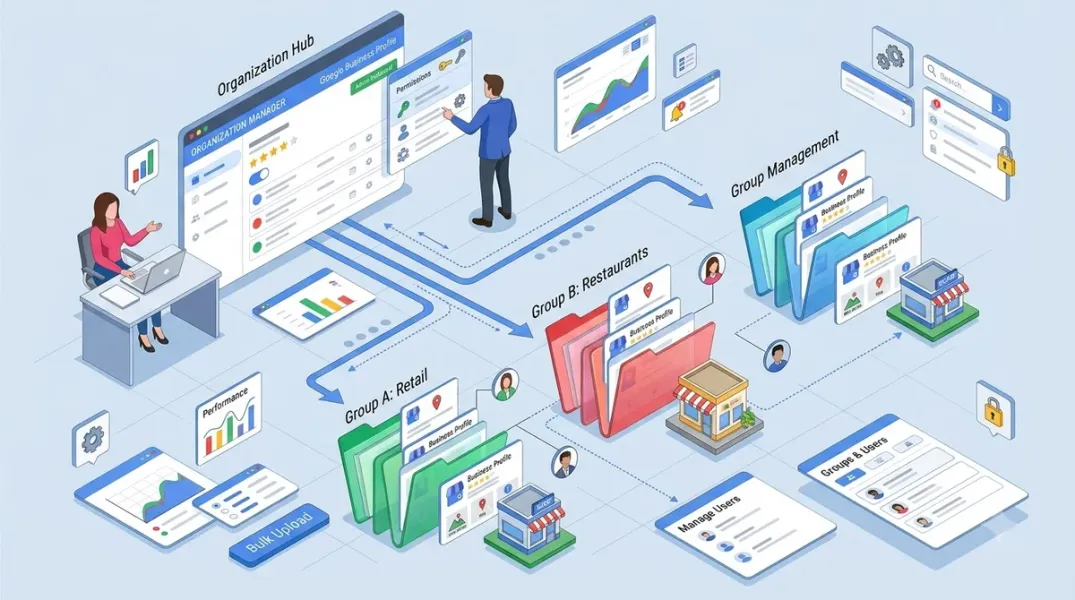
A location group is a container inside Business Profile Manager that lets you apply bulk actions, inherit permissions, and categorize listings by whatever logic your organization actually uses—chain, region, market, franchisee, or business unit. When used correctly, groups turn a fragmented collection of profiles into a manageable portfolio. They also unlock features that are impossible at the individual-listing level, including group verification, centralized user management, and consistent brand enforcement across hundreds of locations.
This guide walks through the account architecture behind location groups, the step-by-step creation process, group verification, and the governance decisions that determine whether your grouping strategy holds up as you grow.
Understanding the Account Hierarchy Behind Location Groups
Before you create a single group, you need to understand where groups sit in Google’s account model. Google Business Profile supports four account types that work together: Personal accounts, Organization accounts, Location Group accounts, and User Group accounts.
A personal account is the Google account you sign in with. It holds owner or manager access to listings. An organization account is the umbrella entity that represents your company or agency. Location groups and user groups live inside the organization account. A location group is the working container for a set of listings. A user group is a permission shortcut: you add people to the user group, grant that user group access to one or more location groups, and everyone in the user group inherits access to every location underneath.
The practical implication is this: if you are managing more than a handful of locations, an organization account is not optional. It is the foundation that makes location groups and user groups possible. Google recommends contacting Business Profile support to upgrade to organization level if you have not already. Once the organization account is in place, you can create as many location groups as your operational model requires, and locations can belong to multiple groups simultaneously.
Agencies face a slightly different version of the same problem. If you manage listings for multiple clients, each client should have its own organization account or its own location group structure, not a shared flat list. Mixing client listings in one ungrouped pool is the fastest route to a permissions incident. The hierarchy exists to prevent exactly that.
How to Create a Location Group in Google Business Profile
The creation process is straightforward, but the naming and permission decisions you make at setup determine how usable the group will be six months from now.
Sign in to Google Business Profile Manager at business.google.com. In the left-hand menu, open Businesses (sometimes labeled Manage Businesses). Select Create group or Create business group. You will be asked to name the group. Resist the urge to use a generic label. Use a name that encodes both the brand and the logic of the grouping—for example, “BrandName – US Retail,” “BrandName – Franchise Network,” or “BrandName – Northeast Region.”
Once the group is created, add managers and owners. A clean default structure is: a Primary Owner at the corporate level, additional Owners for corporate marketing or operations leadership, and Managers for regional teams or approved agency partners. Do not give owner-level access to anyone who does not need the ability to add or remove users. Owners can delete the group; managers cannot.
Add locations to the group in one of two ways. For a small number of listings, use Add location and select each profile individually. For scale, use Import locations and upload a CSV built from Google’s bulk upload template. Before importing, confirm that each location has accurate mandatory fields: location name, full address, local phone number, primary category, consistent brand naming, working hours, and website or store locator URL. Missing or inconsistent data is the most common reason bulk operations fail downstream.
After import, audit the result rather than assuming success. Check that the location count matches your source list, that no duplicate listings were created, and that each location’s name matches the brand convention exactly. A single “BrandName – Downtown” among fifty “BrandName Downtown” listings will break group verification later.
Group Verification: What It Is and Why It Matters
Group verification is Google’s mechanism for verifying an entire location group at once rather than sending postcards or making phone calls to each individual address. When Google approves a location group for verification, three things happen: all current locations inside the group are verified, any future location added to the group that meets the naming and branding rules is automatically verified, and the postcard verification step disappears for new locations.
The eligibility bar is specific. You need at least ten physical locations. All locations must share the same brand name or consistent variations. They must operate under the same legal or franchise structure, and ownership of the profiles must be centralized inside the location group. Data quality matters as much as location count: no duplicates, no suspended listings, and addresses that follow Google’s formatting rules.
Group verification is the single highest-leverage action available to a multi-location operation. It converts verification from a per-location bottleneck into a one-time approval, and it makes expansion predictable: open a new store, add it to the group, and it verifies itself.
Choosing the Right Grouping Logic
There is no single correct way to group locations. The right logic is the one that matches how your team actually makes decisions.
Group by region when operational ownership is regional. A Northeast manager should see and control the Northeast group, not a flat list of every listing in the country. Group by franchisee when franchise partners have contractual responsibility for their own locations and should not be able to edit listings outside their territory. Group by brand or chain when you operate multiple brands under one corporate entity and need brand-level consistency without cross-brand visibility. Group by lifecycle stage—new openings, active locations, and locations in closure—when your team needs to apply different checklists and review cadences at different stages.
Because locations can belong to multiple groups, you can layer these logics. A single restaurant might sit in “BrandName – West Coast,” “BrandName – Franchisee Group A,” and “BrandName – New Openings 2026.” The group is a view, not a cage.
The test for any grouping scheme is simple: can a regional manager open the dashboard and see exactly the locations they are responsible for, and nothing else? If the answer requires a spreadsheet cross-reference, the grouping logic is wrong.
Permissions and User Groups: Scaling Access Without Scaling Risk
The most common failure mode in multi-location management is over-provisioning access. Someone needs to update hours for one store, so they are given manager access to every store. Six months later, nobody knows who can edit what.
Location groups solve this when paired with user groups. Add the regional operations lead to a User Group called “West Coast Operations,” grant that user group manager access to the “West Coast” location group, and the lead can manage every location in that region without touching the East Coast. When a new regional lead joins, you add them to the user group. They inherit exactly the access their predecessor had, with no per-listing configuration.
Document your access model. For each location group, record who is Primary Owner, who is an Owner, and which user groups have manager access. Store it alongside your location master. Access drift is silent until it becomes a security or data-quality incident. A quarterly review of who has owner access—and whether each owner still needs it—is the minimum viable governance.
Maintaining Groups as Your Portfolio Changes
Groups are not set-and-forget. They need maintenance at three moments: when a new location opens, when a location closes or is sold, and when the organizational structure changes.
For new locations, build a short onboarding checklist: confirm the location meets group verification data standards, add it to the correct group or groups, assign permissions through the appropriate user group, and verify that the listing inherits the group’s branding and category settings. For closures, remove the location from active groups, mark the profile as permanently closed rather than deleting it, and reassign any group-level permissions that were tied to the closed location. When regional structures change, update the group names and user group memberships in the same maintenance window so that the old structure does not linger alongside the new one.
A quarterly group audit—checking that every active location is in at least one group, that no closed location remains in an active group, and that every group has a named Primary Owner—prevents the slow accumulation of orphaned listings and stale permissions that makes large-scale management unmanageable.
Conclusion
Location groups are the difference between managing listings one by one and managing a portfolio. The setup work is front-loaded: an organization account, a deliberate grouping logic, group verification, and a permission model built on user groups. Once that infrastructure is in place, every subsequent action—posting, editing, reviewing, verifying—becomes faster, safer, and auditable. For any business operating more than a handful of locations, this is not an optimization. It is the operating system.
Call to Action
If your locations are still managed through individual logins and scattered spreadsheets, start with the account structure. Contact Google Business Profile support to confirm your organization account status, then map your locations to the grouping logic that matches your team’s decision rights. The time invested in structure is repaid every time you publish, edit, or verify at scale.
FAQs
Can a location belong to more than one group?Yes. Google explicitly allows locations to be in multiple location groups at once, which is what makes layered grouping—by region, by franchisee, and by lifecycle stage—possible.
How many locations do I need for group verification?At least ten physical locations under the same brand, with consistent naming, centralized ownership, and clean data.
What happens to new locations added to a verified group?They are automatically verified, provided they meet the group’s naming and branding rules.
Do I need an organization account to create location groups?Yes. Location groups live inside an organization account. If you are managing multiple locations at scale, upgrading to organization level is the prerequisite.
Can I give different teams different levels of access within the same group?Yes. You can assign owners and managers at the group level, and use user groups to grant manager access to multiple location groups without configuring each listing individually.
Internal and External Links
Internal links:
- How to Import Multiple Google Business Locations Into One Workspace
- How to Control Staff Access to Individual Business Locations
- How to Separate Client Workspaces When Managing Multiple Local Brands
External links:
- Google Business Profile APIs: Manage locations at scale
- Google Business Profile Help: Create a business group
- Google Business Profile Help: Bulk upload spreadsheet
Grow Your Google Maps Ranking on Autopilot
Stop spending hours every week manually replying to customer reviews and writing Google posts. Busirank automates your Google Business Profile to boost your local SEO rankings and turn searchers into paying clients.

 Busirank Team