 Busirank Team
Introduction
A one-star review posted on a Friday afternoon and seen on Monday morning is a review that sat unanswered for three days. In that window, the customer has told everyone who will listen, competitors have had a weekend to look more responsive, and the business has had no opportunity to recover the relationship.
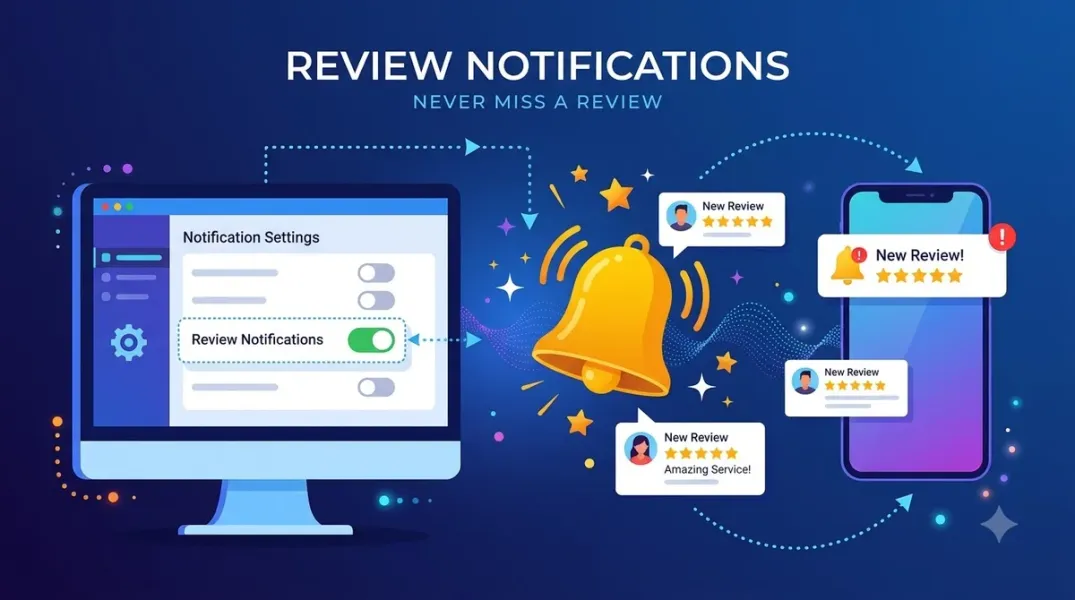
Review notifications are the mechanism that prevents this. When configured correctly, a new review triggers an alert to the person or team responsible for responding, and the response clock starts immediately rather than whenever someone happens to check the dashboard.
The challenge is that Google Business Profile does not offer a single, universal notification setup. Notifications can be configured through native Google tools, through the Business Profile APIs, and through third-party automation platforms, and each has different capabilities and limitations. This guide covers the options, the setup steps, and the design decisions that determine whether notifications actually reach the right people.
What Notifications Are Available
Google Business Profile can generate notifications for several events. The most relevant for reputation management are new reviews and updated reviews. The My Business Notifications API supports notifications for new reviews, updated reviews, media uploads, Google updates for review, location state changes, and Q&A activity.
The distinction between new and updated reviews matters. A new review is a review that has just been posted. An updated review is an existing review whose content or rating has changed—for example, a customer edits their review after the business responds. Both are worth knowing about, but they may route to different people or trigger different workflows.
Native notifications in the Google Business Profile interface are limited. The mobile app can send push notifications for new reviews, and email notifications may be available depending on account settings. But native notifications are not designed for team routing, escalation, or integration with external systems. For those, the API or a third-party tool is necessary.
Native Notification Settings: The Baseline
Before configuring anything more complex, confirm that the baseline is in place.
In the Google Business Profile mobile app, review notification settings are typically found in the app’s settings menu. Enable push notifications for reviews. This ensures that the primary account holder receives an alert on their phone when a new review is posted. For a single-location business, this may be sufficient.
For multi-location businesses, native notifications have a clear limitation: they go to the account that is signed in, not to a team. If the account holder is on vacation, notifications go unread. If the account holder is not the person responsible for responding, notifications are forwarded manually or missed.
The native settings are the starting point, not the solution. They confirm that notifications can be generated; the next step is routing them to the people who will act on them.
API-Based Notifications: The Developer Route
For businesses with engineering resources, the My Business Notifications API provides programmatic control over review notifications. The API uses Cloud Pub/Sub to deliver notifications about business events, including new and updated reviews.
The setup sequence is specific. Create a Cloud Pub/Sub topic. Grant the pubsub.topics.publish permission to the Google service account mybusiness-api-pubsub@system.gserviceaccount.com so that Google can publish to the topic. Then call the accounts.updateNotificationSetting endpoint with the topic name to link the Business Profile account to the topic. Notifications are then published to that topic, and you can configure a subscriber—push or pull—to process them.
The advantage of API-based notifications is control. You can route notifications to any system: a ticketing platform, a Slack channel, a CRM, or a custom dashboard. You can apply logic—for example, route one-star reviews to a manager’s phone and five-star reviews to a shared thank-you queue. You can log notifications for audit purposes.
The disadvantage is complexity. API-based notifications require Cloud Pub/Sub setup, OAuth credentials, and ongoing maintenance. They are appropriate for organizations that already have the engineering capacity and need the routing flexibility.
Third-Party Automation: The Practical Middle Ground
For most teams, third-party automation platforms offer the best balance of control and simplicity. Tools like Pabbly Connect, Zapier, and similar platforms can monitor Google Business Profile for new reviews and send notifications to email, Slack, WhatsApp, SMS, or a project management tool.
The setup is typically no-code. In Pabbly Connect, for example, you create a workflow, select “New Review” as the trigger, connect the Google Business Profile account, and configure the notification action—such as sending a WhatsApp message with the review details. The workflow then monitors for new reviews and sends alerts automatically.
The key design decisions with third-party automation are where notifications go and who receives them. A single shared inbox is better than individual emails, because it creates a visible queue. A Slack channel dedicated to reviews keeps them visible to the team. A WhatsApp or SMS alert is appropriate for high-urgency reviews that need immediate attention.
Third-party tools also vary in reliability and latency. Some check for new reviews at intervals rather than in real time, which introduces delay. If same-day response matters, check the tool’s polling frequency and consider API-based notifications if real-time delivery is required.
Designing the Routing Logic
Notifications are only useful if they reach the right person with the right urgency. A routing design should answer three questions.
Who owns first response? For each location or location group, designate a primary responder. Notifications for that location go to that person or team. If the primary responder is unavailable, a backup receives the notification.
What triggers escalation? A one-star review may warrant immediate notification to a manager, while a five-star review may be batched into a daily digest. Define the thresholds and route accordingly. Low-rating reviews and reviews containing escalation keywords—refunds, safety, legal, discrimination—should receive higher-priority routing.
Where is the audit trail? Notifications that disappear into personal inboxes leave no record. Route notifications to a shared channel or a ticketing system so that the team can see which reviews have been received, acknowledged, and responded to.
A simple routing design for a multi-location business: all new reviews go to a shared review queue; one- and two-star reviews also trigger an immediate alert to the location manager; reviews containing escalation keywords trigger an additional alert to the regional lead. The queue provides visibility; the alerts provide urgency.
Testing and Maintaining the Setup
Notification setups fail silently. A workflow that was configured six months ago may have stopped working because the connected account changed, the token expired, or the folder structure changed. Regular testing is the only way to know.
Test the setup by posting a test review (or waiting for a genuine one) and confirming that the notification arrives at the intended destination, contains the expected information, and reaches the right person. Test each routing path—normal review, low-rating review, escalation keyword review—separately.
Review the setup quarterly. Confirm that the connected accounts are still valid, that the destination channels still exist, and that the people receiving notifications are still in their roles. Update routing when team members change roles or leave.
Document the setup: which tool or API is used, which account is connected, which destinations are configured, and who owns maintenance. A notification setup that only one person understands is fragile.
Conclusion
Review notifications are not a single setting. They are a routing design that connects Google’s review events to the people who will act on them, with the urgency appropriate to each review. Native notifications are the baseline; API-based notifications offer control; third-party automation offers a practical middle ground. The businesses that respond to reviews quickly are the ones that have designed the routing, tested it, and maintained it—not the ones that rely on someone remembering to check the dashboard.
Call to Action
Audit your current review notification setup. Confirm that new reviews reach a shared, visible destination, that low-rating reviews trigger immediate alerts, and that the setup has been tested in the last quarter. If any of these is missing, configure it before the next review arrives.
FAQs
Does Google Business Profile send email notifications for new reviews?Native email notifications may be available depending on account settings, but they are not designed for team routing. The mobile app push notifications and third-party tools are more reliable for team workflows.
What is the My Business Notifications API?It is Google’s API for programmatic review notifications, delivered via Cloud Pub/Sub. It supports new reviews, updated reviews, and other business events.
Can I send review notifications to Slack or WhatsApp?Yes, using third-party automation platforms such as Pabbly Connect, which can trigger notifications to WhatsApp, Slack, email, or other channels.
How quickly do notifications arrive?It depends on the method. API-based notifications are near real-time; third-party tools may poll at intervals. Check the tool’s latency if same-day response is a requirement.
What should trigger an escalation notification?Low ratings (one and two stars), reviews containing escalation keywords (refund, safety, legal, discrimination), and reviews that have gone unanswered beyond your response SLA.
Internal and External Links
Internal links:
- How to Prioritize Customer Reviews by Urgency Instead of Reading Them in Date Order
- How to Create Escalation Rules for One-Star and Two-Star Google Reviews
- How to Restore a Broken Google Business Profile Connection After Authorization Expires
External links:
- Google Business Profile APIs: Manage real-time notifications
- Google Business Profile APIs: NotificationSetting reference
- Pabbly: Get notified on WhatsApp for new Google reviews
Grow Your Google Maps Ranking on Autopilot
Stop spending hours every week manually replying to customer reviews and writing Google posts. Busirank automates your Google Business Profile to boost your local SEO rankings and turn searchers into paying clients.
 Busirank Team