 Busirank Team
Introduction
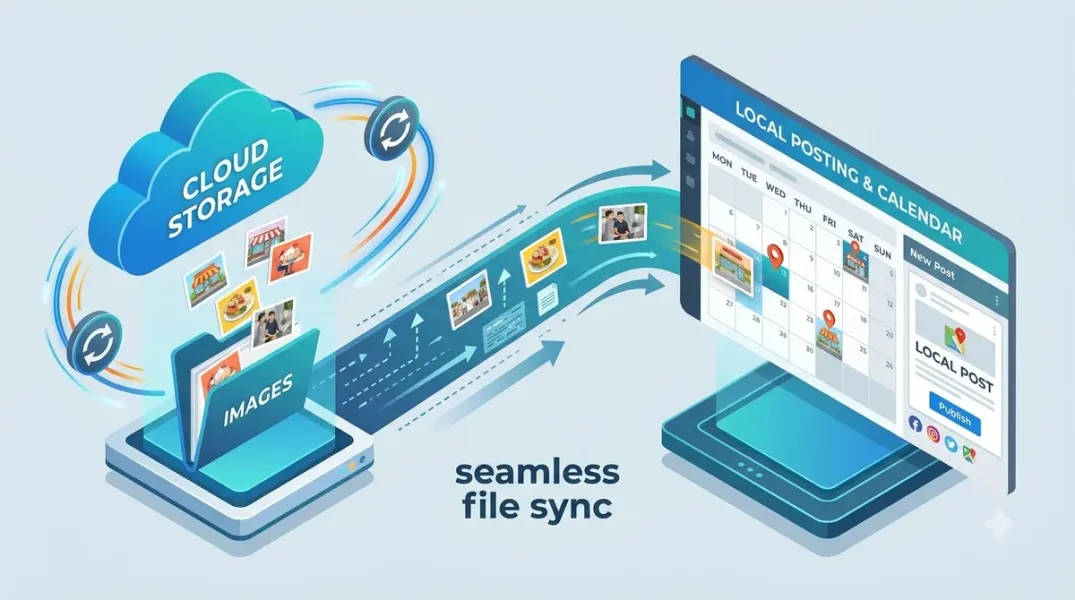
The images already exist. They are in Google Drive, organized in folders by campaign, approved by brand, and ready to use. What does not exist is a reliable path from that Drive folder to the Google Business Profile post composer—so local teams either re-upload images manually, find an old version in a downloads folder, or skip the image altogether.
The gap between where assets live and where they are used is one of the most persistent friction points in local marketing operations. Google Drive is where marketing teams store and collaborate on assets. Google Business Profile is where customers see them. The workflow between the two is often manual, inconsistent, and dependent on whoever happens to remember which file is current.
Importing images directly from Google Drive into a posting workflow closes that gap. But “import from Google Drive” means different things depending on the tool and the method, and the requirements for it to work reliably are specific. This guide covers the methods available, the sharing and format requirements, the naming conventions that make imports predictable, and the workflow design that keeps the connection intact.
Why Google Drive Is the Right Source
Google Drive is not the only place marketing images could live, but for many multi-location businesses it is the most practical source.
It is where the brand team already works. Campaign assets, product photography, and approved graphics are created and stored in Drive by the people who own them. A central asset library in Drive is accessible to local teams without a separate digital asset management system. Permissions are manageable at the folder level, so brand teams can control who can edit and who can view.
The alternative—a dedicated digital asset management platform—is more capable but adds cost and complexity that many businesses do not need. For teams already using Google Workspace, Drive is the path of least resistance and the place where assets are most likely to be current.
The key is making Drive assets importable, not just accessible. A folder that local teams can browse is useful; a folder that a posting tool can pull from automatically is a workflow.
Methods for Importing Images From Google Drive
There are three broad methods, and the right one depends on your tooling and volume.
Manual upload from Drive is the simplest. The team member downloads the image from Drive to their computer, then uploads it to the post composer. This works for occasional posts but does not scale and introduces version-control risk—the downloaded file may not be the latest version.
Direct import within a posting tool is the standard method. Tools such as OneUp allow bulk uploads from Google Drive, Dropbox, and the local computer, with the ability to select multiple locations and schedule the images across a date range. Tools like Merchynt and Markifact similarly support importing from Google Drive or using a Drive share link as the image source. This method keeps the asset in Drive as the source of truth and lets the posting tool fetch it.
API-based import is the method for scale or automation. Google’s Business Profile APIs accept a media_url that points to a publicly reachable HTTPS address. If your Drive images are shared with “anyone with the link,” the Drive link can serve as that URL, subject to the API’s format and size requirements. Postproxy’s documentation confirms that Google fetches the file from the URL provided, so the URL must be a public HTTPS address that stays valid for a reasonable period.
For most teams, direct import within a posting tool is the practical choice. API-based import is worth the investment when posting volume is high or when imports need to be fully automated.
Sharing Requirements: The Most Common Failure Point
The single most common reason a Google Drive image import fails is a sharing setting. A file that is visible to your team inside the organization is not necessarily accessible to a third-party tool or to Google’s API.
For a posting tool to fetch an image from Drive, the file must be shared in a way that allows the tool to access it. The typical requirement is “Anyone with the link can view.” Markifact’s documentation specifies that a Google Drive share link must have sharing set to “Anyone with the link” to be used as an image source. The same principle applies to API-based imports: Google’s servers must be able to reach the URL without authentication.
For API imports, the image requirements are also specific. Google accepts JPG or PNG files, with a minimum resolution of 250×250 pixels and a file size between 10 KB and 5 MB; the recommended resolution is 720×720, and cover photos should be 16:9 at 1024×576. Files outside these bounds will fail the import or be rejected silently.
The practical fix is a dedicated sharing rule for the asset library. Create a folder or set of folders specifically for posting assets, share them with “Anyone with the link can view,” and instruct the team to place approved posting images there rather than in private campaign folders. This separates the working library from the posting library and makes the sharing requirement a property of the folder rather than a per-file decision.
Naming Conventions That Make Imports Predictable
When images are imported by link or by filename, the name of the file becomes the identifier. Inconsistent naming causes wrong images to be selected, duplicate images to be uploaded, and version confusion.
Adopt a naming convention that encodes the important attributes: campaign or content theme, location or location group (if location-specific), image type, and version or date. For example: spring-open-day_london_exterior_v3_2026-03.jpg. The convention does not need to be elaborate, but it should be documented and enforced in the posting library folder.
The convention matters more for API imports than for manual ones, because API imports often reference files programmatically. A script that pulls “the latest image for campaign X” depends on a naming pattern that makes the latest version identifiable. Without it, automation selects the wrong file or requires manual intervention.
Name the folders consistently too. A structure like Posting Assets / 2026 / Spring Campaign / Images is navigable by humans and by tools. A flat folder of hundreds of files is neither.
Designing the Workflow
A workflow that reliably moves images from Drive to posts has four stages: asset approval, library placement, import, and post assembly.
Asset approval happens before an image reaches the posting library. Brand or marketing reviews the image for quality, brand compliance, and rights. Only approved images enter the posting library folder. This prevents the library from becoming a dumping ground and ensures that every image in it is safe to publish.
Library placement is the act of putting the approved image in the shared, publicly linkable folder with the correct name. This is a small step that is easy to skip, so it should be part of the campaign production checklist rather than an afterthought.
Import pulls the image into the posting tool. If the tool supports direct Drive import, the team selects the image from the connected Drive account. If the tool uses a URL, the team copies the share link. If the import is API-based, the script references the file by its public URL.
Post assembly combines the image with copy, call to action, and targeting. The image is only one component of the post, and the workflow should ensure that the image matches the post’s content and the location’s brand standards.
The workflow should also handle re-use. When an image is used across multiple posts or locations, the library version remains the source of truth; the posting tool references it rather than creating copies. This keeps updates centralized—if an image is replaced, every post that references it can be updated from one place.
Connecting Drive to the Tool: Setup Steps
The exact setup depends on the tool, but the sequence is similar.
Connect the Google account that has access to the Drive folder to the posting tool. Grant the tool permission to view Drive files. In tools that support Drive import, this is typically an OAuth connection initiated from the tool’s settings.
Point the tool at the correct folder. Some tools let you specify a default import folder; others require you to browse Drive each time. A default folder reduces friction and ensures that the team imports from the posting library rather than from private folders.
Test with one image. Upload or import a single image from the posting library, confirm that it appears correctly in a draft post, and confirm that the image quality and dimensions meet Google’s requirements. This test catches sharing and format issues before they affect a batch.
Document the connection details—which Google account is connected, which folder is the default, and what the sharing settings are—so that the setup can be reproduced if the connection breaks.
Troubleshooting Import Failures
Import failures usually fall into four categories, and each has a specific fix.
Sharing failures occur when the image is not accessible to the tool or to Google. Fix the sharing settings on the file or, better, on the folder.
Format failures occur when the image is not JPG or PNG, is below the minimum resolution, or is too large. Convert or resize the image before importing.
Link expiry failures occur with signed URLs that expire before Google fetches the file. Use a stable public URL rather than a time-limited link.
Permission failures occur when the connected Google account loses access to the Drive folder. Reconnect the account or restore the folder permissions.
Each failure category should be documented with its fix, so that the team can resolve issues without escalating every time.
Conclusion
Importing images from Google Drive into a posting workflow is a connection problem with a small number of failure modes: sharing, format, naming, and permissions. Solve those and the workflow becomes reliable. The payoff is that marketing images already produced and approved for the brand reach Google Business Profile posts without manual re-uploading, version confusion, or skipped images. The asset library becomes the source of truth, and the posts reflect it.
Call to Action
Set up a dedicated posting library in Google Drive with the correct sharing settings and a documented naming convention. Connect your posting tool to that folder and test the import with one image. Then make library placement a step in your campaign production checklist so that every approved image is ready to import.
FAQs
What sharing setting does a Google Drive image need for import?Typically “Anyone with the link can view.” The tool or Google’s servers must be able to access the file without authentication.
What image formats and sizes does Google Business Profile accept?JPG or PNG, minimum 250×250 pixels, 10 KB to 5 MB. Recommended 720×720; cover photos 16:9 at 1024×576.
Can I import multiple images at once?Yes. Tools like OneUp support bulk uploads from Google Drive, with options to distribute images across locations and dates.
What happens if a Drive link expires?Google may fail to fetch the image. Use a stable public URL rather than a time-limited signed link.
Do I need a special folder for posting images?It is strongly recommended. A dedicated folder with the correct sharing settings and naming convention makes imports predictable and separates posting assets from working files.
Internal and External Links
Internal links:
- How to Reuse Existing Marketing Assets for Google Business Profile Campaigns
- How to Create Location-Specific Google Posts Without Losing Brand Consistency
- How to Build a Google Business Post Approval Process Before Campaign Launch
External links:
- Google Business Profile APIs: Media reference
- OneUp: Bulk upload photos to multiple Google My Business locations
- Postproxy: How to manage Google Business Profile photos via API
Grow Your Google Maps Ranking on Autopilot
Stop spending hours every week manually replying to customer reviews and writing Google posts. Busirank automates your Google Business Profile to boost your local SEO rankings and turn searchers into paying clients.

 Busirank Team