 Busirank Team
Introduction
In the modern business landscape, a single phone number is rarely enough. A restaurant might have one line for reservations and another for takeout. A medical practice may separate appointments from billing inquiries. A multi-department company could have distinct numbers for sales, support, and administration.
For businesses with multiple phone lines, your Google Business Profile (GBP) presents both an opportunity and a challenge. The opportunity is to give customers direct access to the right department. The challenge is managing these numbers without confusing Google’s algorithms or overwhelming your customers.
This guide will walk you through how to effectively manage multiple phone numbers on your Google Business Profile, from knowing Google’s limits to implementing best practices that enhance both customer experience and local SEO.
Before you start adding numbers, you need to know the rules. Google Business Profiles allow a business to have one primary phone number plus up to two additional phone numbers. These can be mobile or landline numbers, but fax numbers are not permitted.
This means you can display up to three phone numbers total on your profile. If your business operates with more than three customer-facing lines, you will need to prioritize which numbers are most important for direct customer contact.
The Primary Phone Number: Your Most Important Line
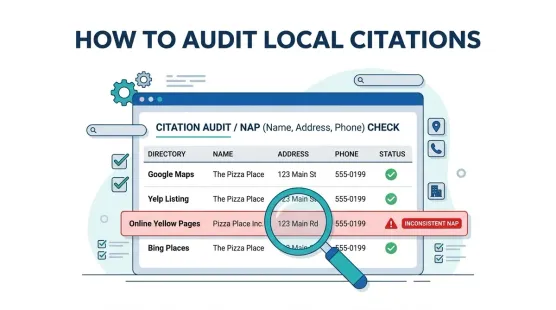
Your primary phone number is the one that appears most prominently on your profile. It is also the number Google uses as part of your NAP (Name, Address, Phone) data for ranking and verification purposes.
Choose your primary number strategically:
- It should be the number most customers use for general inquiries.
- It should be a local number, not a toll-free or vanity number. Toll-free numbers can trigger “verification mismatch” issues during NAP audits and have been known to cause profile suspensions for multi-location chains.
- It should be the number that appears on your website, in your citations, and on your signage.
Adding Secondary Phone Numbers
Once your primary number is set, you can add up to two additional numbers. This is useful for:
- Department-specific lines: A sales line and a support line.
- Location-specific lines: For businesses with multiple entrances or services at one address.
- Reservation or appointment lines: Separating booking from general inquiries.
How to add additional numbers:
- Go to your Business Profile on Google.
- Select “Edit profile” and then “Contact”.
- Next to “Phone number,” select the edit icon.
- Enter your primary number.
- Select “Add phone number” to add additional lines.
- Save your changes.
Hiding Your Phone Number
In some cases, a business may prefer not to display a phone number publicly. Google offers the option to hide your phone number on your Business Profile.
When to hide your number:
- If you operate exclusively online and prefer email or chat contact.
- If you have a dedicated support portal and want to direct customers there.
- If you are a service-area business that dispatches through an app or website.
How to hide your number:
- Go to your Business Profile.
- Select “Edit profile” and then “Business Profile settings.”
- Select “Advanced settings.”
- Turn on “Do not show” for the phone number option.
The Risk of Sharing One Number Across Multiple Businesses
If you operate multiple distinct businesses (not just multiple locations of the same brand) and use the same phone number for all of them, you are creating a significant problem.
Google builds business identities based on phone numbers, categories, websites, and citations. When a phone number is tied to multiple businesses, Google will assign it to the listing it believes is most dominant—and that choice may not be the one you want.
This can lead to:
- Brand confusion for customers who call expecting one business and reach another.
- Loss of credibility when your primary business does not surface for its own phone number.
- Difficulty in tracking which business is generating calls.
The solution: Give each distinct business its own dedicated phone number. Services like Google Voice, OpenPhone, or Grasshopper allow you to have multiple numbers forwarded to a single device without needing multiple phones.
Best Practices for Multi-Location Businesses
If you manage Google Business Profiles for a chain or franchise, phone number management becomes even more critical.
Each location should have its own local phone number. A shared number across branches is a classic duplicate signal that can hurt your rankings. Google prefers that each location has a “local” presence, and a local phone number is part of that signal.
For bulk management:
- Use a location group in your Business Profile Manager to manage multiple locations from one account.
- Bulk upload phone number changes via spreadsheet, but separate low-risk changes (hours, phone numbers) from high-risk changes (names, categories, addresses).
- Be aware that data can revert if another source (like your website or a major directory) still shows the old number. Always update all sources simultaneously.
Using Google Ads Phone Numbers
If you link your Business Profile to Google Ads and use the location asset, you have the option to display a different phone number in your ads than the one shown on your profile.
This is useful for:
- Tracking calls from paid campaigns separately from organic GBP calls.
- Displaying a campaign-specific number for promotions.
Important: This Google Ads phone number is separate from your profile’s primary and secondary numbers. It does not count against your limit of three.
Monitoring and Maintenance
Phone numbers can change. Employees leave. VoIP services update. Make phone number management part of your regular GBP maintenance routine.
Monthly checks:
- Verify that all displayed numbers are correct and active.
- Call each number to ensure it routes to the right department.
- Check for reverts where Google may have replaced your number with data from another source.
Quarterly audits:
- Search for your business name plus each phone number to find outdated listings.
- Update citations on major directories to match your GBP.
Conclusion
Managing multiple phone lines on your Google Business Profile is about balance. Google gives you up to three numbers, and you should use them strategically to serve your customers without creating confusion. The primary number should be your most reliable, local, customer-facing line. Secondary numbers should serve clear, distinct purposes.
For multi-location brands, the golden rule is simple: each location gets its own local number. Shared numbers across branches create duplicate signals that can undermine your local search visibility.
By following these guidelines, you can ensure that customers reach the right person, Google trusts your data, and your local rankings remain strong.
Call to Action
Is your multi-location business managing phone numbers effectively? Download our Multi-Location NAP Audit Template to track phone number consistency across all your profiles and citations.
FAQs
Q: How many phone numbers can I add to my Google Business Profile? A: You can add one primary phone number plus up to two additional numbers, for a total of three. Fax numbers are not allowed.
Q: Can I use the same phone number for multiple Google Business Profiles? A: For multiple locations of the same brand, each location should have its own local number. For completely separate businesses, sharing a number will cause Google to assign it to one business, potentially hiding the other.
Q: Why did my phone number change back after I updated it? A: Google may revert your phone number if another trusted source (like your website or a major directory) still shows the old number. Always update all sources simultaneously.
Q: Can I hide my phone number on Google Business Profile? A: Yes. You can enable the “Do not show” option in your Business Profile’s advanced settings.
Internal & External Links
Internal Links
- How to Manage Google Business Profiles When a Business Changes Its Phone Number
- Google Business Profile Website Links: How to Choose the Right Destination Page
- How to Build a Master Location Database for Local Marketing Teams
External Sources
- Google Support: Add a Phone Number to Your Business Profile https://support.google.com/business/answer/16750496
- Google Support: Manage Advanced Profile Settings https://support.google.com/business/answer/10737668
- Google Support: Guidelines for Representing Your Business https://support.google.com/business/answer/3038177
Grow Your Google Maps Ranking on Autopilot
Stop spending hours every week manually replying to customer reviews and writing Google posts. Busirank automates your Google Business Profile to boost your local SEO rankings and turn searchers into paying clients.
 Busirank Team