 Busirank Team
Introduction
Managing one Google Business Profile is straightforward. Managing dozens across multiple brands is a governance challenge.
A company might operate a flagship brand and two sub-brands. A dealership sells vehicles under a primary marque while operating a separate service department. A restaurant group owns three distinct concepts in the same city. Each of these scenarios requires separate profiles—but they also require a structure that prevents access chaos, duplicate listings, and suspended profiles.
Google provides the tools for this. The problem is that most organizations don’t configure them correctly. They add personal accounts directly to individual listings, creating an unmanageable sprawl of permissions. They create duplicate profiles for “service areas” and trigger suspensions. They lose track of which brand is verified under which account.
This guide covers the correct architecture for managing multiple brands: business groups, location groups, user groups, and the governance rules that keep it all under control.
Google doesn’t limit the number of profiles a business can have. It limits what each profile can represent. The test is distinctness, not quantity .
A separate profile is legitimate when it represents something a customer would recognize as a distinct entity. The qualifying criteria include:
- A distinct physical location with its own staffed address
- Its own staffing during stated hours
- Its own phone number
- Distinct signage or identity
- A genuine reason a customer would distinguish it
Separate brands qualify when they operate under genuinely distinct customer-facing identities. A company trading under two brands can have a profile for each, provided each brand has its own website, signage, and customer-facing operation .
Multiple brands at the same location require careful handling. Google’s guidelines state that you must not put all brand names in one profile. Instead, choose one brand name for the profile. If the brands operate independently, you can use a separate profile for each brand at that location .
What does not qualify: profiles for service areas, keyword variations of your name, individual services, or virtual addresses. Creating a profile for every city you serve is the most common and damaging error—it triggers suspensions that can affect your primary listing’s trust .
The Correct Architecture: Business Groups and User Groups
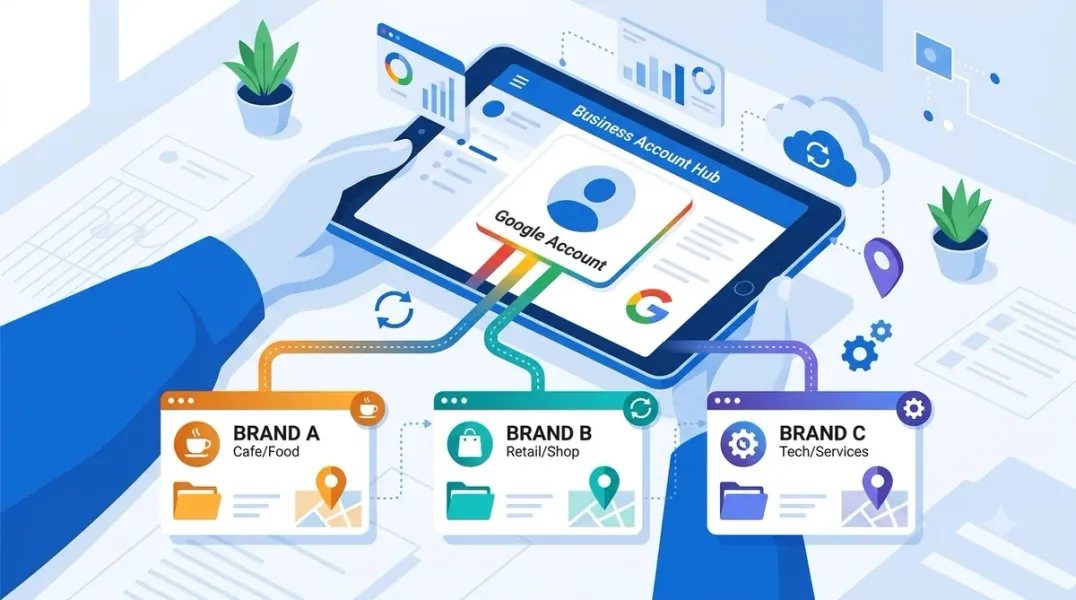
Google’s recommended structure for multi-brand management uses several account types working together .
Organization accounts represent your agency or company. They act as containers for multiple listings and groups. Your location groups and user groups live inside it .
Location groups are used to manage sets of locations. You can organize them by brand, region, or category. A single location can belong to multiple location groups .
User groups manage permissions at scale. Add personal accounts to a user group, then grant the user group access to multiple location groups. When a new team member joins, add them to the user group and they immediately have access to all the locations their peers manage .
Business groups provide a secure way to share access with co-workers. It’s like a shared folder for your profiles. Instead of sharing account credentials, you grant access through the group. When you add a user as a manager or owner to the business group, they can access all current and future profiles placed in the group .
Structuring for Multiple Brands: A Practical Example
Consider a company that operates three restaurant brands across 40 locations. Here’s how the architecture should look:
Organization account: Represents the parent company. All location groups and user groups reside here.
Location groups (organized by brand):
- Location Group A: Brand One (15 locations)
- Location Group B: Brand Two (18 locations)
- Location Group C: Brand Three (7 locations)
User groups (organized by role):
- User Group: Brand One Operations (manages Brand One locations only)
- User Group: Brand Two Operations (manages Brand Two locations only)
- User Group: Marketing Leadership (manages all locations across all brands)
Permissions:
- Marketing Leadership user group is granted Manager access to all three location groups
- Brand-specific operations groups are granted access only to their brand’s location group
This structure ensures that Brand One’s team cannot accidentally edit Brand Two’s profiles, while leadership retains cross-brand visibility .
The Governance Rules That Prevent Problems
Rule 1: Use domain-level emails for primary ownership. The primary owner account should be a domain email for the brand—not a personal Gmail. This signals to Google that you’re authorized to manage the profile and makes verification and future edits easier. Add a second domain email as a backup owner .
Rule 2: Avoid adding multiple personal accounts directly to listings. This creates confusion about who has access and what role they play. Use user groups instead .
Rule 3: Organize location groups by attributes that match your operations. Chains, regions, categories, or brands—whatever structure makes bulk updates and access management easiest. A location can be in multiple groups, so you can organize by brand for content management and by region for operations .
Rule 4: Keep location groups within a manageable size. Google recommends keeping location groups to a few thousand locations for optimal performance and faster search .
Rule 5: One business group per brand or division requiring distinct users. If your organization operates multiple brands with different teams, create separate business groups. Owners and managers of one group can only view and edit profiles within that group .
Bulk Verification for Multi-Location Brands
If you manage 10 or more storefront locations, you may qualify for bulk verification. This allows you to verify multiple locations at once rather than individually .
Eligibility requirements:
- At least 10 storefront locations belonging to the same business/brand
- Proof of legitimacy for each address (storefront photos, business documents like utility bills, licenses, leases)
- Website listing all locations with accurate details
- Store locator on your website matching your verification request
What bulk verification enables: Once your account is bulk verified, new locations you add are verified automatically. Google can still request verification of any location at any time, so maintain proper signage and documentation .
Service-area businesses are not eligible for bulk verification because they lack physical storefront addresses .
Avoiding Duplicate Listing Suspensions
Duplicate profiles are the fastest route to suspension for multi-brand operations. A profile is considered a duplicate when it represents the same business as an existing verified profile, uses the same address, or represents services that should be listed within a single profile .
Common duplicate triggers:
- Creating a profile for each service you offer
- Creating profiles for service areas
- Keyword-stuffed name variations
- Multiple profiles for the same location under different brand names when the brands don’t qualify as distinct
If you discover duplicates, merge them rather than deleting. Merging preserves reviews and history. When two profiles are merged, reviews are typically aggregated, though responses to reviews may not transfer .
Conclusion
Managing multiple brands on Google Business Profile isn’t about restraint—it’s about structure. The profiles themselves are straightforward. The complexity lives in permissions, access, and preventing the sprawl that leads to suspensions.
The correct architecture uses organization accounts as containers, location groups organized by brand or region, and user groups for permission management. Domain emails hold primary ownership. Bulk verification streamlines multi-location onboarding. And duplicates are prevented by applying the distinctness test before creating any new profile.
Get the structure right, and managing 50 profiles across five brands becomes as straightforward as managing one. Get it wrong, and every edit risks suspension.
Call to Action
Managing multiple brands? Download our Multi-Brand GBP Architecture Template—a visual guide to setting up business groups, location groups, and user permissions correctly from day one.
FAQs
Q: Can I have separate Google Business Profiles for different brands at the same address? Yes, if the brands operate independently with distinct signage, identity, and customer-facing operations. Do not put multiple brand names in one profile .
Q: What’s the difference between a business group and a location group? Business groups are shared containers for profiles—like a folder—that simplify sharing access with co-workers. Location groups are used for bulk management of locations organized by attributes like brand or region .
Q: How many profiles can one organization manage? There’s no hard limit. The limit is on what each profile represents—each must be a genuinely distinct entity. For location groups, Google recommends keeping each group to a few thousand locations for performance .
Q: Do I need separate verification for each brand’s locations? Not necessarily. If you qualify for bulk verification (10+ storefronts under the same brand), you can verify multiple locations at once, and new locations are auto-verified .
Q: How do I give a team member access to only one brand’s profiles? Create a user group for that brand’s team, grant the user group access to only that brand’s location group, and add the team member to the user group. They’ll have access only to the locations their group manages .
Internal & External Links
Internal Links
- [How to Audit Google Business Profile User Permissions Across Your Organization]
- [How to Manage Google Business Profiles During a Merger or Business Acquisition]
- [How to Create a Repeatable Quality Assurance Process for Local Listings]
External Sources
- Google Support: Create & manage business groups
- Google for Developers: Manage locations at scale
- Google Support: Guidelines for representing your business on Google
Grow Your Google Maps Ranking on Autopilot
Stop spending hours every week manually replying to customer reviews and writing Google posts. Busirank automates your Google Business Profile to boost your local SEO rankings and turn searchers into paying clients.
 Busirank Team