 Busirank Team
Introduction
Seasonal closures are a normal part of doing business for resorts, farms, summer cafes, and countless other operations. But on Google, they create a specific challenge: how do you tell customers you’re closed for months without looking permanently gone?
The answer matters more than most business owners realize. Google offers two distinct options for closures—“Temporarily closed” and “Special hours”—and choosing the wrong one can send customers to your door when you’re not there, or tank your local rankings for months after you reopen.
Google’s own guidance is clear: seasonal closures and off-season shutdowns should be marked as Temporarily closed . But the execution details—timing, communication, and reopening—determine whether your profile survives the off-season intact or loses years of accumulated authority.
This guide covers the complete lifecycle: pre-closure setup, managing your presence during the off-season, and reopening without losing momentum.
Google draws a hard line between these two options, and getting it wrong has real consequences.
Use “Temporarily closed” when:
- Your business is closed for more than 7 days
- You’re closed for the off-season (seasonal business)
- You’re closed for an unknown period
Use “Special hours” when:
- Your business is closed for 6 consecutive days or fewer
- You’re adjusting hours for a holiday or brief event
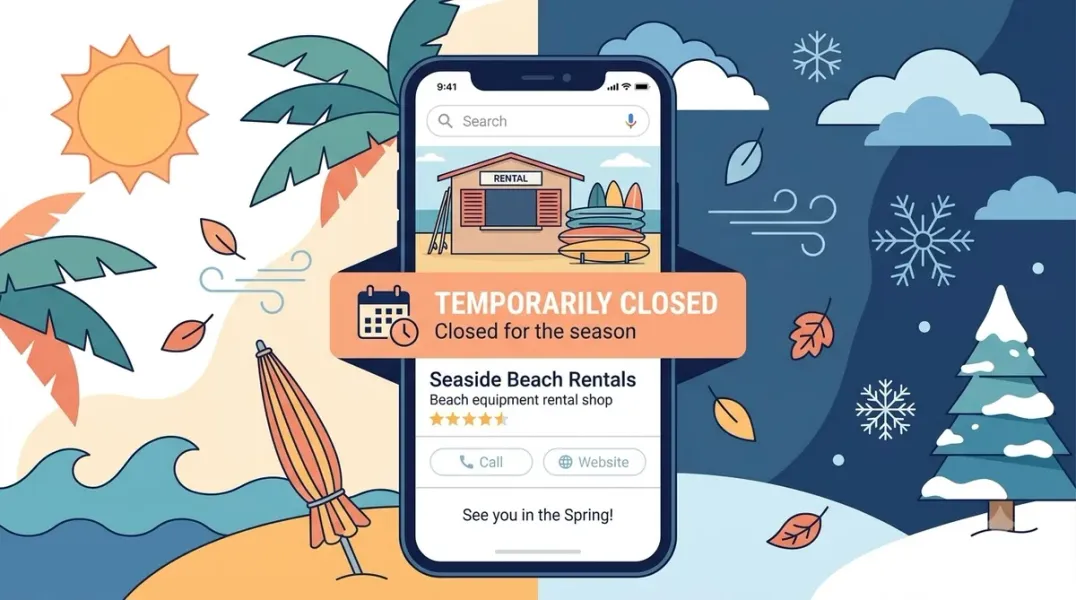
For seasonal businesses—ski resorts closing for summer, beach rentals closing for winter—the choice is unambiguous: Temporarily closed.
Why does this matter? Google states that for broad queries, temporarily-closed businesses can rank after open businesses . This ranking effect depends on factors like business category, query type, and how many competitors are also temporarily closed. If you incorrectly use “Special hours” for a three-month closure, your profile still shows as “Open”—and customers who see that will show up to a locked door. That’s a guaranteed negative review .
Conversely, using “Temporarily closed” correctly keeps your profile visible for name searches while clearly communicating your off-season status .
Before You Close: Preparation Checklist
Seasonal closures shouldn’t be a last-minute decision. Plan the transition at least two weeks in advance.
Set the temporary closed status. Navigate to your Business Profile, select Edit profile → Hours, and choose Temporarily closed next to your hours . For multi-location businesses, use Business Profile Manager to select all affected locations and apply the status in bulk via Actions → Mark as temporarily closed .
Update all external channels. Google isn’t the only place customers look. Sync your closure notice across:
- Website homepage banner or popup
- Social media profiles and pinned posts
- Email auto-reply
- Phone voicemail message
- Physical signage at your location
Be specific in your communication. Google’s own holiday guidance emphasizes this: instead of a generic “Closed,” say “Closed for the season—reopening March 15” . This sets expectations and prevents customers from assuming you’re gone for good.
Add a seasonal note to your business description. Google’s guidelines explicitly allow seasonal businesses to indicate in their description that they’re open only for a specific seasonal period .
During the Off-Season: Maintaining Visibility
“Temporarily closed” does not mean “abandon your profile.” In fact, the opposite is true.
Keep responding to reviews and questions. Customers may still leave reviews or ask questions during your off-season. Timely responses signal that the business is still active and managed .
Post updates periodically. Even a simple post once a month—“Planning for the upcoming season,” “Taking reservations for summer”—keeps your profile fresh and reminds Google you’re still relevant .
Monitor for incorrect permanent closures. Google may send email notifications if someone reports your business as closed . Check your profile periodically to ensure it still shows “Temporarily closed” rather than “Permanently closed.”
Do not delete your profile. Deleting removes all reviews, photos, and ranking history permanently. The “Temporarily closed” status exists specifically to protect these assets during off-seasons .
Reopening: The Recovery Process
The moment you’re ready to reopen, act deliberately.
Change status back to “Open.” Go to Edit profile → Hours and select Open (displays main hours) . This immediately removes the “Temporarily closed” label from Search and Maps.
Verify your regular hours are correct. If your operating hours changed during the off-season, update them now. Don’t leave stale hours from last season .
Publish a reopening announcement. Google automatically creates a post when you change your hours, but you can edit it to include more detail—new offerings, reopening promotions, or a simple “We’re back!” message .
Reactivate review generation. The best signal to Google that you’re active is fresh reviews. Ask satisfied customers from your first week back to leave feedback.
Update all external channels. Remove closure banners, update social media, and refresh your voicemail greeting to reflect normal operations.
Common Mistakes That Cost Rankings
Using “Permanently closed” for a seasonal closure. This is a catastrophic error. Permanently closed listings are deliberately hidden by Google and are difficult for customers to find . Reopening a permanently closed profile can be done, but the ranking damage is significant.
Forgetting to update multi-location profiles. If you have one year-round location and one seasonal location, both need separate treatment. Google allows per-location status changes, but only if you actually make them .
Leaving the closure status in place after reopening. Customers searching for you will see “Temporarily closed” even though your doors are open. Check your status on the first day back .
Assuming Google will rank you the same immediately. Recovery takes time. The ranking effect of temporary closure depends on competition and query type. Reopening puts you back in the pool, but fresh activity—reviews, photos, posts—accelerates recovery .
Conclusion
Seasonal closures don’t have to mean seasonal invisibility. Google provides the tools to manage off-season shutdowns properly—the key is using them correctly and consistently.
The rule is simple: seasonal closure = “Temporarily closed.” Set it before you close, communicate clearly across all channels, maintain minimal profile activity during the off-season, and switch back to “Open” the moment you return.
Businesses that follow this process preserve their review history, ranking authority, and customer trust. Those that don’t often find themselves starting from zero when the season returns.
Call to Action
Closing for the season? Download our Seasonal Business GBP Closure Checklist—a complete framework covering pre-closure setup, off-season maintenance, and reopening recovery steps.
FAQs
Q: Should seasonal businesses use “Temporarily closed” or “Permanently closed”? Use “Temporarily closed.” Google explicitly states that off-season closures and businesses closed for more than 7 days should use this option .
Q: Will my rankings drop during the off-season? Possibly. For broad queries, temporarily-closed businesses can rank after open businesses . Name searches still find your profile. Rankings typically recover after reopening, especially with fresh activity.
Q: Can customers still find my profile when I’m temporarily closed? Yes. When customers search for your business by name, your profile appears and clearly shows “Temporarily closed” . This is why the status exists—to prevent the disappointment of an in-person visit to a closed business.
Q: Should I delete my Google Business Profile during the off-season? Never. Deleting removes all reviews, photos, and ranking history permanently . The “Temporarily closed” status protects these assets during your off-season.
Q: How do I reopen my business after a seasonal closure? Go to Edit profile → Hours and select Open (displays main hours) . Verify your regular hours are correct, publish a reopening post, and encourage fresh reviews.
Internal & External Links
Internal Links
- [Google Business Profile Holiday Hours: How to Keep Customers Informed During Special Events]
- [How to Create a Repeatable Quality Assurance Process for Local Listings]
- [How to Manage Multiple Google Business Profiles Under Different Brands]
External Sources
- Google Support: How to set business hours or mark a closure
- Google Support: Mark your business as closed
- Whitespark: Are Seasonal Businesses Eligible for a Google Business Profile?
Grow Your Google Maps Ranking on Autopilot
Stop spending hours every week manually replying to customer reviews and writing Google posts. Busirank automates your Google Business Profile to boost your local SEO rankings and turn searchers into paying clients.
 Busirank Team