 Busirank Team
Introduction
Relocating a business is stressful enough—packing, moving, updating signage, notifying vendors. But one task often gets overlooked until customers start showing up at the old address: updating your Google Business Profile.
A mismatched address doesn’t just confuse customers. It can trigger Google’s suspension system, tank your local rankings, and erase years of accumulated reviews and authority. Whether you’re moving across the street or across the state, how you handle the transition on Google directly determines how quickly you recover.
This guide covers the complete relocation process—from pre-move preparation to post-move verification—so you keep your visibility intact.
Google treats address changes as a significant edit. The platform wants to prevent spam, so it scrutinizes location changes carefully. Common risks include:
- Temporary suspension while Google re-verifies your new address
- Ranking volatility as your local signals reset
- Lost reviews if you accidentally create a new listing instead of editing the existing one
- Customer confusion if the old address lingers in search results or third-party directories
The key principle: never create a new listing for a moved business. Always update the existing profile to preserve your history, reviews, and authority.
Step 1: Prepare Before the Move
Smart relocation management starts weeks before moving day.
Update your website first. Change your address, contact page, and footer before touching Google. Google cross-references your website, so consistency matters.
Gather documentation. Have your new lease agreement, utility bill, or business registration ready. Google may request proof of address during verification.
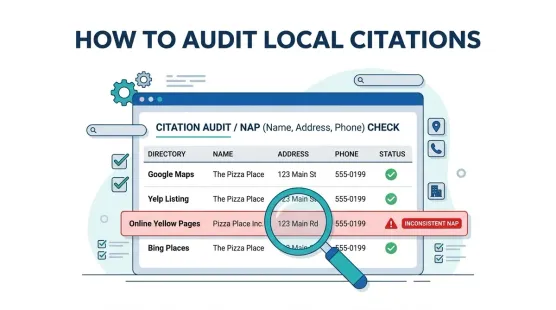
Notify key citations. Update major directories (Yelp, Bing Places, Apple Maps, industry-specific platforms) around the same time. Inconsistent data across the web slows your recovery.
Communicate with customers. Post an announcement on your website and social channels. Consider an email to your customer list with the move date and new address.
Step 2: Update Your Google Business Profile
Once you’ve physically moved or are ready to announce the new location:
- Sign in to your Business Profile on Google Search or Google Maps.
- Select Edit profile → Business information.
- Change your address to the new location.
- Adjust your service area if applicable (for service-area businesses).
- Update your hours if they change during the transition.
- Save and wait for Google’s review.
Critical note: If you’re moving to a completely new service area, you may need to update your business category or service settings as well.
Step 3: Handle the Verification Process
Address changes often trigger re-verification. Depending on your business type, Google may require:
- Video verification – Record your location, signage, equipment, and proof of ownership
- Postcard verification – Google mails a code to your new address
- Phone or email verification – For eligible businesses
- Live video call – A Google representative guides you through verification
During verification, your listing may show as “pending” or temporarily unavailable. Don’t panic—this is normal. Complete the verification promptly and avoid making additional edits until it’s approved.
Step 4: Manage the Old Address
Leaving the old address unattended creates long-term problems.
Mark the old location as “Moved” if Google offers the option. This redirects customers to your new address.
Update your website’s location pages. If you have a dedicated page for the old address, either redirect it or update the content.
Claim and update third-party citations. Use tools like Moz Local, Yext, or BrightLocal to find and fix outdated listings. Prioritize:
- Yelp
- Bing Places
- Apple Maps
- Industry directories
- Chamber of commerce listings
Respond to reviews mentioning the old location. A brief, polite reply explaining the move helps customers and shows Google you’re active.
Step 5: Rebuild Local Rankings
Expect a temporary dip. Local rankings depend on proximity, relevance, and prominence—and proximity just reset for your new location. To recover faster:
- Post updates regularly on your Google Business Profile announcing the move and any grand reopening offers.
- Encourage new reviews at the new location. Recent reviews signal activity.
- Add new photos of the new space, exterior, signage, and team.
- Update your business description if the move changes your positioning.
- Build local citations in the new neighborhood (sponsorships, local news mentions, community events).
Most businesses see rankings stabilize within 4–12 weeks, depending on competition and how thoroughly citations were updated.
Common Relocation Mistakes to Avoid
- Creating a new listing instead of editing the existing one (loses reviews and history)
- Updating Google before your website (triggers inconsistency flags)
- Ignoring third-party directories (customers find stale info elsewhere)
- Leaving old signage or mail forwarding too long (confuses verification)
- Stopping review generation during the transition (slows ranking recovery)
Conclusion
A business relocation doesn’t have to mean starting over on Google. By updating your existing profile, preparing documentation, and systematically cleaning up citations, you preserve the authority you’ve built and recover visibility faster.
The businesses that handle relocation well treat it as a coordinated campaign—website, Google, citations, and customer communication all moving in sync. Those that don’t often find themselves invisible in local search for months.
Plan the move. Update in sequence. Verify thoroughly. Your new location deserves the same visibility as your old one.
Call to Action
Moving soon? Download our Business Relocation Checklist for Local Listings to ensure every citation, profile, and customer touchpoint gets updated on schedule.
FAQs
Q: Will I lose my reviews when I change my address on Google? No. If you update your existing listing, all reviews, photos, and history stay intact. Only creating a new listing would cause you to lose them.
Q: How long does it take for Google to approve an address change? Most address changes are reviewed within a few days, but verification can take longer—up to 2–3 weeks for postcard verification. Video verification is typically faster.
Q: Can I update my address before I physically move? You can, but it’s risky. Google may flag the change if your website or other signals don’t match. It’s safer to update once you’ve moved or are within a few days of moving.
Q: What if my listing gets suspended after the address change? Suspensions after address changes are common. Submit a reinstatement request with proof of the new address (lease, utility bill, business registration). Respond promptly to any Google requests.
Internal & External Links
Internal Links
- [Google Business Profile Reinstatement Appeals: What Evidence Should You Prepare?]
- [How to Handle Unauthorized Changes to Your Google Business Profile]
- [How to Create a Repeatable Quality Assurance Process for Local Listings]
External Sources
- Google Support: Edit your Business Profile on Google
- Google Support: Business Profile verification methods
- Google Support: How to fix suspended Business Profiles
Grow Your Google Maps Ranking on Autopilot
Stop spending hours every week manually replying to customer reviews and writing Google posts. Busirank automates your Google Business Profile to boost your local SEO rankings and turn searchers into paying clients.
 Busirank Team