 Busirank Team
Introduction
A marketing team without a review approval workflow faces a false choice. Let everyone reply freely and risk an off-brand, defensive, or legally careless response going public under the company name. Lock replies behind a single overworked manager and watch response times stretch to 48 hours or more, while Google’s algorithm quietly rewards profiles that look abandoned.
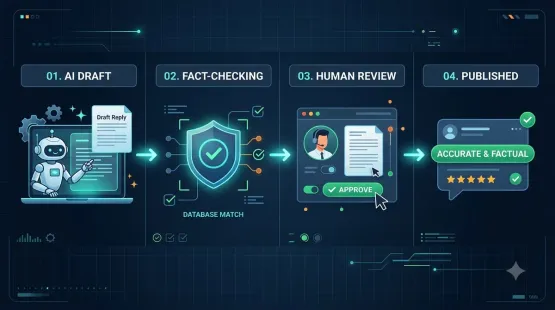
Review approval workflow software exists to dissolve that trade-off. It lets AI draft at machine speed, then inserts a human checkpoint only where judgment actually matters—one- to three-star reviews, staff complaints, safety or legal mentions—while letting routine positive replies move with a click or on autopilot.
The design challenge is not buying the tool. It is deciding who approves what, in what order, and under what conditions. This guide walks through that design step by step, using the approval models that local marketing teams are actually running in 2026.
What a Review Approval Workflow Actually Is
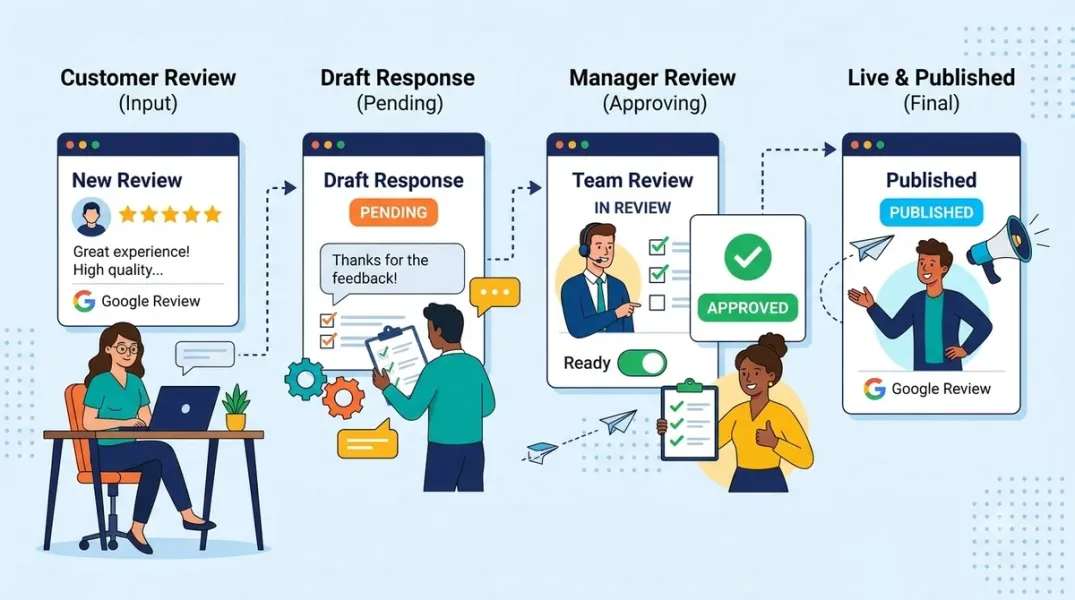
A review approval workflow turns a new review into a draft, routes that draft according to risk, and prevents anything from publishing until the right person has cleared it. Local Review Reply frames the core requirements plainly: the system should turn reviews into drafts, separate low-risk replies from sensitive replies, show what is pending, and stop risky responses from auto-posting.
That definition matters because “approval” is not a single feature. It is a state machine. The same platform describes five states every reply can occupy: Drafted (AI has prepared a reply), Pending approval (a human must check it), Approved (wording accepted), Posted (sent to Google), and Failed (blocked by a Google or account issue). A workflow is only as good as its ability to move replies through those states predictably, without anything stuck in “pending” indefinitely.
Cinquo enforces the same principle with a blunter rule: its AI drafts in your tone using your templates, but the business approves before anything goes out—the tool explicitly never auto-posts on your behalf. That is the conservative end of the spectrum, and it is the right starting point for most teams.
Step 1: Tier Your Reviews by Risk Before You Configure Anything
The single most important design decision is which reviews require human approval and which do not. Get this wrong and the workflow is either a bottleneck or a liability.
The practitioner consensus has converged on a tiered model. Automate replies to rating-only reviews and 4–5 star text reviews using brand-trained templates; hold 1–3 star reviews and anything mentioning safety, legal, or medical claims in a draft queue for human approval. A more granular version routes by star rating and content: 5-star and 4-star text reviews can auto-publish, 5-star and 4-star rating-only reviews use a short template, and any review rated 3 or below goes to a draft folder with an owner notification.
Local Review Reply lists the mandatory-approval triggers that should never be bypassed: one- and two-star reviews; reviews touching medical, legal, financial, property, refund, warranty, or safety topics; staff conduct complaints; reviews containing private customer details; and any reply that could be read as an admission or guarantee.
A workable starting policy for a marketing team:
- 5-star with text: AI draft → auto-publish (or one-click approve in month one).
- 4-star with text: AI draft → auto-publish, with a weekly sample audit.
- 5-star or 4-star rating-only: Template reply → auto-publish.
- 1–3 star, any text: AI draft → mandatory human approval, no exceptions.
- Any review matching a blacklist keyword (injury, lawsuit, fraud, poisoning, discrimination): route to a human immediately and never auto-publish.
Start stricter than you think you need. Local Review Reply’s guidance is to start strict, review the first drafts, then loosen positive-review handling once the voice is stable. Loosening is reversible; a published reply is not.
Step 2: Define the Roles and Permission Levels
Approval only works when ownership is unambiguous. A marketing team typically needs four functional roles, and the software must support them as distinct permission levels:
Drafter / Reviewer — can read reviews and edit AI drafts but cannot approve or publish. This is the right level for junior team members learning the brand voice; reviewers can add comments, but approval remains a separate permission.
Approver — can approve, reject with notes, or publish. This is usually the marketing manager or a senior content lead. In marketing approval systems, this maps to the Brand Lead role, responsible for messaging and consistency, with the caveat that reviewing every asset—including low-risk templated content—clogs the queue. That is exactly why the risk tiers in Step 1 matter: the approver should only see what needs judgment.
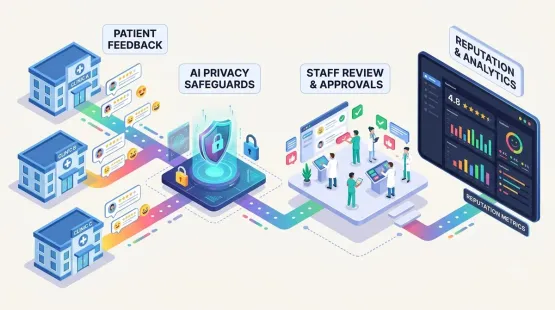
Local operator / franchisee / client — for multi-location businesses and agencies, the person closest to the customer context should be the approver on sensitive reviews. Local Review Reply’s guidance on who approves is direct: “the owner, manager, franchisee, client, or agency account lead who understands the customer context”. Cinquo’s Delegated Users feature supports this structurally: local managers handle their own reviews and see their own location’s metrics, while HQ keeps brand consistency and centralised reporting.
Escalation owner — the person who receives reviews that match blacklist keywords or require legal/HR involvement. This role does not approve wording; it decides whether the reply goes out at all and whether the review should be reported or appealed.
Configure role-based access so that permissions, not etiquette, enforce the boundaries. Approval platforms support multiple approval levels—for example Team Lead, then Brand, then Legal—with any one approver at a level able to sign off on behalf of that level. For most marketing teams, two levels are enough: draft-and-edit and approve-and-publish, with escalation as a side route.
Step 3: Build the Routing Logic
Routing is what turns a queue into a workflow. Zoho Publish illustrates the automation pattern well: when a review arrives, the system can assign it to the right team member based on predefined conditions, notify that person, and trigger different actions for new reviews versus updated reviews (when a customer edits an existing review, a new response is generated based on the updated content).
Two routing rules do most of the work:
Route by risk tier. Low-risk replies stay in the fast lane; sensitive replies are assigned to the approver with the right context.
Route by location or client. In a multi-location or agency setup, a review from Location A should not land in the queue of the manager responsible for Location B. Delegated access and per-location assignment prevent that.
Zoho also shows the escalation-to-ticket pattern, which marketing teams underuse: when a review reports a service issue, billing problem, or product concern, the review is converted into a support ticket so the public reply and the internal resolution proceed together rather than in parallel silos. For a marketing team, this is the difference between acknowledging a complaint and actually closing it.
Step 4: Set Response-Time Targets (and Enforce Them)
Approval workflows fail quietly when drafts sit in “pending” for days. The workflow needs an explicit service-level target for each stage, not just for the final reply.
The benchmark data from the previous post in this series is the anchor: 99% of eligible auto-posted replies were submitted within one hour of the review timestamp, compared with manual response windows that commonly run to 48+ hours. For the human-approval lane, a realistic internal target is same business day for 1–3 star reviews and within 24 hours for escalated reviews—fast enough to demonstrate responsiveness, slow enough to allow real judgment.
Enforce the target through notifications and escalation, not willpower. If a pending draft passes its SLA, it should notify the approver’s backup. Zoho’s “Notify user” action exists precisely because “even the best workflow won’t help if nobody knows a review has arrived”.
Step 5: Account for Google’s Own Moderation Layer
A detail that separates a mature workflow from a naive one: your approval is not the final gate. Google now runs every reply through ReviewReplyState—PENDING, APPROVED, or REJECTED—and the “send” button is no longer the last word. Google’s filter has already been observed rejecting replies in bulk; one ecosystem reported 12,000 review replies rejected by the new moderation layer.
The practical implication for your workflow is a post-publish verification step. A reply that your team approved can still be blocked—for example, by a profanity filter triggered by a reviewer’s legal name. Your workflow should surface replies stuck in PENDING or REJECTED, and someone should own the job of checking that approved replies actually published. This is the one approval layer you do not control, and ignoring it means believing you responded when the public sees silence.
The Software Features That Make This Work
When evaluating review approval workflow software, check for these capabilities rather than a long feature list:
Tiered automation controls. RevioReputation exposes the full spectrum in one product: write every reply yourself, approve AI drafts one by one, or let autopilot publish five-star replies while routing anything critical back to you. A tool that only offers “auto” or “manual” cannot support a risk-tiered workflow.
Explicit approval states. Drafted / Pending / Approved / Posted / Failed, with a visible queue of what is pending.
Role-based permissions and delegated users, so local managers and junior staff operate within boundaries.
Routing and notification rules, including assignment by condition and alerts where the team already works (email, Slack, etc.).
A moderation-status view, so rejected replies are caught rather than assumed published.
Pricing that fits the team. Local Review Reply’s free plan includes approval workflows and brand voice for three replies a month, with paid tiers from roughly A49/month for ten locations and 1,000 replies. RevioReputation starts at $59/month flat with a free plan. SocialPilot bundles approval workflows into a broader social and review platform aimed at agencies and multi-location brands, with mobile-friendly sign-offs. The right price point depends on whether you need a focused review-approval tool or approval inside a wider marketing suite.
A Real Rollout: What “Draft-First, Then Automate” Looks Like
The Homesafe Inspections case study is a useful template because it is deliberately unglamorous. Homesafe runs four locations, receives 20–30 new Google reviews a month, and began with a backlog of roughly 300 unanswered reviews. Its goal was not a large reputation suite; it wanted a focused system that could draft replies, preserve local voice, keep sensitive reviews in approval, and launch quickly.
The rollout sequence: reviews are picked up for connected locations; an AI draft is created using rating, review context, and brand-voice examples; a risk check lets positive reviews move faster while low-star or sensitive reviews stay in approval; the owner approves while response quality is tuned; and autopost for selected low-risk replies is enabled only after the team is confident in the pattern.
That is the implementation model to copy: draft-only launch → tune voice → enable autopost for the safest tier → expand automation as evidence accumulates. It mirrors the broader benchmark finding that hybrid approval workflows outperform both fully manual and fully automated approaches.
Conclusion
Setting up a review approval workflow is a design exercise, not a software purchase. The software matters—it must support approval states, role-based permissions, risk-based routing, and moderation visibility—but the decisions that determine whether the workflow works are yours: which reviews get human approval, who approves them, how fast they must move, and how you verify that approved replies actually published.
The pattern that holds up across the 2026 tooling landscape is the tiered, draft-first workflow. Automate the routine positive reviews. Hold every sensitive review for human judgment. Start strict, loosen only when the drafts consistently sound like you. And build in the post-publish check that Google’s moderation layer now makes mandatory, whether or not your tool advertises it.
A marketing team that runs this workflow gets the best of both models: machine-speed coverage with human judgment exactly where a public mistake would cost the most.
Call to Action
Build your approval matrix before you open the tool settings. List your review categories—5-star text, 4-star text, rating-only, 1–3 star, and keyword-triggered (safety, legal, staff names)—and write one word next to each: Auto, Approve, or Escalate. Assign a named owner to each “Approve” and “Escalate” row. Then configure that matrix in your software of choice, run it in draft-only mode for two weeks, and audit every reply before you enable autopost on the safest tier. If you do not yet have a tool, Local Review Reply’s free tier includes approval workflows, or you can run the same process manually in a shared inbox with a Google Sheet as your draft queue—the workflow discipline matters more than the subscription.
FAQs
What is the difference between a review approval workflow and a review management tool?A review management tool collects, monitors, and helps respond to reviews. An approval workflow is the decision structure layered on top: who may draft, who must approve, which reviews bypass review, and what happens when something is rejected. Many tools bundle both, but a tool without configurable approval states and role permissions cannot support a real workflow.
Should any Google review replies be auto-published?Yes—routine positive reviews are the safe tier for automation. The practitioner consensus is to auto-publish 4–5 star text reviews and rating-only reviews, while holding 1–3 star reviews and any review mentioning safety, legal, medical, staff conduct, or private details for mandatory human approval.
Who should be the approver on a marketing team?The person with the customer context and the authority to accept the risk. For single-location businesses, that is usually the marketing manager or owner. For multi-location businesses and agencies, it should be the local operator, franchisee, or account lead, with HQ or the agency retaining brand consistency through delegated access and centralised reporting.
How fast should an approval workflow move?Set a service-level target for the human lane, not just the final reply. A practical target is same business day for 1–3 star reviews and within 24 hours for escalated reviews, with automated notification of a backup approver if the target is missed. Auto-posted replies already clear the one-hour mark in benchmark data, so the bottleneck is always the approval queue.
What happens if Google rejects a reply after we approve it?That is now a normal part of the workflow. Google’s ReviewReplyState puts every reply through PENDING, APPROVED, or REJECTED, and rejections can occur even for professional, friendly replies due to automated filters. Your workflow needs a post-publish moderation check and a named owner who catches rejected replies and resubmits or revises them.
Do I need a dedicated tool, or can I run an approval workflow manually?For low volume, a shared inbox and a spreadsheet with a status column can work. The manual approach breaks down when volume rises, when multiple locations or clients are involved, or when you need audit trails and role permissions. The tool’s value is enforcing the rules you designed—especially the “never auto-publish this category” rules—without relying on memory.
Internal & External Links
Internal links (to other posts in this series):
- AI Review Reply Generator vs Manual Responses: Which Workflow Saves More Time? (previous post)
- How to Automate Google Review Responses Without Losing Your Brand Voice
- How to Manage Google Reviews From Multiple Locations in One Dashboard
- How to Audit Your Team’s Review Responses for Quality and Consistency
- How to Create a Review Escalation Process for Unhappy Customers
- How to Set Up Team Permissions for Secure Google Business Profile Management
External links (sources referenced in this article):
- Local Review Reply — Google Review Approval Workflow Software: https://localreviewreply.com/seo/google-review-approval-workflow-software
- Local Review Reply — Homesafe Franchise Review Reply Workflow Case Study: https://localreviewreply.com/case-studies/homesafe-franchise-review-reply-workflow
- VijayaTech Labs — Negative Google Review Defense: What to Automate, What to Approve, and When to Appeal: https://vijayatechlabs.com/blog/gmb-review-reply-automation-what-to-automate/
- Zoho Publish — How Zoho Publish helps you never miss a Google review again: https://www.zoho.com/publish/reputation-pulse/how-zoho-publish-helps-you-never-miss-a-google-review-again.html
- Cinquo — Reviews optimization app listing: https://apps.apple.com/jp/app/cinquo-reviews-optimization/id1608680945
- GMBapi — Google’s New Moderation Layer: Review Reply Status & The Arrival of Review Media: https://gmbapi.com/news/gbp-review-moderation/
- Capterra — RevioReputation Software Review 2026: https://www.capterra.com/p/10055155/RevioReputation/
- Martech Zone — SocialPilot: Scale Your Brand With Integrated Local, Social, And Reviews: https://martech.zone/socialpilot-social-media-management/
- Marq — 2026 Marketing Approval Workflow: Optimization & Scaling Tips: https://www.marq.com (role definitions for Brand Lead and approval levels)
- Dengage — Approval Workflows documentation: https://dev.dengage.com (multi-level approval configuration)
How to Manage Google Reviews From Multiple Locations in One Dashboard
Grow Your Google Maps Ranking on Autopilot
Stop spending hours every week manually replying to customer reviews and writing Google posts. Busirank automates your Google Business Profile to boost your local SEO rankings and turn searchers into paying clients.
 Busirank Team