 Busirank Team
Introduction
The reason most Google Business Profiles go quiet is not a lack of ideas. It is that posting is a daily interruption—a task that has to be remembered, logged into, written, and published while the business is running. The moment it becomes a daily decision, it becomes a task that loses to everything else on the list.
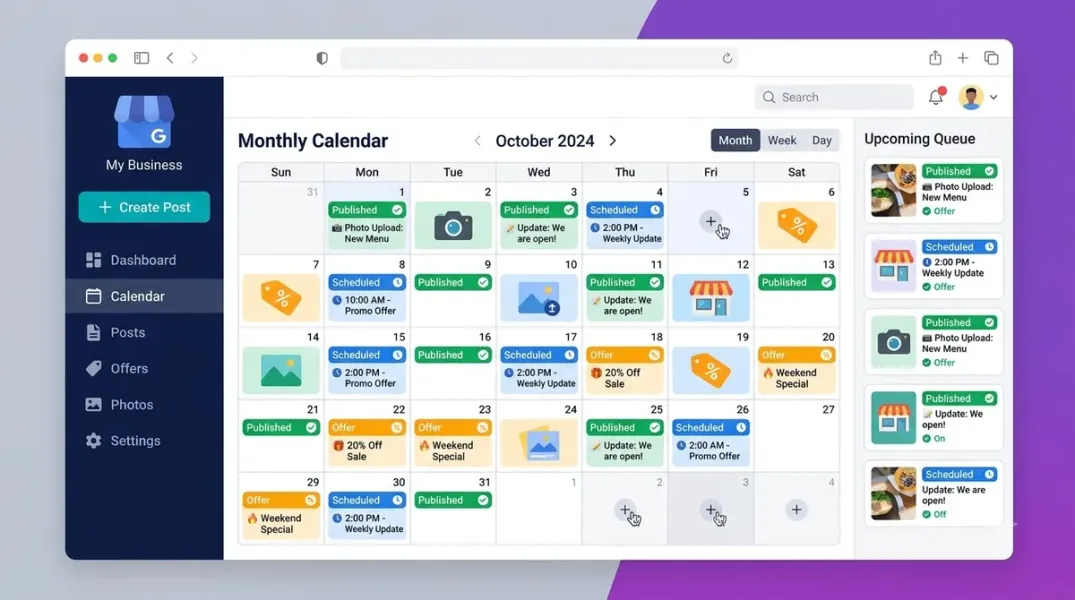
Batching solves this. One focused session a month, using a scheduling tool or a structured workflow, produces four to five posts that keep the profile continuously active without a weekly return to the dashboard. The operational logic is simple, but the execution depends on understanding one thing that most guides gloss over: Google Business Profile posts expire on a schedule you do not control, and the post type you choose determines how long your work survives.
Scheduling Google Business Profile posts in a single sitting is entirely achievable. This guide covers the post types and their lifespans, the cadence that keeps a profile continuously fresh, the honest limits of native scheduling, the tools that support batch and bulk publishing, and a monthly template you can run on the same day every month.
First, Understand What You Are Scheduling Against
Before you open a scheduling tool, you need to know the clocks your posts run on. This is the single most important piece of context for batch scheduling, because a month of posts scheduled without regard to expiry can leave your profile dark for three weeks.
Update posts—the general “What’s New” format most businesses use—stay prominent for about seven days. After that, they move into the profile’s Updates archive, where they remain readable for six months before Google archives them completely unless a date range was set. The seven-day window is the reason every posting guide lands on weekly as the baseline cadence: one post a week guarantees there is always a fresh, live post in the prominent spot.
Offer posts and Event posts behave differently. They stay prominent until the end date you set, and Google archives them when the promotion or event ends. The date range is the only lever you control. A two-week promotion published as an Offer holds its prominent spot for two full weeks; the same words published as a standard Update start fading in a week.
The practical rule for batch scheduling is therefore:
- Anything with a natural end date—a sale, a seasonal menu, a holiday schedule, a workshop—should be scheduled as an Offer or Event with a date range, not as an Update.
- Anything without an end date—a service spotlight, a staff introduction, a customer story, an FAQ answer—goes out as an Update and needs a weekly slot to stay visible.
This is the first decision in the monthly sitting, and it determines the shape of the calendar.
The Cadence That Makes a Month of Posts Work
The posting frequency question has a clearer answer than most local SEO debates. At least once per week is the baseline, because Update posts lose prominence after about seven days. One to three posts per week is the sweet spot; beyond that, returns diminish and consistency matters more than volume.
For a monthly batch, that means four to six posts. The framework that keeps this manageable is a simple four-week rotation, which produces a month of content from four content types without repeating yourself:
- Week 1 — Service spotlight. A deep-dive into one service or product, with a photo and a CTA to book or learn more.
- Week 2 — Customer success story or review highlight. A result, a before-and-after, or a thematic summary of recent reviews, linked to your reviews page or a relevant service page.
- Week 3 — Educational tip or FAQ answer. One common question answered directly, pulled from your Q&A section or the questions your team hears most often.
- Week 4 — Offer, event, or seasonal update. A promotion with a date range, or a seasonal announcement tied to the time of year.
LocaFy publishes this exact four-week template as a weekly post calendar, with the first three weeks as Update posts and the fourth as an Offer or Event. The rotation solves the blank-page problem because each week has a defined content type before you write a single word.
For a business in a competitive local market, two posts per week is a reasonable step up. For most, one per week executed consistently outperforms three per week executed sporadically—and the monthly sitting exists precisely to make consistency the default.
What Google’s Native Tools Actually Allow (and Where They Stop)
Google’s native Business Profile dashboard is free and covers the fundamentals: post creation, photo uploads, CTA buttons, and publishing. What it has historically not offered is reliable post scheduling, which is why third-party tools exist and why every practical guide points to them.
The landscape shifted in 2026. Google introduced native scheduling for updates, offers, and events directly in the dashboard, and added a multi-location publishing capability that lets one post go to multiple profiles at once. Sked Social’s October 2026 guide confirms that Google now lets you select multiple profiles for one post, schedule it, and set it to repeat. Fedica documents the same capability: since November 2025, a “Schedule this post” toggle publishes a Google post later, and Google Business Profile became a supported channel in Fedica’s scheduling pipeline.
The native route is now viable for a single-location business scheduling a month of Updates. It is less viable at scale. The manual interface carries a 20-location cap per action, and programmatic posting through the Business Profile API requires developer resources and an approved quota—0 queries per minute means not approved; 300 QPM means approved. Bulk scheduling through the API supports image-based posts; video publishing is not available through the API in the way bulk scheduling requires. Google’s Business Profile API also enforces a 5 MB maximum file size for post images, which is a common source of failed scheduled posts.
The honest summary: native scheduling handles a single-location monthly batch of Updates and simple Offers. Multi-location networks, agencies managing client profiles, and teams that want approval workflows or bulk CSV imports will need a dedicated tool.
The Tools That Support a One-Sitting Batch
The scheduling tool market has consolidated around a handful of platforms that genuinely support Google Business Profile publishing, not just social networks with GBP bolted on.
SocialBee is the strongest choice for multi-location businesses. Paid plans start at $29 per month, and the platform is built for planning, scheduling, and publishing Google Business Profile posts alongside other channels, with AI assistance for captions and visuals, CTA buttons, and approval workflows.
Publer combines broad network coverage with queues, bulk scheduling, and RSS automation, and it publishes to Google Business Profile alongside nine other networks. It has a free tier covering several networks including GBP scheduling, and Business adds analytics. A 2026 comparison of GBP schedulers names SocialPilot, Publer, OneUp, Semrush Local, and Vista Social as the leading options, with Publer specifically noted for scheduling updates, events, offers, and photo uploads with CTA buttons and offer details.
Semrush Local takes a different approach: its GBP AI Agent handles posting and photo uploads on a schedule you control, uploads photos once, and can publish them automatically according to a cadence the tool recommends. It is a practical option for teams already inside the Semrush ecosystem.
MeetEdgar is built for entrepreneurs and small business owners, with a content library that lets you schedule a post and save it to a reusable queue—useful for recycling evergreen content across months.
Fedica supports Google Business Profile as an account of its own, lets you pick a single shop, three, or the whole chain for one update, and accepts bulk uploads that drop a batch of updates into drafts, a pipeline, or the calendar.
HighLevel’s GBP Post Scheduler targets agencies and multi-location operators, with bulk-publish to multiple locations and built-in AI for creative work. Search Atlas added a full CSV upload UI for importing GBP posts in bulk, which is the fastest path for a large batch across many locations. LocalClarity shipped a guided Bulk Post workflow in April 2026 for creating, customizing, previewing, and publishing posts across many locations.
For a single-location business doing a monthly batch, Publer’s free tier or SocialBee’s entry plan is sufficient. For a multi-location group, the deciding features are bulk CSV import, per-location customization, and approval workflows—not the length of the feature list.
The Multi-Location Batch: Master Caption With Local Slots
Scheduling a month of posts across multiple locations introduces a problem that single-location batching never faces: twenty-five stores publishing twenty-five identical posts reads as corporate spam, not local relevance.
Sked Social’s multi-location guide describes the operating fix: write one master caption with local slots, so each location’s version differs where it should without requiring twenty-five separate writing sessions. The master caption contains the fixed brand message and the CTA; the local slots hold the store name, a location-specific detail, a local landmark or neighborhood reference, and the store’s own landing page URL.
The workflow for a monthly multi-location batch is:
- Draft the four master captions (one per week) with bracketed local slots.
- Export the location list with store codes, local details, and per-location landing page URLs.
- Bulk-upload the batch through a CSV import or a bulk post UI, mapping the slots to the location fields.
- Review a sample of the generated per-location posts before publishing.
- Schedule the batch and set the Offers or Events with their date ranges.
The store code is the join key for this entire operation, and Google will not let you change it by spreadsheet later. Lock it in a master sheet before the first bulk upload, format the column as text so leading zeros survive, and fix duplicates before uploading. A batch built on a broken store code will publish to the wrong locations or fail silently.
Step-by-Step: The Monthly Sitting
Here is the operational sequence for a single focused session, applicable to a single location or a multi-location batch.
Step 1 — Pick the date and protect it. The monthly sitting only works if it is a recurring calendar block, not an intention. The first business day of the month, or the last Friday, are common choices because they sit near the natural planning cycle.
Step 2 — Pull the inputs. Gather the month’s known events, promotions, seasonal dates, new services, staff changes, and the questions your team answered most often last month. This is the raw material for the four content types.
Step 3 — Choose the post type per week. Apply the expiry rule: anything with an end date becomes an Offer or Event with a date range; everything else becomes an Update. Set the date ranges before writing copy, because the date range determines how long the post will be visible.
Step 4 — Write to the format. Lead image at 1200x900 pixels minimum (400x300 is the floor), a first line under 100 characters before the “Read more” truncation, body copy of 150–300 words with the target keyword and service area, and one CTA button pointing to a relevant landing page rather than the homepage. Posts are plain text—no HTML, no body hyperlinks, no hashtags—so the CTA button is the only clickable element and should be chosen deliberately.
Step 5 — Load and schedule. Enter the posts into the tool, set the publish dates and times, and verify the preview for each. For multi-location batches, run the slot mapping and spot-check three generated posts before publishing the batch.
Step 6 — Verify after publish. Check that each post actually published on its scheduled date and that Offer and Event date ranges are correct. Google’s content review can pull a post that trips its policy—common tripwires include a phone number typed into the post text, heavy overlaid text or watermarks on images, and blurry photos. A post that vanished within a day is usually a rejection, not expiry, and can be edited and resubmitted.
Measuring Whether the Batch Worked
The monthly sitting is not complete without a short performance check on the previous month’s posts. Track post views and CTA clicks through GBP Insights, and compare engagement across post types and content themes to identify what resonates. Custom images consistently outperform stock photos, and specific offers outperform generic updates.
Review the data monthly, not quarterly, and use it to adjust next month’s four-week rotation: if the customer success story drove the most clicks, it earns a second slot; if the educational tip underperformed, replace it with a different question or a different format.
One framing point worth keeping: posts contribute to the activity and recency signals in the broader profile, and they create keyword-rich content Google can index for local relevance, but they are a modest ranking factor at best compared with reviews, proximity, and profile completeness. The batch exists to make the profile look actively cared for and to give searchers a reason to engage—not to carry the whole local strategy on its own.
Conclusion
Scheduling a month of Google Business Posts in one sitting is a systems problem, not a creativity problem. The four decisions that make it work are: understand which post types expire and when, commit to a weekly cadence with a four-week content rotation, choose a scheduling tool that matches your location count and approval needs, and build the batch around a master caption with local slots if you manage more than one profile.
The native tools now cover a single-location monthly batch better than they did a year ago, but multi-location networks and agencies still need a dedicated scheduler with bulk upload, per-location customization, and approval workflows. And whichever tool you use, the date range is the lever that triples a post’s lifespan for free: a two-week promotion published as an Offer holds its spot for two weeks, while the same words published as an Update start fading in seven days.
Do the sitting once a month, measure the results once a month, and the profile stops being a task you remember to do and becomes a channel that runs on a calendar.
Call to Action
Block ninety minutes on the first business day of next month and run the batch once. Before the session, gather your promotions, seasonal dates, new services, and the top three questions your team answered last month. During the session, assign each of the four weeks a content type, decide Offer/Event versus Update for each, write to the format limits, and schedule everything. After the batch publishes, check GBP Insights for views and CTA clicks and use the results to adjust the following month’s rotation. If you manage multiple locations, build the master caption with local slots and run a CSV bulk upload rather than publishing location by location.
FAQs
How far in advance can you schedule Google Business Profile posts?There is no single published maximum, and the practical limit depends on the tool rather than Google. Third-party schedulers generally support scheduling weeks or months ahead, and some support recurring or repeating posts. Native scheduling in the Business Profile dashboard has been extended to updates, offers, and events, and multi-location publishing and repeat scheduling are now supported in the native interface. Schedule no further ahead than your promotions are confirmed; a post scheduled six weeks out for a sale that changes is a post you will have to edit.
Do scheduled Google Business Profile posts expire?Yes, and the post type determines when. Standard Update posts stay prominent for about seven days, move to the Updates archive, and are fully archived at six months unless a date range was set. Offer and Event posts stay visible until the end date you set and are archived after that. Scheduling a month of Updates without a weekly cadence leaves the prominent spot empty between posts.
Can you schedule posts natively in Google Business Profile, or do you need a tool?Google now supports native scheduling for updates, offers, and events, and it supports selecting multiple profiles for one post and repeating the schedule. A single-location business can run a monthly batch natively. Multi-location networks, agencies, and teams needing bulk CSV imports or approval workflows still need a dedicated tool because of the 20-location manual cap and the API approval requirements.
How many posts should a month of Google Business Profile content include?Four to six posts is the practical target: one per week as the baseline, with the option of a second weekly post in competitive markets. The four-week rotation of service spotlight, customer story, educational tip, and offer/event produces a month of content without repetition. One to three posts per week is the sweet spot; beyond that, returns diminish.
What is the best tool for scheduling a month of GBP posts across multiple locations?The deciding features are bulk CSV import, per-location customization, approval workflows, and support for Offers and Events with date ranges. SocialBee and Publer are strong general-purpose choices; HighLevel, Search Atlas, and LocalClarity are built for agencies and multi-location operators with bulk posting. For a single location, Publer’s free tier or SocialBee’s entry plan is sufficient.
Why did my scheduled post disappear after a day?A post that vanishes within a day or two is usually a content policy rejection, not expiry. Common causes include a phone number typed into the post text, heavy overlaid text or watermarks on images, blurry photos, and content from regulated categories. Check the post status in your dashboard—a rejected post is labeled as such—edit the offending element, and resubmit.
What image size should I use for Google Business Profile posts?Use 1200x900 pixels (4:3 aspect ratio) for best results; the minimum accepted size is 400x300 pixels, and images are cropped to 4:3 in the feed. Google’s Business Profile API enforces a 5 MB maximum file size for post images, so compress large photos before uploading to avoid failed scheduled posts.
Internal & External Links
Internal links (to other posts in this series):
- How to Create a Consistent AI Brand Voice for Every Business Location (previous post)
- How to Plan Google Business Profile Content Around Seasonal Promotions (next in series)
- How to Publish Google Posts Across Multiple Business Locations Efficiently
- How to Choose the Right Call-to-Action for Google Business Profile Posts
- How to Manage Google Business Profiles for Multiple Clients Without Account Chaos
- Best Google Business Profile Management Software for Small Businesses in 2026
External links (sources referenced in this article):
- MeetEdgar — How to Schedule Google Business Profile posts (2026 Guide): https://meetedgar.com/blog/how-to-schedule-google-business-profile-posts
- LocaFy — Google Business Profile Posts: Best Practices and Examples: https://www.locafy.com/blog/gbp-posts-guide
- ReplyOnTheFly — Do Google Posts Expire? Why Yours Disappear After a Week: https://www.replyonthefly.com/blog/do-google-posts-expire
- ReplyOnTheFly — How Often to Post on Google Business Profile (2026 Guide): https://www.replyonthefly.com/blog/how-often-to-post-on-google-business-profile
- Sked Social — How to manage Google Business Profile for multiple locations in 2026: https://skedsocial.com/blog/manage-google-business-profile-multiple-locations
- BrightLocal — Keeping Authenticity in the Time of AI: https://www.brightlocal.com/learn/staying-authentic-ai/
- The Stacc — GBP Posts: Definition, Post Types and Best Practices (2026): https://thestacc.com
- TechCognate — Best Google Business Profile Scheduling Tools: 5 Tools Compared: https://www.techcognate.com
- SocialBee — Top 5 Google Business Profile schedulers in 2026: https://socialbee.com/blog/google-business-profile-scheduler/
- Publer vs SocialBee (2026): https://bestsocialmediascheduler.com
- Semrush — How to Automate Google Business Profile Management with Semrush: https://www.semrush.com
- Fedica — Schedule Google Business Posts: https://fedica.com
- HighLevel — Google Business Profile Post Scheduler: https://gohighlevelassist.freshdesk.com
- Search Atlas — Google Business Profile Update, July 2 2026 Release: https://help.searchatlas.com
- LocalClarity — Release notes: Bulk Posts, Built for Scale: https://www.localclarity.com
- PinMeTo — Google Posts adds scheduling and multi-location publishing: https://www.pinmeto.com
- Google for Developers — Create Posts on Google Business Profile API: https://developers.google.cn
- TimeToPost — How to Schedule Google Business Profile Posts: Native Toggle, Legacy API, Real Limits: https://timetopost.co
How to Plan Google Business Profile Content Around Seasonal Promotions
Grow Your Google Maps Ranking on Autopilot
Stop spending hours every week manually replying to customer reviews and writing Google posts. Busirank automates your Google Business Profile to boost your local SEO rankings and turn searchers into paying clients.
 Busirank Team