 Busirank Team
Introduction
You check your Google Business Profile one morning and something is wrong. The phone number is different. The business name has been altered. Or worse—the entire listing has vanished from search results.
Unauthorized changes to a Google Business Profile can happen in several ways: a disgruntled former employee retains access, a competitor suggests malicious edits, or your listing gets hijacked entirely. Google’s open suggestion system, designed to keep information accurate, also creates vulnerabilities that bad actors exploit.
The good news is that unauthorized changes are reversible. The better news is that most of them are preventable. This guide covers how to detect unauthorized edits, report them through the proper channels, and lock down your profile so it doesn’t happen again.
Understanding what you’re dealing with helps you choose the right response. Unauthorized changes typically fall into these categories:
Suggestion-based edits. Google allows anyone to suggest changes to a business profile. Most suggestions are harmless corrections, but malicious actors can suggest false information—a changed phone number, an incorrect address, or a misleading category.
Former employee or agency access. If someone previously managed your profile and still has owner or manager permissions, they can make edits directly without suggestions.
Full listing hijacking. In the most severe cases, someone takes complete control of your profile—changing the name, phone number, and even the ownership email. The original owner discovers this only when they receive a notification or notice the listing has changed.
Step 1: Identify What Changed and When
Before reporting anything, document the unauthorized changes.
Take screenshots immediately. Capture the current state of your profile showing the incorrect information. Screenshots serve as evidence if you need to escalate.
Check your email for notifications. Google sends notifications when ownership requests are made or when significant changes occur. Missing these emails is how many owners discover changes too late.
Note the timing. When did you first notice the change? When was the last time the profile was correct? This timeline helps Google’s review process.
Review the Business Information section. Check your business name, address, phone number, website, category, and hours. Compare these against your correct information to identify every unauthorized alteration.
Step 2: Report the Changes Through the Right Channels
Google provides different reporting paths depending on the severity of the situation.
For suggestion-based edits:
If someone suggested a change that Google approved, you can suggest an edit to reverse it. Use the “Suggest an edit” feature on your listing and provide the correct information. Google will review the suggestion.
For unauthorized access by a current user:
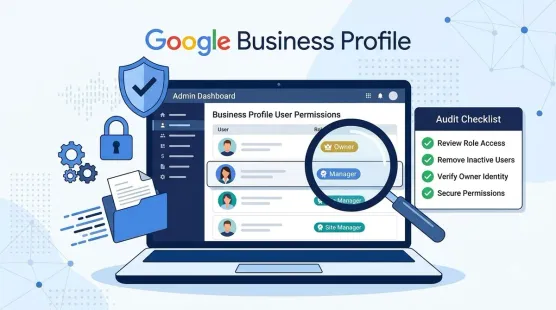
Sign into your Business Profile and go to Users in the settings. Review everyone with owner or manager access. Remove anyone who should not have permissions.
For full listing hijacking:
If you’ve lost control entirely, use the business owner conflict form. This is Google’s dedicated channel for ownership disputes where a third party has taken over your listing.
You can find this form through the Google Business Profile Help Center. Select “Ownership” as your issue category and describe the situation clearly.
For suspected fraud:
If the changes appear designed to deceive customers—like redirecting calls to a competitor or changing the business to something entirely different—report it as fraudulent activity through the same channels.
Step 3: Gather Evidence for Your Case
Google takes unauthorized change reports seriously, but they require proof. Prepare the following:
Proof of identity. A government-issued ID matching the business owner’s name.
Proof of business ownership. Business registration documents, trade license, or articles of incorporation.
Proof of address. A utility bill, lease agreement, or bank statement showing the business name and address.
Photos of your location. Permanent signage outside your business, your reception area, and any branded materials. These prove you operate where you claim.
Screenshots of the incorrect listing. Document the unauthorized changes as they currently appear.
Screenshots of your correct information. Show what the profile should look like.
Organize these in a Google Drive folder with “Anyone with the link can view” permissions. This is the format Google Product Experts recommend for escalation.
Step 4: Request Ownership Recovery
If you’ve lost ownership entirely, the recovery process follows Google’s standard ownership request flow—but with a twist when the current “owner” is unauthorized.
Try the built-in ownership request first. Open your listing on Google Maps, click “Own this business?”, and submit a request. Google emails the current controller, who has 3 days to respond.
A hijacker will almost certainly ignore it. After 3 days with no response, you may have the option to claim the profile yourself through verification. Use an email address on your business’s own domain—this improves your odds significantly.
If you can’t claim it, escalate through the business owner conflict form. Explain that the current owner is unauthorized and provide your evidence package.
Critical warning: Do not create a new listing while fighting for your original profile. This creates a duplicate, confuses customers, and can result in Google penalizing both listings. The original profile retains your review history and ranking authority—it’s worth fighting for.
Step 5: Secure Your Profile After Recovery
Once you regain control, prevent it from happening again.
Audit all users immediately. Go to Users and remove anyone you don’t recognize. Check for pending edits that might reapply unauthorized changes later.
Enable email alerts. Google sends notifications for profile changes and ownership requests. These alerts are your early warning system. Check them regularly.
Limit owner access. Only trusted individuals should have owner permissions. Use manager roles for team members who need editing access but not full control.
Monitor your listing. Set up a schedule to check your Business Profile weekly. Third-party tools can alert you when changes are suggested or made.
Don’t use personal emails for owner accounts. Business domain emails are more secure and professional. If a personal account gets compromised, your listing goes with it.
What If Google Doesn’t Respond?
Google’s support for Business Profile issues is limited—there’s no phone support for most cases. If you’ve submitted reports and heard nothing back:
Post in the Google Business Profile Help Community. Describe your situation clearly and provide your case ID if you have one. Google Product Experts monitor these forums and can escalate legitimate cases.
Be patient but persistent. Ownership disputes can take weeks to resolve. Submit one thorough report rather than multiple duplicate tickets—duplicates slow down the process.
Conclusion
Unauthorized changes to your Google Business Profile are stressful, but they’re not permanent. Whether it’s a malicious edit, a former employee with lingering access, or a full-scale hijacking, Google provides channels to report and reverse the damage.
The key is preparation. Document everything. Gather your evidence. Use the correct reporting form. Don’t create duplicates or panic-edit while your case is pending.
And once you’re back in control, take the steps to keep it that way. Audit your users, enable alerts, and monitor your profile regularly. The best defense against unauthorized changes is vigilance.
Call to Action
Worried about your profile’s security? Download our Google Business Profile Security Checklist—a step-by-step guide to auditing user permissions, setting up alerts, and protecting your listing from unauthorized access.
FAQs
Q: Can someone else really take over my Google Business Profile? Yes. If an ownership request is made and the current owner doesn’t respond within 3 days, the requester can potentially claim the profile through verification.
Q: What if I can’t access the email account that owns the profile? If the owner email is inaccessible, you’ll need to go through Google’s ownership dispute process. Provide extensive proof of your connection to the business—registration, licenses, utility bills, and photos of your location.
Q: How long does it take to reverse unauthorized changes? Simple suggestion reversals can take days. Full ownership recovery can take weeks. The timeline depends on how quickly Google reviews your evidence and whether the current controller responds.
Q: Should I delete my profile and start over if someone hijacked it? No. Deleting your listing means losing all reviews, photos, and ranking history. Fight for the original profile through the proper channels.
Q: Can Google prevent people from suggesting edits to my profile? Google doesn’t offer a full “lock” on suggestions, but you can monitor and reverse them quickly. Third-party tools can alert you when changes are suggested.
Internal & External Links
Internal Links
- [Google Business Profile Ownership Disputes: How to Regain Control of a Listing]
- [Google Business Profile Reinstatement Appeals: What Evidence Should You Prepare?]
- [How to Audit Google Business Profile User Permissions Across Your Organization]
External Sources
- Google Support: Request ownership of a Business Profile
- Google Support: Fix suspended or disabled profiles
- Google Business Profile Community Help Forum: Recover stolen profile ownership
Grow Your Google Maps Ranking on Autopilot
Stop spending hours every week manually replying to customer reviews and writing Google posts. Busirank automates your Google Business Profile to boost your local SEO rankings and turn searchers into paying clients.
 Busirank Team