 Busirank Team
Introduction
Few things are more frustrating than discovering someone else controls your business’s Google profile. Your listing—the digital storefront customers rely on—is being managed by a former employee, an old agency, or worse, someone with no legitimate claim at all.
Ownership disputes are surprisingly common. Business sales, franchise disagreements, and employee departures all create situations where the person managing your profile isn’t the person who should be. Google’s own community forums are filled with business owners asking how to recover what is rightfully theirs .
The good news: Google has a defined process for resolving ownership disputes. The better news: with the right evidence and approach, most disputes end with the rightful owner back in control. This guide walks you through every step.
Before you can fix the problem, understand how it occurred. Ownership disputes typically arise from:
Former employee or agency access. Someone who once managed your profile still has owner permissions. They may have been removed from your team but never removed from Google’s user list .
Business sales or acquisitions. When a business changes hands, the digital assets don’t always transfer cleanly. The previous owner may still control the Google profile, or you may have inherited a profile managed by someone else .
Franchise disagreements. Franchisees sometimes claim ownership of profiles that should remain with the franchisor, especially during license transitions or disputes .
Unauthorized transfers. In rare cases, someone with co-owner access transfers primary ownership without authorization. The original owner discovers this only when they receive a notification or lose access entirely .
Step 1: Confirm the Ownership Situation
Before initiating a dispute, verify what you’re dealing with.
Check if the profile is claimed. Search for your business on Google Maps or Search. If you see “Claim this business” or “Own this business,” the profile is unclaimed and you can claim it directly .
If the profile is claimed by someone else, you’ll see a message indicating the profile is managed by another user. This is where the ownership request process begins .
Document everything. Take screenshots of your profile, note what information is incorrect, and save any emails you’ve received about ownership or transfers .
Step 2: Request Ownership Through Google’s Process
Google’s official ownership request process is your first step.
Navigate to the profile. Go to business.google.com/add or find your business on Google Search/Maps .
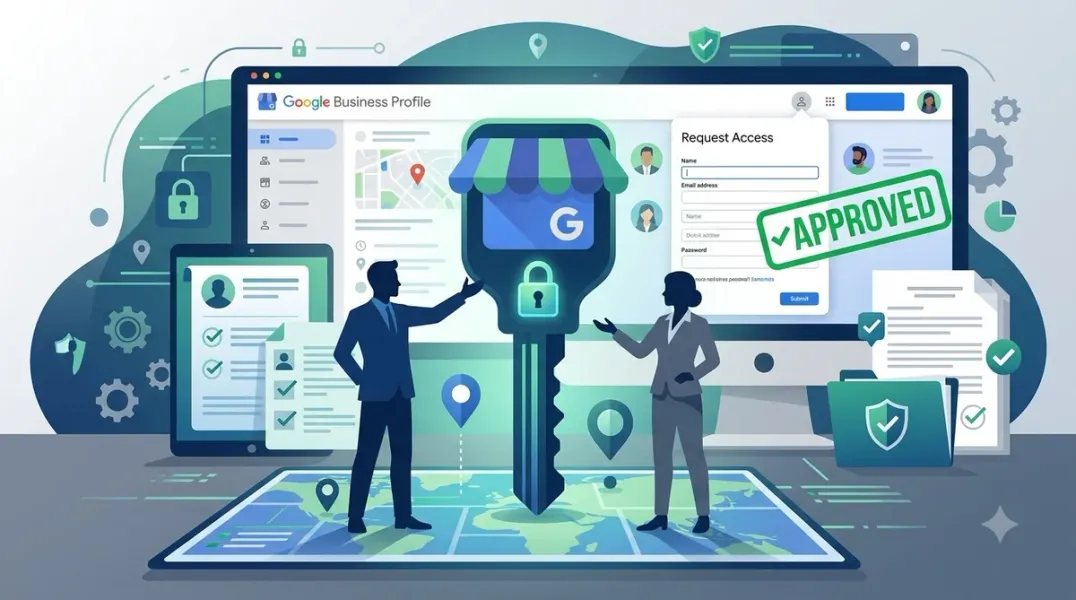
Initiate the request. Look for “Request access” or “Own this business?” and click it. You’ll be asked to provide your name, relationship to the business, and the access level you’re requesting (select “Ownership”) .
Submit the request. Google sends an email to the current profile owner notifying them of your request .
The 3-day waiting period. The current owner has 3 days to respond:
- Approved: You receive approval and gain access
- Denied: You receive a rejection email. You can still suggest edits or appeal
- No response: This is often the best outcome. After 3 days, you may have the option to claim the profile yourself through verification
Critical note: If you are the legitimate owner but the current controller is unauthorized, they will likely ignore or deny the request. This is expected—and it actually strengthens your case when you escalate.
Step 3: Gather Evidence for Your Appeal
If the current owner denies your request or the 3-day window passes without resolution, you’ll need to verify ownership or escalate through Google’s appeals process.
Core documents Google accepts :
- Official business registration (articles of incorporation, LLC filing)
- Business license
- Tax certificates
- Utility bills in the business name (electricity, phone, water, internet)
The critical requirement: The business name and address on every document must match your Google Business Profile exactly . If there’s a mismatch, explain the discrepancy in a cover letter.
Visual evidence for verification :
- Photos of permanent exterior signage showing your business name
- Photos of your reception area, interior, or branded materials
- Video walk-through showing entrance, signage, and workspace
For service-area businesses :
- Photos of branded vehicles or equipment
- Documentation of your service area
Organize your evidence :
- Create a Google Drive folder with “Anyone with the link can view” permissions
- Name files clearly (e.g., “Business-License-2025.pdf”)
- Include a summary document with your Business Profile ID, case ID, and a brief explanation
Step 4: Complete Verification After Claiming
If the current owner doesn’t respond within 3 days, Google may offer you the option to verify and claim the profile .
Available verification methods :
- Postcard: Google mails a code to your business address (most common, takes 1-2 weeks)
- Phone/text: A code sent to the phone number on your profile
- Email: A code sent to an email associated with the business
- Video verification: Record a walk-through showing your business location, signage, and proof of access
For video verification, capture in one continuous recording :
- Show surrounding area (street signs, neighboring businesses)
- Show permanent signage with your business name
- Access staff-only areas (cash register, storage, office)
- Showcase business documents and branded materials
- Keep it 1-2 minutes long
If verification fails, you can contact Google Support and request an alternative method. Say “no more ways to verify” in the first prompt to reach a human who can enable other options .
Step 5: Escalate If All Else Fails
If the standard process fails—verification doesn’t work, the current owner denies without justification, or Google isn’t responding—escalate.
Contact Google Support directly. Use the Business Profile Manager to reach support. Explain your situation clearly and request manual review .
Post in the Google Business Profile Help Community. Product Experts monitor these forums and can escalate legitimate cases. Provide your case ID and describe the dispute .
Use the Business Redressal Complaint Form if the profile contains fraudulent or misleading information (name, phone, or URL) .
Consider legal action for complex disputes, especially those involving franchise agreements or trademark rights. A lawyer specializing in digital property can send formal notices on your behalf .
Preventing Future Disputes
Once you regain control, protect it.
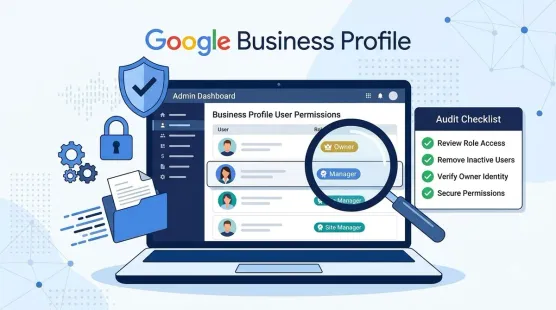
Audit user permissions immediately. Go to Users in your profile settings and remove anyone who shouldn’t have access .
Limit owner access. Only trusted individuals should have owner permissions. Use manager roles for those who need editing access but not full control.
Enable email alerts. Google sends notifications for ownership requests and significant changes. These alerts are your early warning system .
Use a business domain email for the owner account. Personal emails are more vulnerable to compromise and harder to recover if you lose access.
Don’t create a duplicate listing. While fighting for your original profile, never create a new one. This creates confusion, splits your reviews, and can result in penalties for both listings.
Conclusion
Ownership disputes are stressful, but they’re not permanent. Google’s process—request ownership, wait 3 days, verify if no response—resolves most cases without escalation. When the current controller is unauthorized and uncooperative, your evidence package becomes your strongest tool.
The formula is consistent: document everything, gather official business documents in the business name, match every detail to your profile, and escalate through the proper channels if the standard process fails.
Your Google Business Profile represents years of accumulated reviews, customer trust, and search authority. It’s worth fighting for. With preparation and persistence, you can reclaim what’s rightfully yours.
Call to Action
Stuck in an ownership dispute? Download our GBP Ownership Recovery Checklist—a step-by-step guide covering the request process, evidence preparation, and escalation paths for every dispute scenario.
FAQs
Q: What if the current owner denies my ownership request? You’ll receive a rejection email, but you can still appeal the decision with Google. Submit your evidence package through the appeals process and explain why you are the rightful owner .
Q: How long does the entire ownership dispute process take? The initial request takes 3 days. If verification is required, add 1-2 weeks for postcard delivery or a few days for video verification. Escalated cases can take several weeks.
Q: What if I don’t have a business utility bill in the company name? Submit a lease agreement, business bank statement, or tax certificate instead. Google accepts multiple document types—just ensure the name and address match your profile .
Q: Can I claim a profile if the owner email is completely inaccessible? Yes. If the owner doesn’t respond within 3 days, you may have the option to verify and claim the profile yourself. If the owner denies, escalate with your evidence .
Q: Should I create a new listing while fighting for the old one? No. Creating a duplicate listing splits your reviews, confuses customers, and can result in penalties for both profiles. Fight for the original .
Internal & External Links
Internal Links
- [How to Handle Unauthorized Changes to Your Google Business Profile]
- [Google Business Profile Reinstatement Appeals: What Evidence Should You Prepare?]
- [How to Audit Google Business Profile User Permissions Across Your Organization]
External Sources
- Google Support: Request ownership of a Business Profile
- Google Support: Business Redressal Complaint Form
- Google Business Profile Community Help Forum: Unauthorized Google Business Transfer
Grow Your Google Maps Ranking on Autopilot
Stop spending hours every week manually replying to customer reviews and writing Google posts. Busirank automates your Google Business Profile to boost your local SEO rankings and turn searchers into paying clients.
 Busirank Team