 Busirank Team
Introduction
Not every business wants customers walking through the door. Consultants, private clinics, studios, and professional service providers often operate by appointment only. Yet Google Business Profile (GBP) was built around the assumption that businesses serve customers at a physical location during posted hours.
This creates a specific set of challenges for appointment-only businesses. Should you show your address? What do you put for hours? How do you stop people from showing up unannounced and leaving a one-star review about the locked door?
This guide covers how to configure your Google Business Profile correctly for an appointment-only location, from address visibility and hours settings to booking links and walk-in prevention.
The Rule Is Simple Keep the address displayed if clients attend appointments at your premises. Hide the address and set a service area if you travel to the client .
A therapy practice, tattoo studio, private clinic, or photography studio should display its address. A mobile notary, in-home trainer, or consultant who works on client sites should hide it.
Why Hiding Without Cause Is Risky Google’s guidelines state that businesses must make in-person contact with customers during stated hours to qualify for a Business Profile . The only businesses that can hide their address are those that provide services at a location of the customer’s choosing .
If you hide your address but still serve clients at your premises, you risk profile suspension and lose the visibility that comes from appearing on Maps.
How to Hide Your Address Correctly If you genuinely operate as a service-area business, hide your address through your profile settings. Open your Google Business Profile, select Edit profile, then Business information. Find the location section and toggle off “Show business address to customers” .
When you hide your address, only your service area appears on your profile. If you have not defined a service area, Google defaults to your local area, which you can modify later .
The Hours Problem and How to Solve It Google Business Profile still lacks a simple “By appointment only” option in the regular hours section . This creates a dilemma: leave hours blank and look abandoned, or set normal hours and invite walk-ins.
What Not to Do Do not leave your hours blank. A profile with no hours looks abandoned, and Google surfaces open businesses more readily for “near me” searches .
Do not mark yourself closed outside booked slots. You become nearly invisible during the exact hours people are searching to book .
Do not set 24-hour availability just because you accept online bookings at any time. Hours describe when a customer can be served, not when your booking form is reachable. This generates late-night calls and poor reviews .
What to Do Instead Set your hours to cover the window in which you genuinely accept and attend appointments. If you have a reception window when someone is available to answer the phone, use that as your hours .
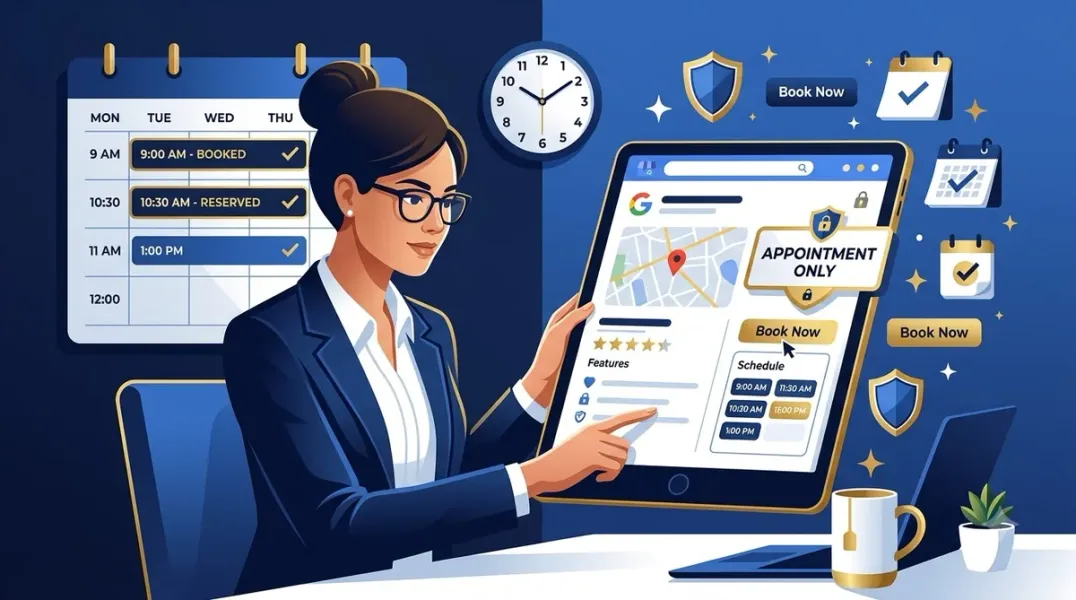
Then use the profile’s fields to make clear that visits are by appointment only. State it plainly at the start of your business description. Use the appointment link field so the primary action is booking rather than visiting .
The Pickup Hours Workaround Google does not offer a dedicated “By appointment only” hours setting, but a workaround exists using Pickup Hours .
If your business offers pickup as a genuine service, you can add Pickup Hours under the Hours section. Select Edit profile, open Hours, find Add more hours, and choose Pickup if available. Add the correct days and times .
However, only use pickup hours if pickup is genuinely a service you provide. Google states that business information should accurately represent how the business operates .
Make Booking the Obvious Action The single most important field on an appointment-only profile is the appointment link. Set it to your booking system’s public scheduling page, a dedicated booking page on your site, or a contact form specifically framed as a booking request .
Avoid pointing it at your homepage. The value comes from landing someone directly on the action. If you have no booking software, a simple page titled “Book an appointment” with a short form still works. The button says book, and the destination matches .
Preventing the Walk-In Problem People miss a single notice. They tend not to miss four. State the appointment requirement in multiple places .
Where to Say It Put “by appointment only” in the first line of your business description. Include it in your service names where it fits naturally, such as “consultation, by appointment.” Add it to a photo caption or a photo of a sign on your door. Post it as a question you ask and answer yourself in the Q&A section .
The Q&A entry is the most underused. Post the question “Do I need an appointment?” and answer it yourself. It displays prominently, and you control both sides of the exchange .
Handling Reviews From People Who Never Became Customers This is the specific reputational risk of appointment-only operation. Someone drives over, finds the door locked, and leaves a one-star review .
How to Respond Respond calmly. Those reviews are read by future customers, and your response matters more than the complaint.
A response that works: “I’m sorry you had a wasted trip. We work by appointment only so we can give each client our full attention, and our booking link is on this profile. I’d be glad to find you a time if you’d still like to come in” .
Do not argue that the information was clearly displayed, even when it was. If it happens repeatedly, treat it as a signal that your profile is not communicating clearly enough, and add the appointment requirement in another place .
Conclusion
Managing a Google Business Profile for an appointment-only location requires deliberate configuration. Show your address if clients come to you. Hide it if you travel to them. Set hours that reflect when you genuinely serve customers, not when your booking form is online. Make the booking link the primary call to action. And state the appointment requirement in multiple places so people do not show up unannounced.
Call to Action
Ready to make your appointment-only profile work for you instead of against you? Audit your settings today using the strategies in this guide. If you need expert help configuring your profile correctly, contact our local SEO team for a free consultation.
FAQs
1. Should appointment-only businesses show their address on Google?
Yes, if clients attend appointments at your premises. Hide your address only if you travel to the client and never serve customers at your location .
2. What should I put for hours if I am appointment-only?
Set hours covering the window when you accept and attend appointments. State “by appointment only” in your description and use the booking link as your primary call to action. Do not leave hours blank or set 24-hour availability .
3. Can I hide my address if I serve clients at my location?
No. Google’s guidelines state that only businesses providing services at the customer’s location can hide their address. Hiding without cause risks suspension .
4. How do I stop people from showing up without an appointment?
State the appointment requirement in your description, services, photos, Q&A, and booking link. People miss a single notice but tend not to miss four .
5. How should I respond to a review from someone who showed up without an appointment?
Respond calmly. Explain your appointment-only model, apologize for the wasted trip, and offer to find them a time. Do not argue that the information was displayed .
6. Is there a “by appointment only” hours setting in Google Business Profile?
No, Google does not offer a dedicated setting. Set regular hours for when you serve appointments and use Pickup Hours as a workaround if pickup is a genuine service you offer .
Internal & External Links
- Internal Link: [Google Business Profile Booking Links: How to Help Customers Schedule Appointments] (Topic #117)
- Internal Link: [How to Measure Appointment Conversion Rates From Local Search Traffic] (Topic #132)
- Internal Link: [How to Build a Lead Qualification Process for Customers Coming From Google Maps] (Topic #133)
- External Link: Google Business Profile Help: Remove Your Business Address (official Google address management guide)
- External Link: Google Business Profile Help: Manage Your Service Areas (official Google service area documentation)
Grow Your Google Maps Ranking on Autopilot
Stop spending hours every week manually replying to customer reviews and writing Google posts. Busirank automates your Google Business Profile to boost your local SEO rankings and turn searchers into paying clients.
 Busirank Team