 Busirank Team
Introduction
A marketing team with direct publishing access to multiple Google Business Profiles is a liability waiting to happen. One intern edits the wrong location’s hours. An agency posts an unapproved promotion. A negative review gets a reply that nobody reviewed first.
Google Business Profile’s native permissions only define what a user can do—owner, manager, or nothing. They don’t define who should approve what before it goes live. That gap is where mistakes happen.
An approval workflow fills it. It adds a human checkpoint between “content created” and “content published,” creating traceability, consistency, and protection for your brand across every location you manage. This guide covers how to design that workflow, assign roles correctly, and choose the right tooling for your team’s scale.
Google Business Profile edits are immediate and public. A manager can change business hours, publish a post, or respond to a review without any additional confirmation. Once it’s live, customers see it instantly.
For a single-location business, that risk is manageable. For a marketing team managing dozens of profiles across multiple brands, it’s not. The consequences of an unapproved edit range from minor embarrassment (a typo in a post) to operational damage (wrong hours sending customers to a closed door) to reputational harm (an inappropriate response to a negative review).
An approval workflow addresses this by inserting a review step before publication. It also creates a record—who submitted, who approved, what changed, and when—which is essential for auditing and accountability.
Google’s Native Roles vs. Workflow Roles
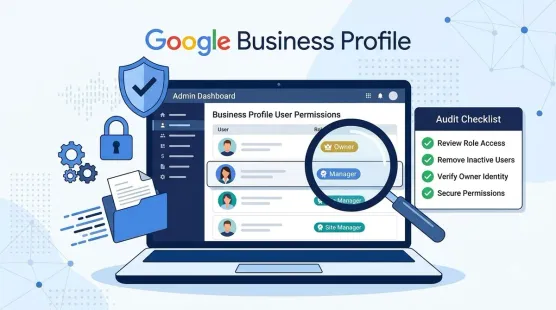
Google Business Profile itself defines three roles. Understanding what each can and cannot do is the foundation for building your workflow :
| Role | Capabilities | Limitations |
|---|---|---|
| Primary Owner | Full control. Transfer primary ownership, add/remove users, delete the profile | Only one per profile |
| Owner | Add/remove users, manage profile info, delete the profile | Cannot remove the primary owner |
| Manager | Edit info, create posts, respond to reviews, view data | Cannot add/remove users or delete the profile |
These roles define technical access. Your approval workflow adds a layer of process on top. A Manager can technically publish a post—your workflow decides whether they should without approval first.
New user restriction: When someone is added as an owner or manager, they face a 7-day waiting period before they can delete/undelete a profile, remove other users, or transfer primary ownership . Standard content tasks (posts, review replies, info edits) are not affected.
Designing the Approval Workflow
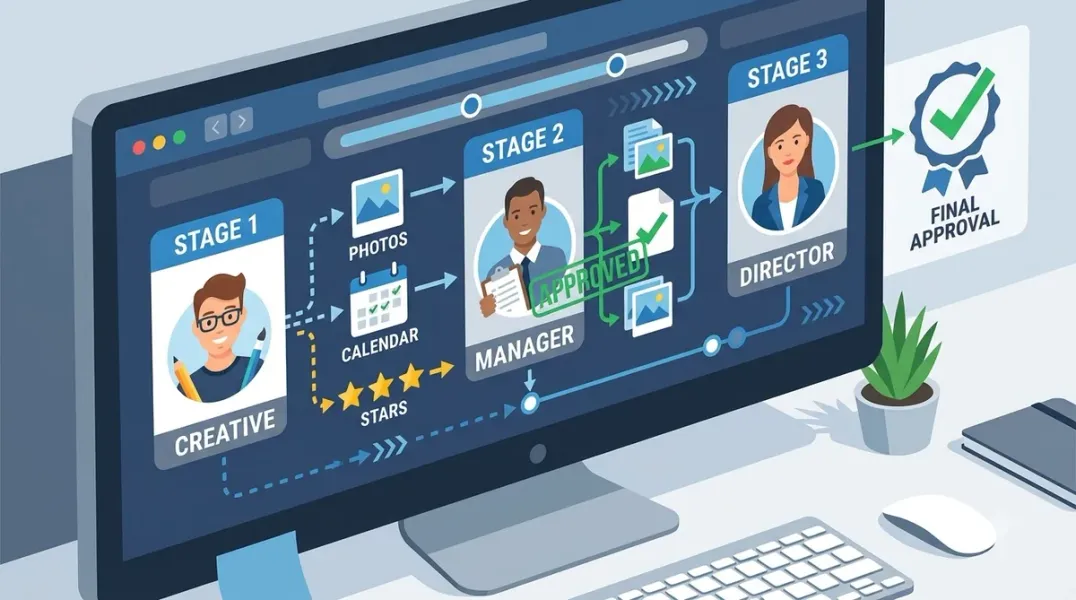
A practical approval workflow separates draft creation from publication. The simplest version uses a shared spreadsheet or project board where team members submit content for review, and an approver signs off before a publisher executes.
Recommended workflow stages:
- Draft — Content creator writes the post, review response, or edit request
- Submit — Creator marks it ready for review (moves it to a “pending” queue)
- Review — Approver reviews against brand guidelines and factual accuracy
- Approve/Reject — Approver either approves or returns with feedback
- Publish — A publisher (or automated tool) executes the approved content
- Log — The change is recorded with timestamp, submitter, approver, and content
What should require approval:
- Business name changes
- Hours updates (especially holiday or temporary)
- Phone, address, website edits
- Responses to negative reviews
- Posts containing promotions, pricing, or offers
What can bypass approval:
- Routine photo uploads from an approved asset library
- Template-based replies to positive reviews (pre-approved language)
- Scheduled posts from a previously approved content calendar
Automation Tools for Approval Workflows
For teams managing multiple profiles, dedicated tools remove the manual overhead of spreadsheets and email threads.
Fedica offers a Google Business Profile scheduler with a built-in approval queue. Drafts can be parked for client or internal sign-off before they reach Google. It supports bulk uploads, multiple locations connected under one account, and a shared content calendar alongside other platforms .
Reportei’s Flux provides an approval system where clients can review content via a link without logging in. It supports batch scheduling, project-based organization by client or brand, and visual calendars showing scheduled posts .
RecurPost publishes to Google Business Profiles through the official API, supporting “What’s New” and Offer post types with CTA buttons. It includes an approval workflow where clients approve queues from a shared calendar link. It also re-checks published posts 30 minutes and 6 hours later, alerting you if Google rejects a post after initial acceptance .
Search Atlas’s GBP Galactic includes an “Approve before posting” toggle for automated posts. When enabled, generated posts enter an “Awaiting Approval” status until a team member reviews and approves them. It also supports AI image generation for automated posts .
For custom workflows, n8n offers a template that generates weekly Google Business Profile content with Gemini, sends drafts to Telegram with Approve/Veto buttons, and learns from vetoes by storing writing rules that constrain future content . This approach is useful for teams that want AI-assisted drafting with human approval checkpoints.
Role Assignment for Marketing Teams
Google’s best practices for multi-location management recommend not adding multiple personal accounts directly as admins to individual locations. Instead, use user groups to manage permissions at scale .
A practical role structure for marketing teams:
| Team Role | GBP Access | Workflow Responsibility |
|---|---|---|
| Marketing Director | Owner (second internal account) | Final approval for high-risk changes |
| Content Approver | Manager | Reviews and approves posts, review replies |
| Content Creator | Manager | Creates drafts, submits for approval |
| Agency/External | Manager | Creates drafts, submits for approval |
| Publisher | Manager | Executes approved content (if not automated) |
Key principle: The person who creates content should not be the same person who approves it, even if they technically hold the same GBP role. The workflow enforces the separation.
Google’s own guidance for operations teams recommends creating separate non-personal Google accounts for each agency acting on behalf of the business, and using user groups to grant permissions rather than adding individuals directly .
Change Logging and Audit Trail
An approval workflow without a record is just a conversation. To make it auditable:
- Log every submission: Content, submitter, timestamp, target location
- Log every approval: Approver, timestamp, any notes or conditions
- Log every publication: Confirmation that content went live (or error if it failed)
- Retain logs: At minimum for the current quarter, ideally longer for compliance
Tools like RecurPost log every status check per post, providing a history you can show to clients or stakeholders . For manual workflows, a shared spreadsheet with columns for each stage works if the team actually uses it.
Conclusion
An approval workflow for Google Business Profile management isn’t about slowing your team down. It’s about preventing the kind of mistake that takes months to undo—a suspended profile, a viral negative response, a brand damaged by an unapproved edit.
The foundation is correct role assignment using Google’s Owner/Manager model and user groups for scale. The process layer separates draft creation from publication, with a clear approval step for high-risk changes. The tooling layer—whether a dedicated scheduler with approval queues or a custom automation—removes manual coordination overhead.
The teams that manage multiple brands or dozens of locations well aren’t the ones with the most talented content creators. They’re the ones with the most reliable systems.
Call to Action
Ready to standardize your team’s GBP workflow? Download our GBP Approval Workflow Template—including role assignment matrix, content risk tiers, and a change log format you can adapt for your team’s tools.
FAQs
Q: What’s the minimum viable approval workflow for a small team? A shared spreadsheet where content is submitted, reviewed, and marked “approved” before a publisher executes it in the GBP dashboard. It’s manual, but it creates the separation and record.
Q: Do I need Owner access to publish content? No. Manager access is sufficient for posting, replying to reviews, and editing business information. Owner access is only needed for user management and profile deletion .
Q: Can clients approve content without a Google account? Yes, some tools support approval links that don’t require login. Reportei’s Flux and RecurPost both offer client approval via shared links .
Q: What happens if an approved post gets rejected by Google after publishing? Tools like RecurPost re-check published posts 30 minutes and 6 hours later. If Google rejects a post, you receive an alert with the reason. Manual workflows require checking the profile after publishing .
Q: How do I handle approvals across multiple brands with different teams? Use location groups organized by brand and user groups for each brand’s team. Grant user groups access only to their brand’s location group. Marketing leadership can hold access to all location groups for cross-brand visibility .
Internal & External Links
Internal Links
- [How to Audit Google Business Profile User Permissions Across Your Organization]
- [How to Manage Multiple Google Business Profiles Under Different Brands]
- [Google Business Profile API vs Manual Management: Which Workflow Is Better?]
External Sources
- Google Support: Manage owners and managers of your Business Profile
- Google for Developers: Best practices for business management
- n8n: Generate and approve Google Business Profile posts with Gemini and Telegram
Grow Your Google Maps Ranking on Autopilot
Stop spending hours every week manually replying to customer reviews and writing Google posts. Busirank automates your Google Business Profile to boost your local SEO rankings and turn searchers into paying clients.
 Busirank Team